Applies To: Cloud-managed Fireboxes
Some of the features described in this topic are only available to participants in the WatchGuard Beta program. If a feature described in this topic is not available in your version of Fireware, it is a beta-only feature.
Use a certificate signing request (CSR) to obtain a signed certificate from a Certificate Authority (CA).
You can generate a CSR from WatchGuard Cloud for your Firebox and submit it to a Certificate Authority (CA) to obtain a signed certificate. You can also use the Let's Encrypt service to request a certificate from WatchGuard Cloud.
Standard CSR requests are available at both the account and device levels in WatchGuard Cloud. The Let's Encrypt certificate service is available only through Device Configuration > Device Certificates for cloud-managed Fireboxes.
Your operator role determines what you can see and do in WatchGuard Cloud. Your role must have Account Administration permissions to view or configure this feature. For more information, go to Manage WatchGuard Cloud Operators and Roles.
CSRs created for your account can only be imported at account level. CSRs created for a device can only be imported at device level.
Create a Certificate Signing Request (CSR)
You can create a standard CSR at the account or device level in WatchGuard Cloud.
To create a CSR for your account, go to Administration > Certificates. To create a CSR for a cloud-managed device, select the device and go to Device Configuration > Device Certificates.
To create a CSR:
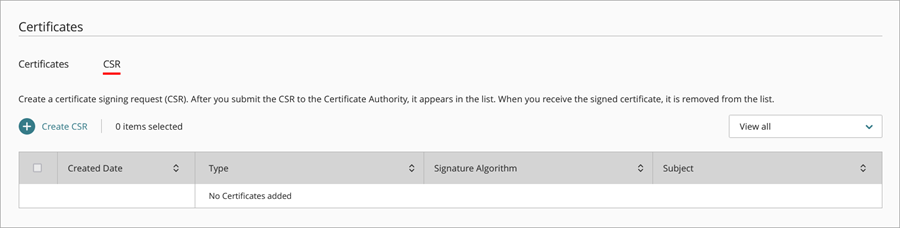
- Select the CSR tab.
- Click Create CSR.
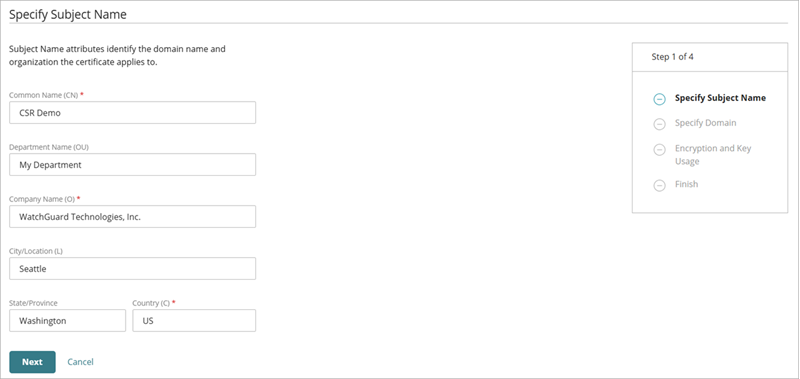
- On the Specify Subject Name page, enter these certificate request details:
- Common Name (CN) — The fully qualified domain name of the device you want to secure, such as host.example.com.
- Department Name (OU) — Enter the OU (Organizational Unit) that the device belongs to, such as IT or Sales.
- Company Name (O) — Enter the company name.
- City/Location (L) — Enter the city or location where the device is located.
- State/Province (ST) — Enter the two-character state or province code where the device is located.
- Country (C) — Enter the two-character country code where the device is located.
- Click Next.
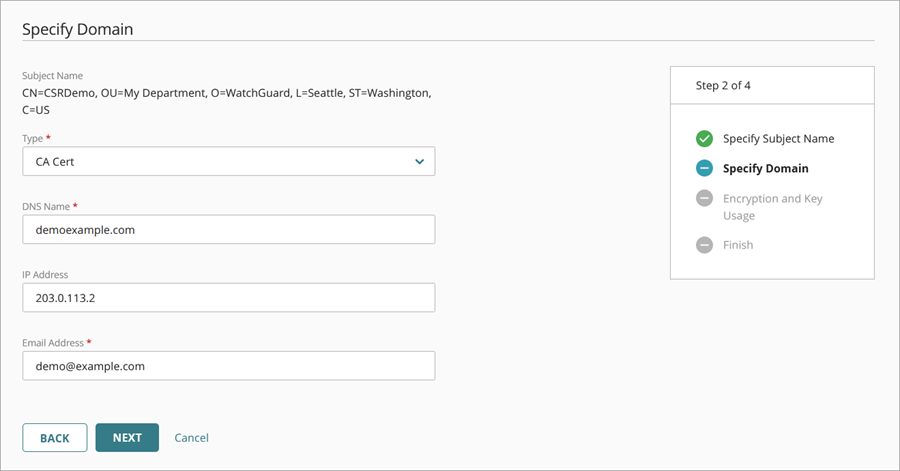
- On the Specify Domain page, from the Type drop-down list, select the type of certificate request.
- DNS Name — The DNS name of the device you want to secure, such as host.example.com.
- IP Address — The IP address of the device you want to secure.
- Email address — The email address associated with your request.
Enter these details:
The IP Address text box appears when you create a CSR from the Device Certificates page.
- Click Next.
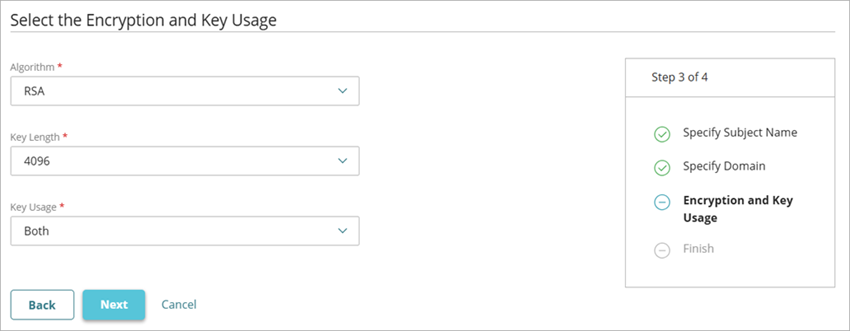
- On the Select the Encryption and Key Usage page, select the Algorithm, Key Length, and Key Usage. By default, the certificate uses RSA encryption, 4096-bit key length, and both encryption and signatures for key usage.
- Click Next.
The Finish page opens.
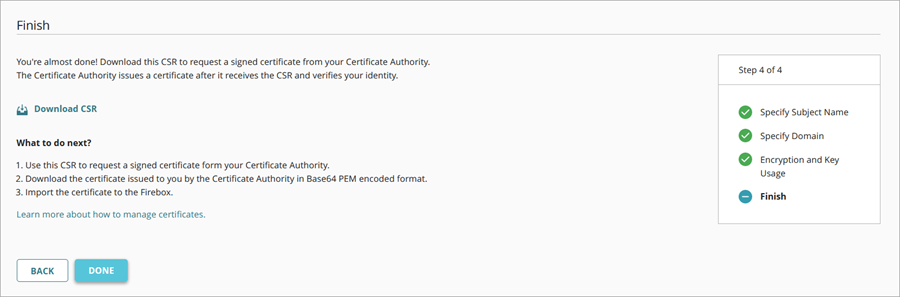
- Click Download CSR and save the file on your computer.
- Send this CSR to a certificate authority (CA) to obtain a signed certificate.
- Click Done.
- Select the CSR tab to view your CSR in the list. When you receive the signed certificate, the pending CSR is removed from this list.
Next Steps
After you receive the signed certificate from the CA, you can add it to WatchGuard Cloud or a specific device. For more information, go to Add a Certificate.
Request a Let's Encrypt Certificate
The feature described in this section is only available to participants in the WatchGuard Firebox Management Beta program. If a feature described in this section is not available in your version of Fireware, it is a beta-only feature.
To use this feature, your Firebox must run Fireware v2026.4 or higher.
Use the Let's Encrypt service to request a certificate from WatchGuard Cloud as an alternative to the standard CSR workflow. The Let's Encrypt certificate service is available only through Device Configuration > Device Certificates for cloud-managed Fireboxes.
The Let's Encrypt certificate service is not available from Administration > Certificates. The Firebox must communicate directly with Let's Encrypt to validate the domain and obtain the certificate.
To request a certificate with Let's Encrypt:
- Select the CSR tab.
- Click Create CSR.
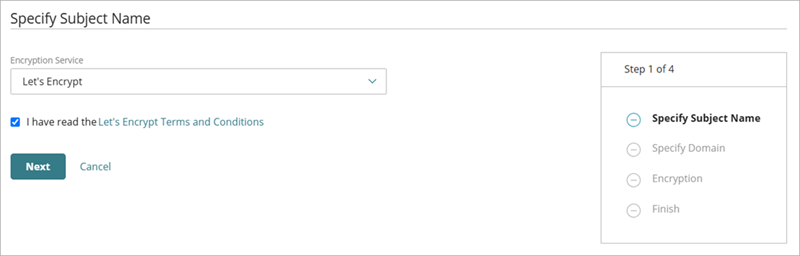
- From the Encryption Service drop-down list, select Let's Encrypt.
- Select the I have read the Let's Encrypt Terms and Conditions check box.
When you select Let's Encrypt, WatchGuard Cloud does not require subject name information such as Company Name, Department Name, City/Location, State/Province, or Country.
- Click Next.
- On the Specify Domain page, in the DNS Name text box, enter the fully qualified domain name (FQDN) of the device you want to secure, such as host.example.com.
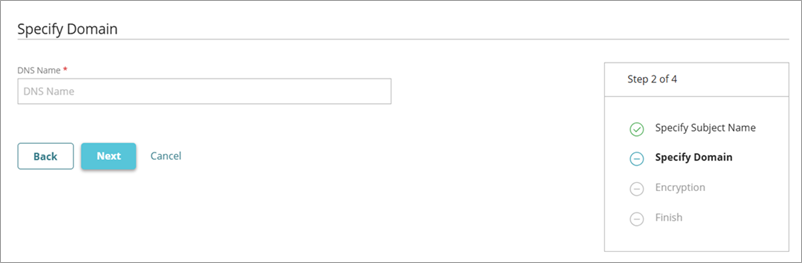
- Click Next.
- On the Select the Encryption page, select the Algorithm and Key Length. By default, the certificate uses RSA encryption, 4096-bit key length.
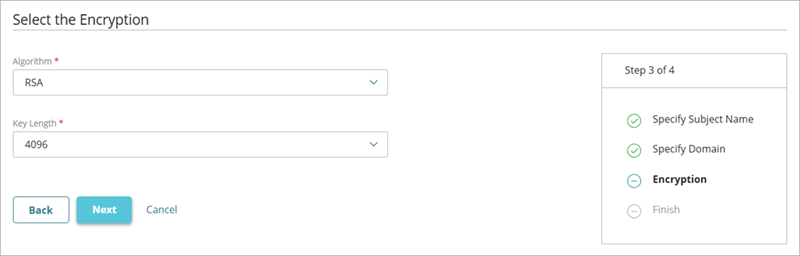
- Click Next.
The Finish page opens. - On the Finish page, click Done.
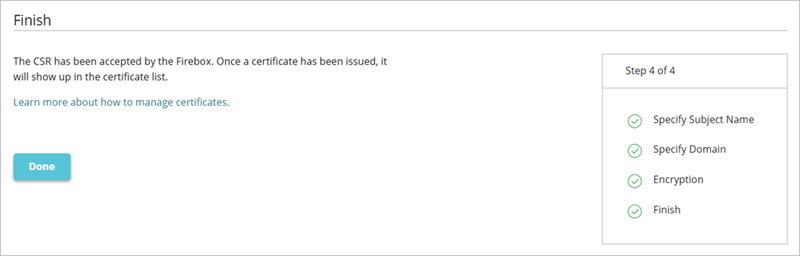
WatchGuard Cloud sends the certificate request to the Firebox. The Firebox communicates directly with Let's Encrypt to obtain the certificate. After Let's Encrypt issues the certificate, it appears in the certificate list and includes an (ACME) tag. The Firebox automatically renews the certificate before it expires, which eliminates the need to create and submit a new certificate request for each renewal.
Manage Certificates in WatchGuard Cloud
Configure the Web Server Certificate for Firebox Authentication in WatchGuard Cloud