Applies To: WatchGuard Cloud
Rai is an always-on virtual team member that delivers an AI-powered intelligence experience in WatchGuard Cloud. Rai operates as a security expert who can continuously execute routine and complex security operations at machine speed across your environments. Rai expands how much your MSP team can execute, with your team always in control of critical decisions. All actions are consistent, traceable, and aligned with the current state of the environment through clearly defined policies.
To view the Rai home page, Service Providers must enable ThreatSync on their own Subscriber account, and on any other devices or Subscriber accounts they want to view data for. For more information, go to Enable ThreatSync.
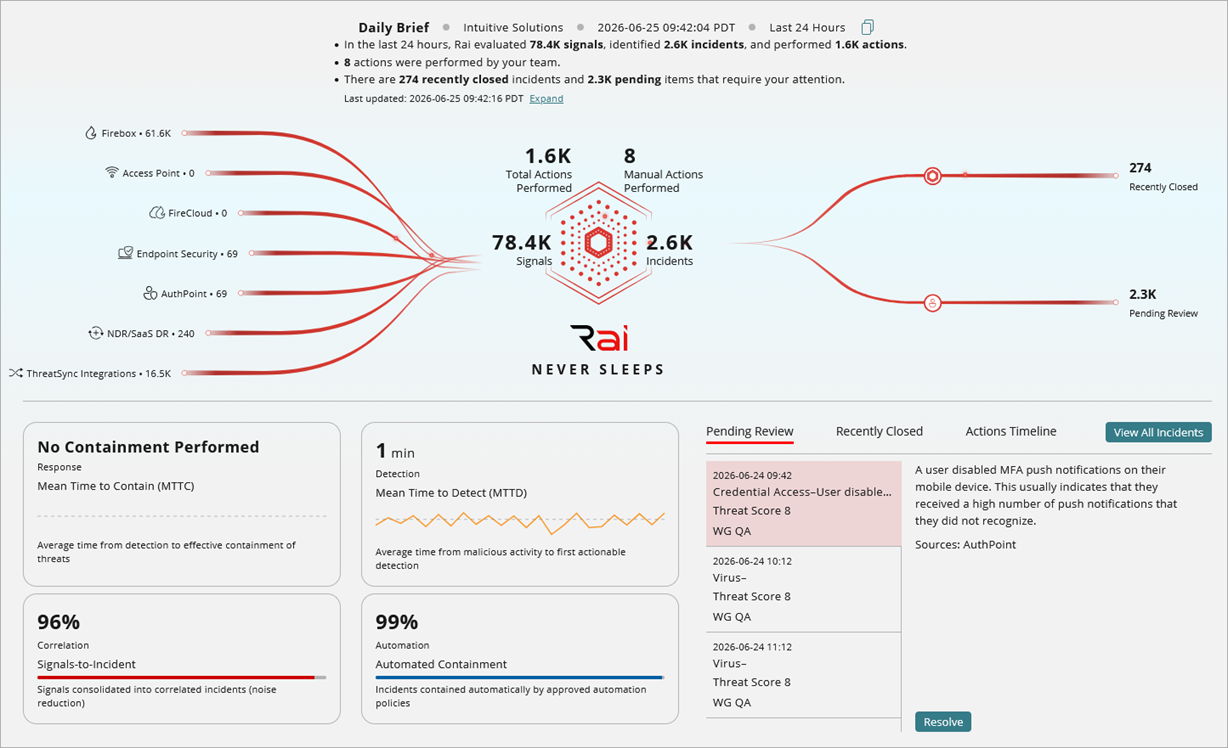
Rai Home
When you log in to WatchGuard Cloud as a Service Provider, and you have ThreatSync enabled, the Rai home page opens by default. When you log in to WatchGuard Cloud as a Subscriber, and you have ThreatSync enabled on the Subscriber account, you view the Rai home page for that account.
Select Rai in the top menu of WatchGuard Cloud to return to the Rai home page.

The Rai home page is divided into these primary sections:
Note: Your operator role determines what you can do in WatchGuard Cloud. Your role must have the ThreatSync Core permission to view or configure this feature. For more information, go to Manage WatchGuard Cloud Operators and Roles.
Daily Brief
When you open the Rai home page, the default daily brief appears and shows a short summary of what occurred in the last 24 hours. Use the drop-down list to select a different time range for the daily brief.

The daily brief includes information about:
- Signals received
- Incidents identified
- Actions performed
- Closed items
- Pending items
To copy the summary, click  .
.
Expanded Daily Brief
To view an AI-generated, expanded daily brief, click Expand. The expanded daily brief highlights notable patterns, most-seen threat types, higher-risk customers, and automated actions performed on your behalf. The expanded Daily Brief generates immediately when you open the Rai home page and includes a time stamp. To return to the default daily brief, click Collapse.
AI-generated content can occasionally produce incorrect, incomplete, or outdated information. We recommend independent verification of critical claims or facts.
Visualization
The Rai home page includes a visualization of the signals that combine to form incidents. Signals are the raw events that, when correlated, form an incident. An incident is an activity that is confirmed to be malicious. An incident can be as simple as an indicator of compromise, or as complex as an indicator of attack that sequences behaviors to determine malicious intent.
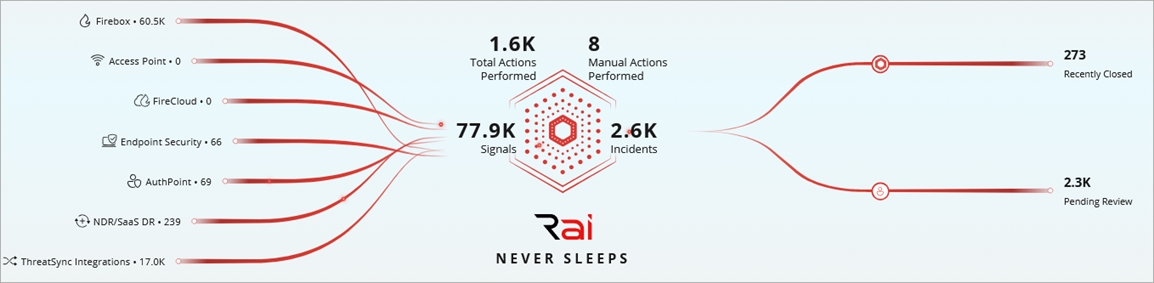
Rai receives signals from your WatchGuard products and devices. With an active license, these WatchGuard products and devices can send data to Rai:
- Firebox (locally-managed with cloud reporting or cloud-managed)
- Access Point (cloud-managed)
- FireCloud
- Endpoint Security
- AuthPoint
- NDR/SaaS DR
- ThreatSync integrations
Rai correlates the ingested signals and forms them into incidents. These incidents are then separated by Rai into these categories:
- Recently Closed – Incidents that are closed by an automation policy or manually closed by you or a member of your team.
- Pending Review – Incidents that are New or Read and require your attention.
The more WatchGuard products you have, the more visibility and expanded features you gain access to. When there is no product license in the account, the signal input line shows as gray.
KPI Widgets
Key performance indicator (KPI) widgets appear below the visualization on the Rai home page.
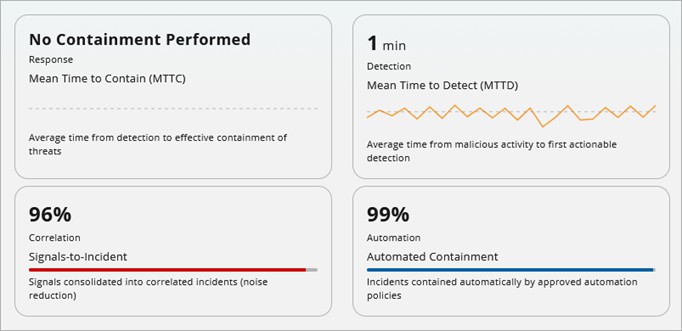
The KPI widgets on the Rai home page include:
- Mean Time to Contain (MTTC) — The average time it takes Rai and the team to contain a security threat after it is detected. This critical incident response metric focuses on speed. The lower the MTTC, the faster security threats are detected and contained, which can reduce the risk of damage.
- Mean Time to Detect (MTTD) — The average time it takes Rai and the team to discover a security threat, breach, or malicious activity. This metric measures efficiency. The lower the MTTD, the faster security threats are detected.
- Signals-to-Incident Ratio — The number of signals that are correlated into incidents. A higher correlation or grouping of signals can transform high volumes of individual signals into a small number of actionable incidents. A higher correlation enables you to focus on high-priority tasks.
- Automated Containment — The incidents automatically contained by automation policies. A high automated containment value indicates that a high number of incidents are contained automatically without human intervention. Automation policies are consistent and traceable, and always apply to the current environment. For information on the automation policies used by Rai, go to About ThreatSync Automation Policies.
Action Tabs
Rai includes these Action tabs below the visualization section:
- Pending Review
- Recently Closed
- Actions Timeline
Pending Review
The Pending Review tab shows the list of open incidents that require review. Each incident is timestamped, includes a threat score, and shows the account where the incident was detected.
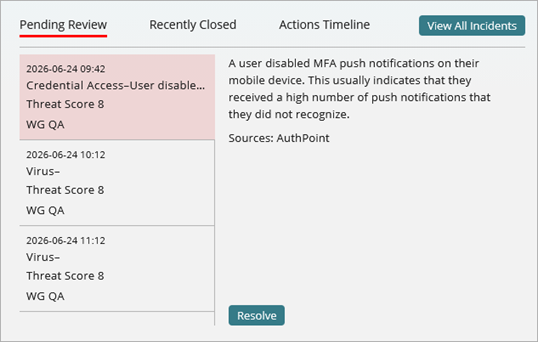
Select an incident in the list column to view a description of the incident and its signal sources (the WatchGuard products that sent the signals to Rai). Click Resolve to view the Incident Details page and perform available actions for that incident.
Recently Closed
The Recently Closed shows the list of incidents that were closed in the selected time range. Each incident is timestamped, includes a threat score, and shows the account where the incident was detected.
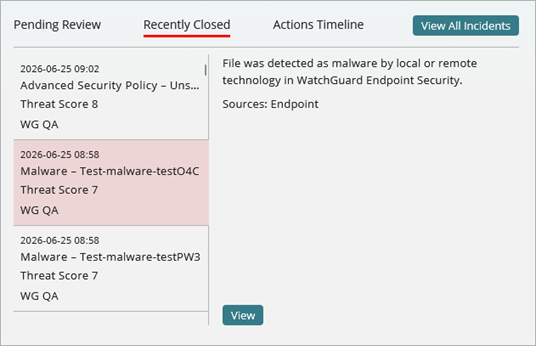
Select an incident in the list column to view a description of the incident and its signal sources (the WatchGuard products that sent the signals to Rai).
Click View to open the Incident Details page for the specific incident.
Actions Timeline
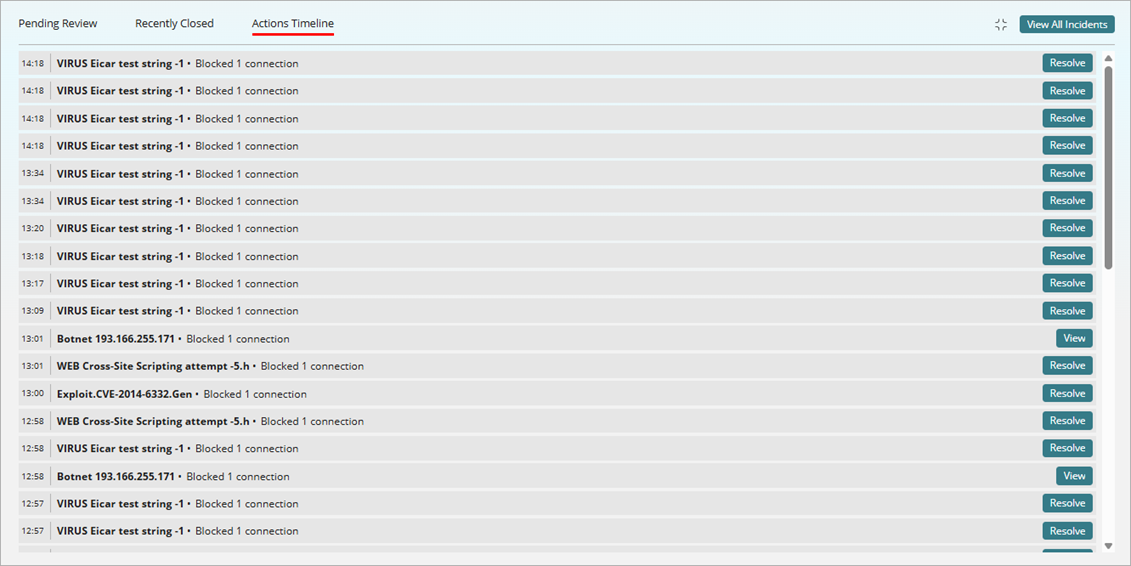
The Actions Timeline tab shows all actions taken in the selected time range. This list includes actions taken by Rai, by you, and by other members of your team. The actions are listed by the time of day and include a brief description of the action and outcome.
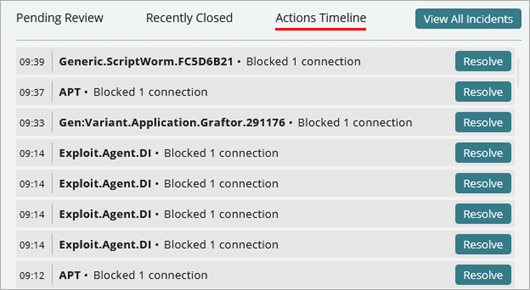
If an action is required to resolve an incident, click Resolve to open the Incident Details page and perform actions for that incident.
Expanded Action Tabs
You can expand the Action tabs section on Rai home to view details for Pending Review and Recently Closed incidents, and to view a larger Actions Timeline.
To expand the Action Tabs section on Rai home, click  .
.
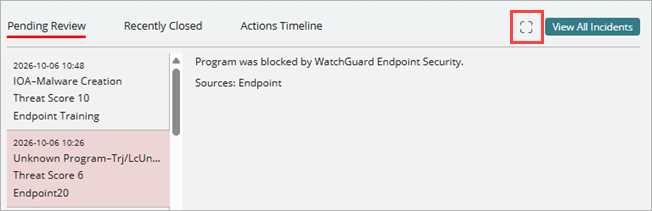
To collapse the expanded Action Tabs section, click  .
.
Expanded Pending Review
The expanded Pending Review tab shows the full incident details for incidents closed in the selected time range. You can review automatic responses, recommended actions, entities of interest, and signals related to the incident. You can also perform recommended actions, make comments, and review the audit log.

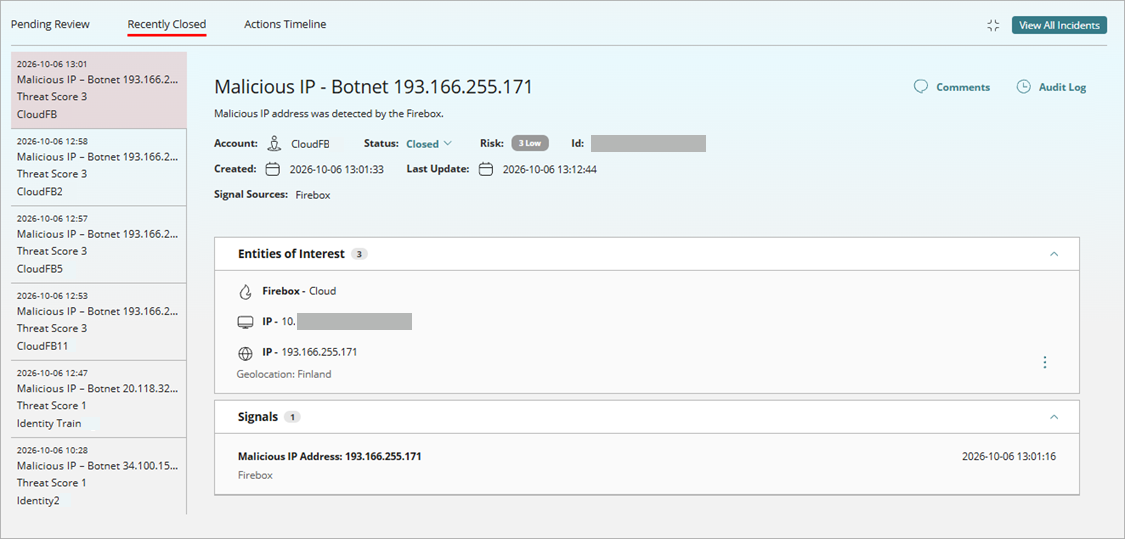
Expanded Recently Closed
The expanded Recently Closed tab shows the full incident details for each incident that was closed in the selected time range. You can actions taken, entities of interest, signals, comments, and the audit log for the incident.
Expanded Actions Timeline
The Actions Timeline tab shows the list of actions taken in the selected time range. This list includes actions taken by Rai, by you, and by other members of your team. The actions are listed by the time of day and include a brief description of the action and outcome.