Applies To: WatchGuard SaaS DR
To better understand the impact of a threat detected by WatchGuard SaaS DR, you can view raw log data that NDR receives from Microsoft 365. The Search Raw Logs page shows details about Microsoft 365 document and user access logs. You can use the information on this page to search, sort, and filter Microsoft 365 raw logs in the NDR.
This page is only available with a WatchGuard SaaS DR or Total NDR license. For more information, go to About WatchGuard SaaS DR Licenses and About Total NDR Licenses.
To open the Search Raw Logs page, from the NDR UI:
- Select Monitor > NDR > Search Raw Logs.
The Search Raw Logs page opens with the Microsoft 365 Document Logs tab open by default.
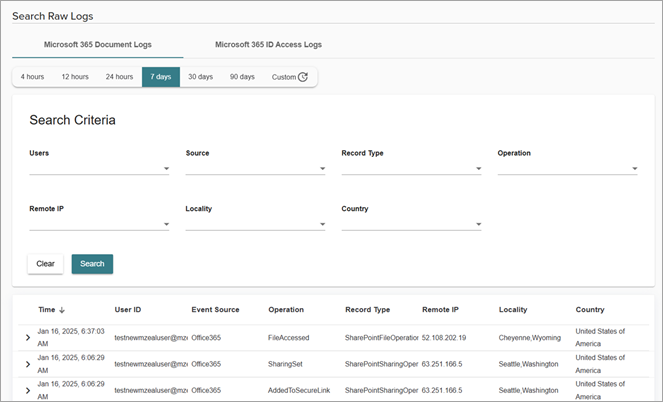
You can search for two types of logs that NDR receives from Microsoft 365:
- Microsoft 365 Document Logs — File and folder logs. For example, SharePoint and SharePoint file operations such as file modified or file accessed.
- Microsoft 365 ID Access Logs — User activity and events. For example, user login failed or reset user password.
Change the Time Range
By default, the raw logs list shows Microsoft 365 logs received by NDR in the last four hours. You can view raw logs for a different time range.
To filter the raw logs list by time period, select a time period or click Custom to specify a unique time period.

Search Criteria
On the Microsoft 365 Document Logs tab or the Microsoft 365 ID Access Logs tab, select search criteria to use to filter your results:
The available search options depend on the data NDR receives from Microsoft 365.
- Users — Specific users you want to search raw log records for.
- Source — The source of the raw logs. For example, Office 365.
- Record Type — The type of record you want to use to filter results. For example, SharePoint events or file operations. For more information about record types, go to the Microsoft documentation.
- Operation — The type of action you want to view logs for. For example, a file that was uploaded or modified.
- Remote IP — The remote IP address associated with the action in the log. You can manually add your own IP address to the list from the Search text box in the drop-down list. Enter your IP address and click Use this IP address.

- Locality — The city, state, or province where the log activity originated.
- Country — The country where the log activity originated.
Search Raw Logs Details
To show details for a specific log, click the log in the list. You can view raw log data in table or JSON format.
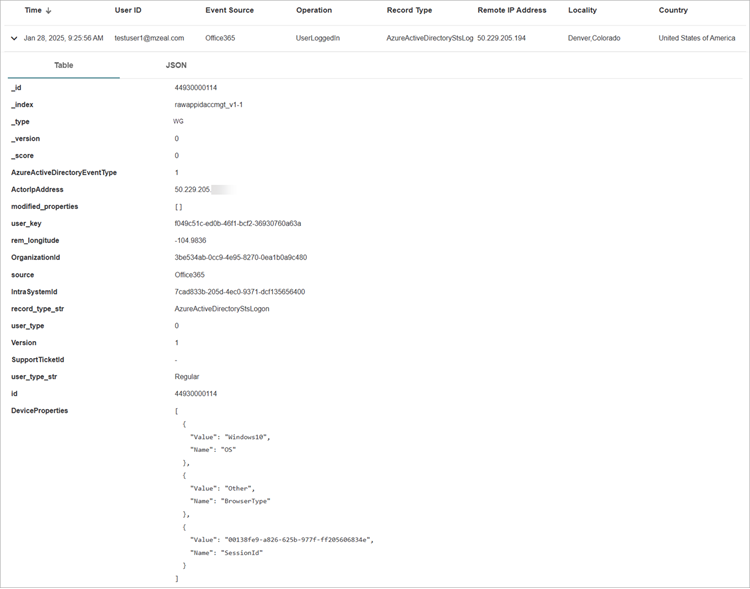
For more information about Microsoft 365 logs, go to Search the Audit Log in the Microsoft documentation.
Search Raw Logs from Policy Alerts
When you view user events on the Policy Alert Details page, you can open the Search Raw Logs page from the Known Actors pane.
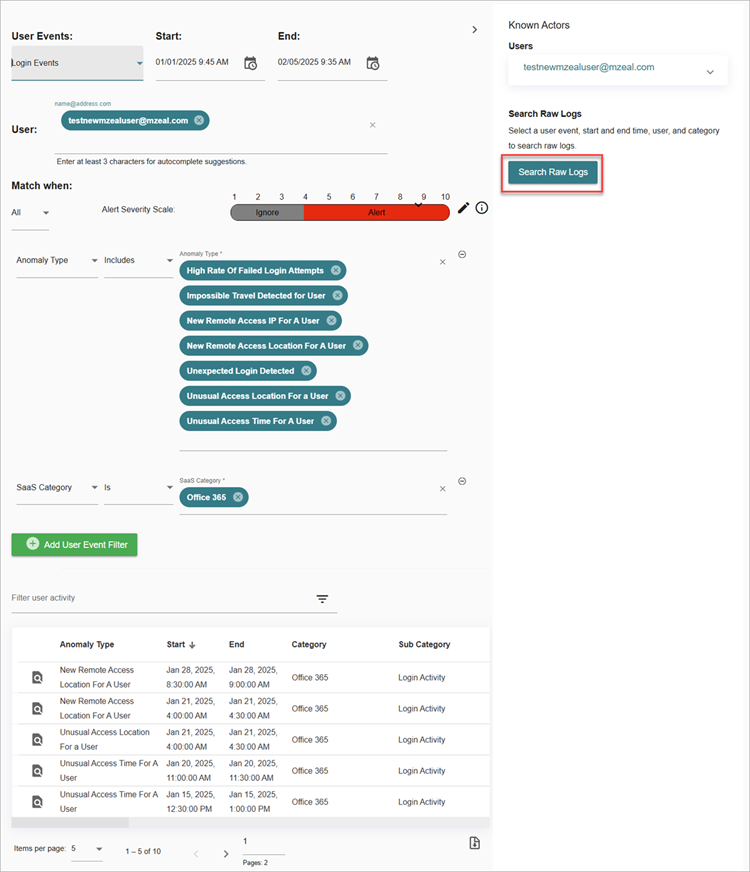
To open the Search Raw Logs page from the Known Actors pane:
- From the User Events drop-down list, select either File and Folder Events or Login Events.
- Select a date and time period.
- Select a SaaS category. For example, Office 365.
- Click Search Raw Logs.
When you click Search Raw Logs in the Known Actors pane, the Search Raw Logs page opens with the user event type, date, and time filters applied that you specified on the Policy Alerts page.
For example, this image shows all Login Events for the period from 1 January 2025 to 5 February 2025.

For more information about policy alerts, go to About Policy Alerts.