Applies To: Cloud-managed Fireboxes, Locally-managed Fireboxes
Overview
Common Vulnerabilities and Exposures (CVE) is a public list of known cybersecurity vulnerabilities that the MITRE Corporation maintains. Each CVE entry includes a unique identifier, a brief description of the vulnerability, and references to related advisories or patches. The Common Vulnerability Scoring System (CVSS) assigns a severity score from 0 to 10 to help organizations assess risk and understand the potential impact on system integrity. Higher scores indicate more critical vulnerabilities, so CVSS is essential for prioritizing remediation efforts. For more information, go to the CVE website (external link).
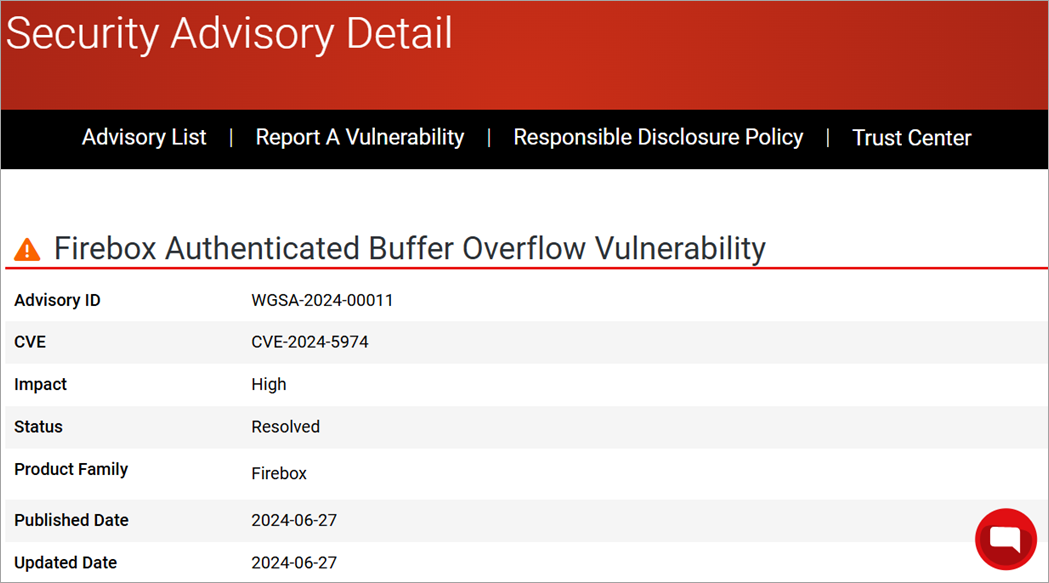
In WatchGuard Cloud, you can view CVE security alerts and their CVSS scores when you manage firmware versions for Fireboxes. WatchGuard Cloud integrates firmware security alert details directly into the device list on the Firmware Upgrades page. These alerts identify potential risks or vulnerabilities in Fireware versions and come from the WatchGuard Security Advisories page.
Security alerts appear only for issues related to Firebox firmware versions. They do not appear for issues that are unrelated to Firebox firmware versions.
Your operator role determines what you can view and do in WatchGuard Cloud. Your role must have the Devices permission to view or configure this feature. For more information, go to Manage WatchGuard Cloud Operators and Roles.
You can view firmware security alert information in these locations:
- Device Firmware widget on the Service Provider account dashboard.
- Device Firmware widget on the Device Summary page at the Service Provider, subscriber, and folder level.
- Firmware Upgrades page, which indicates firmware versions and any known security alerts.
- Select Firmware Version page in the Upgrade Firmware Wizard.
If a Firebox has never connected to WatchGuard Cloud, WatchGuard Cloud does not show security alerts for the installed firmware version. To show security alerts for any firmware version, the Firebox must connect to WatchGuard Cloud first.
Firmware Security Alert Details
You can view firmware security alert details from the Firmware Upgrades page or in the Upgrade Firmware Wizard.

Each alert includes:
CVE
The CVE ID with a link to the CVE entry on the WatchGuard Security Advisories list. The CVE entry describes the vulnerability and provides information about resolutions, workarounds, and related security advisories.
Impact
The severity rating from CVSS, on a scale from 0 to 10. Higher scores indicate more critical vulnerabilities.
Severity ratings:
Low
CVSS score of 0 through 3.9. These vulnerabilities pose minimal risk and usually have little impact on system functionality.
Medium
CVSS score of 4.0 through 6.9. These vulnerabilities represent a moderate risk and might require specific conditions to exploit.
High
CVSS score of 7.0 through 8.9. These vulnerabilities can significantly affect system integrity or availability.
Critical
CVSS score of 9.0 through 10.0. These vulnerabilities are severe and could allow full compromise or major disruption.
For more information about CVSS severity ratings, go to the National Vulnerability Database (external link).
Published Date
The date when the CVE entry became publicly available in the CVE database.
Title
Descriptive summary of the vulnerability.
Resolved Version
Fireware version that resolves the vulnerability.
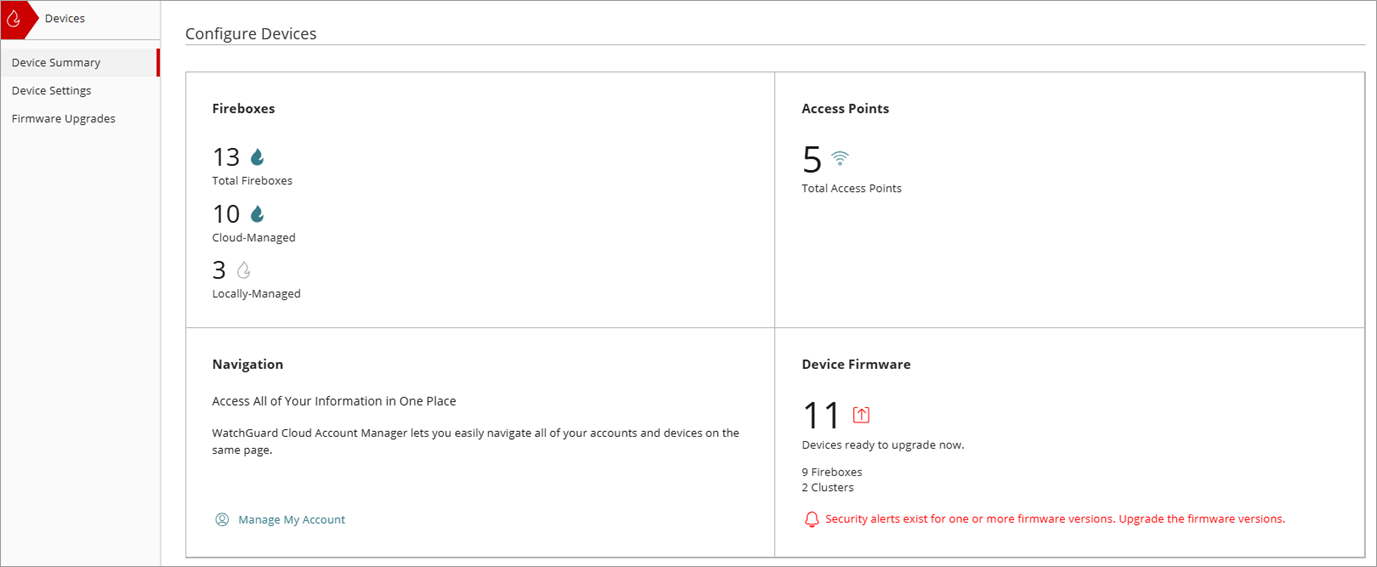
View Security Alerts from the Device Firmware Widget
From the Device Firmware widget, you can view an indicator that shows vulnerabilities associated with the firmware version installed on a Firebox.
To view security alerts, from WatchGuard Cloud:
- Sign in to your WatchGuard Cloud account.
- Select Configure > Devices.
- From a Service Provider account, to view the security alert status for all devices in the account, from Overview > Device Summary, view the Device Firmware widget.
View Security Alerts from the Device Summary Page
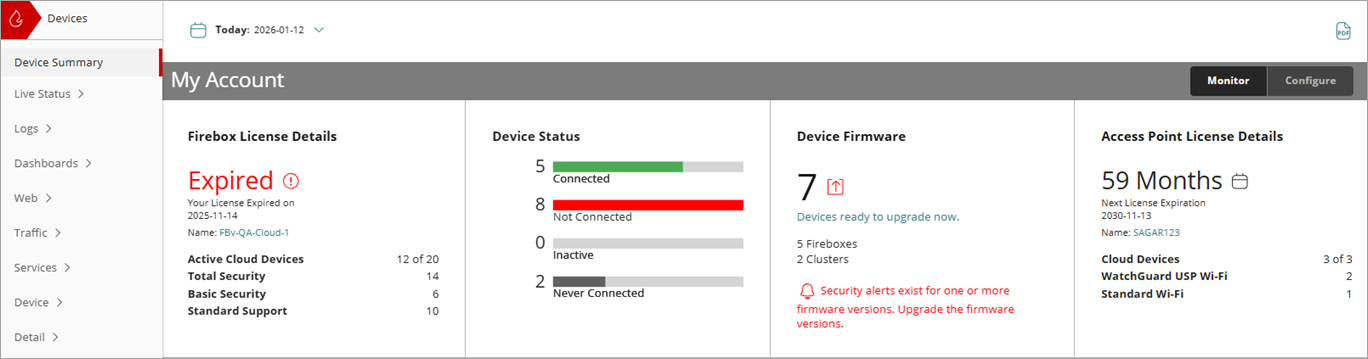
On the Device Summary page, you can view an indicator that shows vulnerabilities associated with the firmware version installed on a Firebox.
To view security alerts, from WatchGuard Cloud:
- Sign in to your WatchGuard Cloud account.
For Service Provider operators, select Overview or a managed Service Provider account. - Select Monitor > Devices.
- From a Subscriber account, to view the security alert status for all devices in the account, from Device Manager, select the top-level folder.
- From a Service Provider account, to view the security alert status for all devices in the account, from Overview, view the Device Firmware widget.
View Security Alert Details from the Firmware Upgrades Page
On the Firmware Upgrades page, you can click a security alert to open a window that shows vulnerabilities associated with the Fireware version installed on a device.
To view security alerts, from WatchGuard Cloud:
- Sign in to your WatchGuard Cloud account.
For Service Provider operators, select Overview or a managed Service Provider account. - Select Configure > Devices.
- Select Firmware Upgrades.
The Firmware Upgrades page opens. - (Optional) Select Firebox as the device type.
WatchGuard Cloud shows security alert information in the Devices Ready to Upgrade Now widget and in the Firmware Version column of the list.
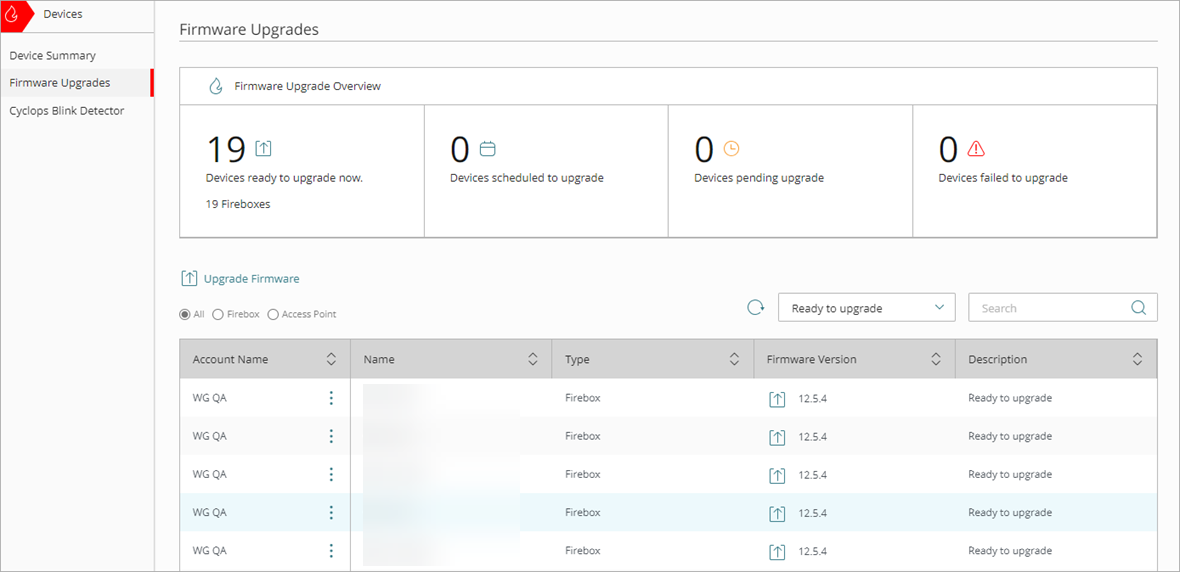
- In the Firmware Version column, click a security alert for a firmware version.
The Security Alert Details dialog box opens.
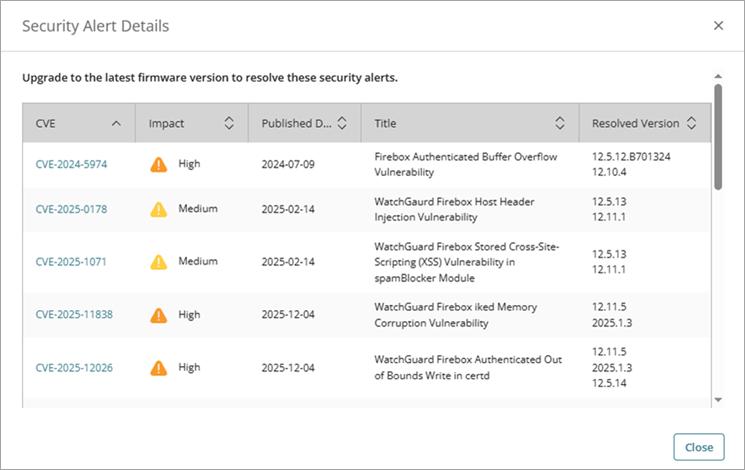
- (Optional) For more information about a CVE, click an alert in the CVE column to go to the WatchGuard Security Advisories Detail page.
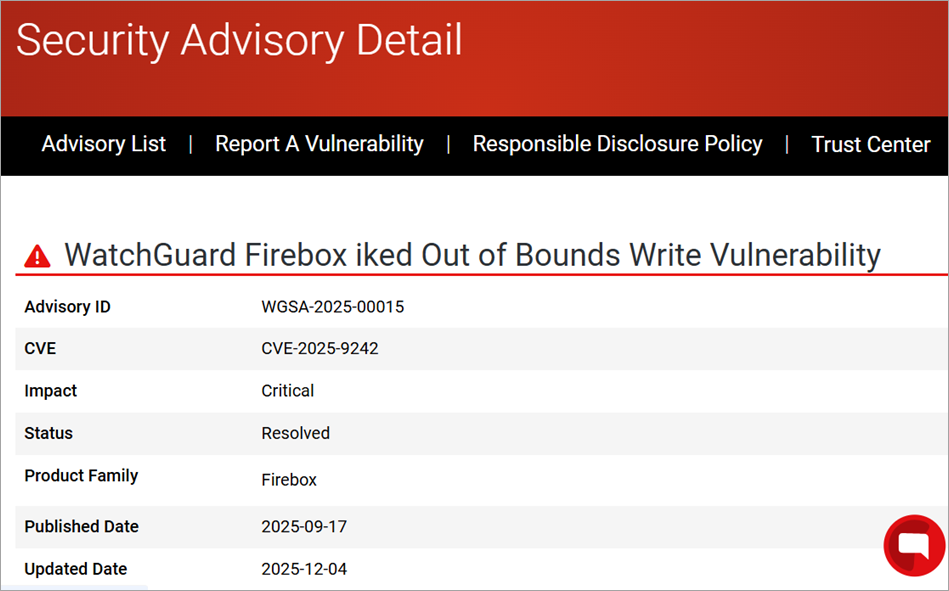
View Security Alert Details from the Upgrade Firmware Wizard
When you select a firmware version in the wizard, security alerts might appear. The wizard shows the vulnerabilities the selected firmware version resolves and does not resolve.
To view security alerts, from WatchGuard Cloud:
- Sign in to your WatchGuard Cloud account.
For Service Provider operators, select Overview or a managed Service Provider account. - Select Configure > Devices.
- Select Firmware Upgrades.
The Firmware Upgrades page opens. - (Optional) Select Firebox as the device type.
- To upgrade one or more devices:
- To upgrade a single device, select
 next to a Firebox, then select Upgrade Firmware.
The Upgrade Firmware wizard opens. - To upgrade one or more devices at the same time, click Upgrade Firmware.
The Upgrade Firmware wizard opens.
- To upgrade a single device, select
- From the Firmware Version drop-down list, select a firmware version to upgrade to.
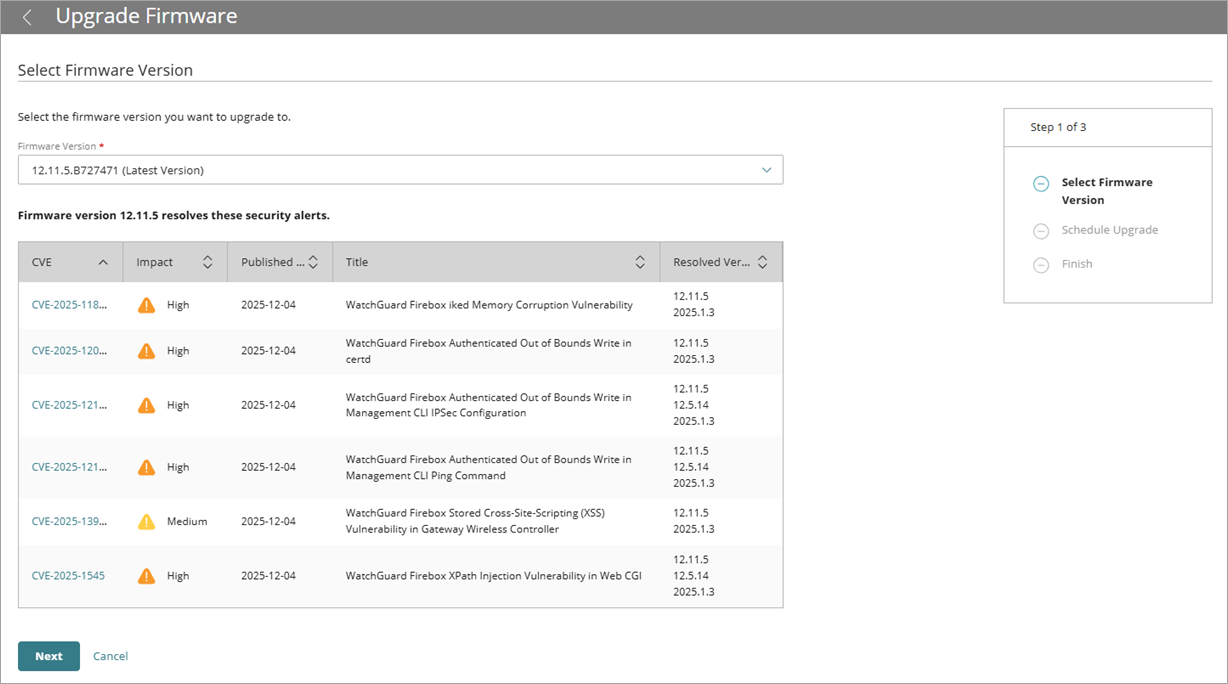
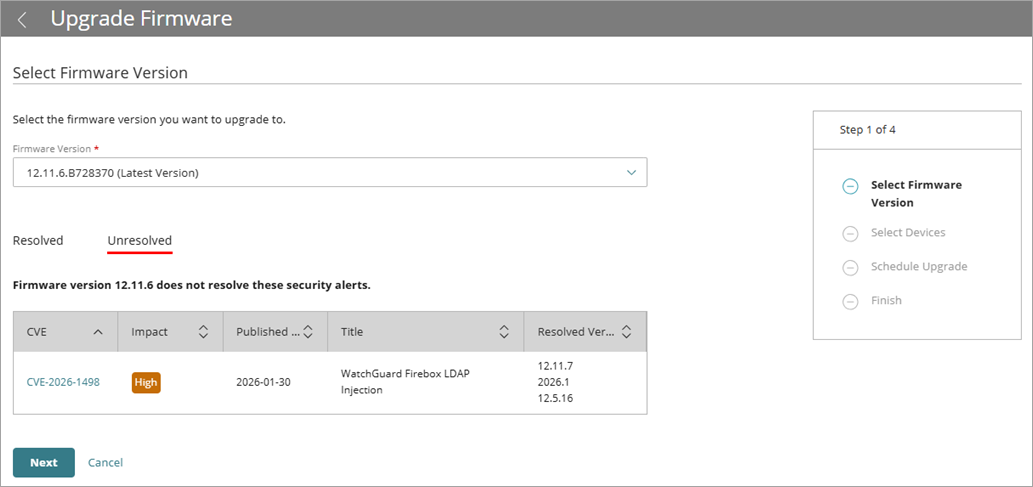
The list shows the most recently released versions first. When you select a firmware version, security alerts might appear. These alerts are the resolved and unresolved security issues for the firmware version.The Firmware Version drop-down list in the Upgrade Firmware wizard defaults to the latest available firmware version.
The security alerts Resolved page.
The security alerts Unresolved page.
- (Optional) For more information about a CVE, click an alert in the CVE column to go to the WatchGuard Security Advisories Detail page.