Applies To: WatchGuard Cloud-managed Access Points (AP130, AP230W, AP330, AP332CR, AP340, AP430CR, AP432)
It is important to keep your access point firmware up-to-date to support new features and security enhancements, and resolve previous issues. If there is a newer firmware version available than the version that runs on your device, a link to upgrade your device appears on the Device Summary page.
- To view the new features, enhancements, and resolved issues for each access point firmware release, go to the Access Point Firmware release notes.
- If you are unable to update your firmware because the device is not connected to WatchGuard Cloud, you can download the firmware from software.watchguard.com and use the access point local Web UI or CLI (Command Line Interface) to update the firmware directly on the device.
Your operator role determines what you can see and do in WatchGuard Cloud. Your role must have the Devices permission to view or configure this feature. For more information, go to Manage WatchGuard Cloud Operators and Roles.
Manually Update Access Point Firmware
To manually update your access point firmware:
- Select Configure > Devices.
- Select the access point you want to upgrade.
You can also select a folder that contains multiple access points.
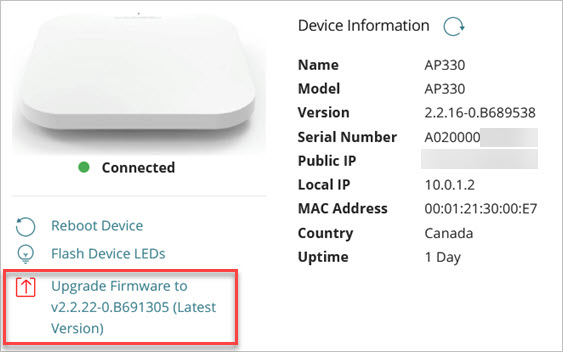
- Click Upgrade Firmware to [version].
If you do not see this link, your access point has the latest firmware version already installed. - From the Firmware Version drop-down list, select the firmware version to upgrade to.
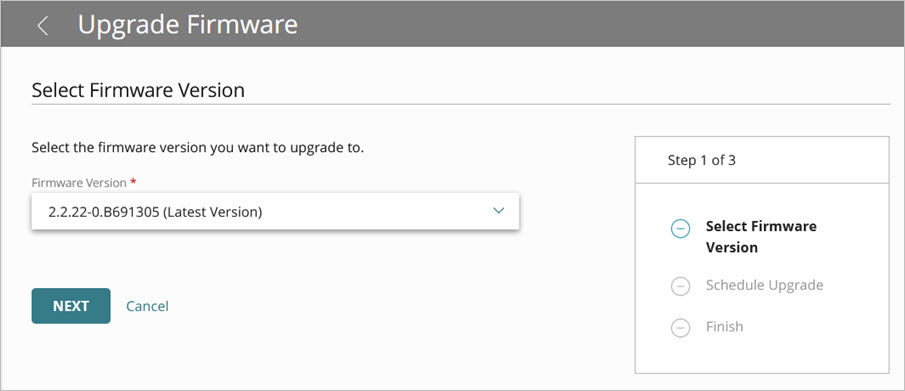
This list includes beta releases when you enable the Device Firmware Beta Releases toggle. For information about how to enable beta firmware releases, go to About Beta Firmware Releases.
- Click Next.
The Schedule Upgrade page opens.
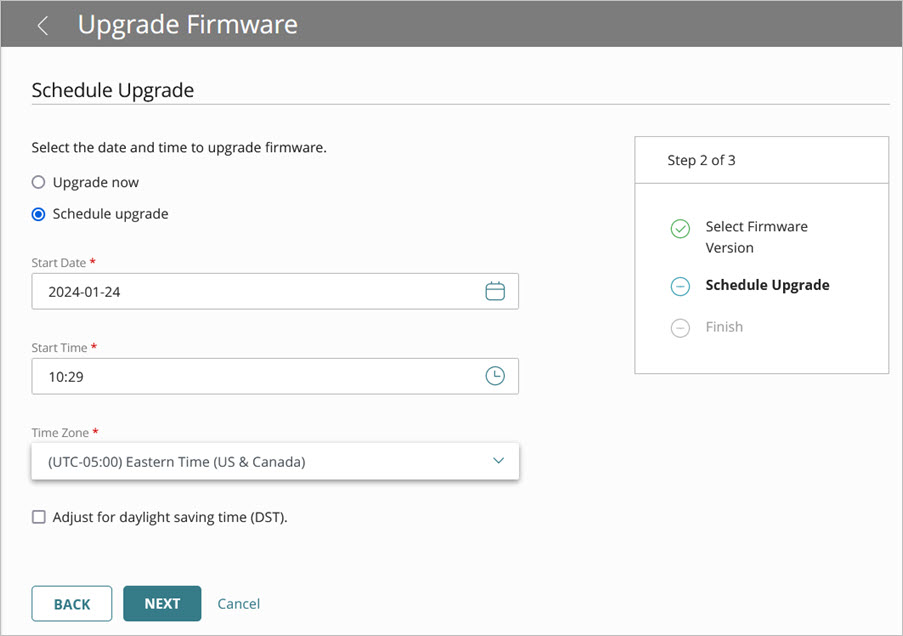
- Select when to upgrade the firmware:
- To upgrade selected devices now, select Upgrade Now. This option is available only if all selected devices are connected to WatchGuard Cloud.
- To schedule the upgrade for a later time, select Schedule Upgrade. Specify the Start Date, Start Time, and Time Zone when the upgrade will occur.
- To automatically adjust the time during daylight savings, select the Adjust for Daylight Saving Time check box .
- Click Next.
- Confirm the upgrade details. Click Save.
The default time zone for a scheduled upgrade is based on the time zone of the web browser. Make sure that the selected upgrade time and time zone correspond to the local time you want to upgrade each selected device.
When you upgrade the access point firmware, the access point will reboot after the upgrade is complete. Any connected wireless clients will be temporarily disconnected until the device restarts.
For more information about how to upgrade your devices, go to Manage Firmware Versions for Devices in WatchGuard Cloud.
Automatically Update Access Point Firmware
At the account and folder level, you can manage and schedule automatic access point firmware updates. This simplifies access point firmware management across all your devices in your managed accounts to make sure your firmware is up to date with the latest features, security fixes, and resolved issues, without the need to manually track installations across multiple devices and accounts.
Beta firmware releases are not installed by automatic firmware upgrades.
With automatic upgrades, you can:
- Automatically upgrade new access points to the latest available firmware version when you add the new device to your account in WatchGuard Cloud.
- Create a maintenance window with active time blocks to schedule automatic firmware upgrades outside of business hours to prevent network disruption.
- Stagger firmware upgrades so that all access points do not upgrade and reboot at the same time and cause network disruption.
- Set grace periods before you roll out newly released access point firmware. For example, you might configure your access point firmware upgrades to start a week or more after the firmware is initially released.
- Receive notification alerts for upcoming device upgrades. An Auto Firmware Upgrades rule is added to your account notification rules to generate an alert for automatic firmware upgrade reminder and completion events. For more information, go to Configure Access Point Notification Rules for Subscribers.
- Inherit automatic firmware upgrade settings from the Service Provider account
Previously scheduled manual firmware upgrades will still occur and are not affected by enabling automatic firmware upgrades.
To configure automatic firmware upgrades:
- Sign in to your WatchGuard Cloud account.
For Service Provider operators, select Overview or a managed Service Provider account. - Select Configure > Devices.
- Select Firmware Upgrades.
The Firmware Upgrades page opens. - Select the Settings tab.

- For Service Provider operators, select Automatically Upgrade Firmware on Select Accounts, then select the accounts for which you want to automatically upgrade firmware.
You cannot select Delegated accounts from the Service Provider account to inherit firmware upgrade settings. You must configure Delegated accounts individually.
- For Subscriber operators, to inherit the automatic firmware upgrade settings from the Service Provider, select Inherit Upgrade Settings from Service Provider. This option is disabled if no upgrade settings are configured at the Service Provider level.
- To automatically upgrade new access points to the latest available firmware version when you add devices to your account in WatchGuard Cloud, select Automatically Upgrade Firmware on New Access Points.
- To schedule automatic firmware upgrades, select Schedule Automatic Firmware Upgrades and configure the automatic upgrade schedule settings.
- Grace Period for Automatic Firmware Upgrades — From the drop-down list, set a grace period after the release of new access point firmware to install the software on your access points. For example, you might configure your access point firmware upgrades to start 7 days after the firmware is initially released in WatchGuard Cloud. You can select from 7, 14, 21, or 28 days. The default is 7 days. If an access point misses an upgrade after the initial grace period because it was offline or not yet configured for automatic upgrades, the access point will automatically upgrade during the next grace period window after the firmware was released. For example, if the access point missed the 7 day grace period, it will upgrade at 14 days.
- Stagger Firmware Upgrades — To prevent network disruption, select this option to stagger access point upgrades in 5-minute intervals so that access points do not upgrade and reboot all at the same time.
- Schedule Firmware Upgrades during Maintenance Window — Select this option to schedule automatic firmware upgrades in a maintenance window outside of your business hours to reduce network disruption.
- From the Maintenance Window Schedule drop-down list, you can select Always Available, Unavailable at 8:00 AM to 5:00 PM Monday to Friday, or Custom Schedule.
- Select the Time Zone for the maintenance window schedule.
The default time zone for a scheduled upgrade is based on the time zone of the web browser. Make sure the selected upgrade time and time zone correspond to the local time you want to upgrade your devices. - For each day of the week, you can add an active time block when firmware upgrades can be applied.
- Click Save.
About Beta Firmware Releases
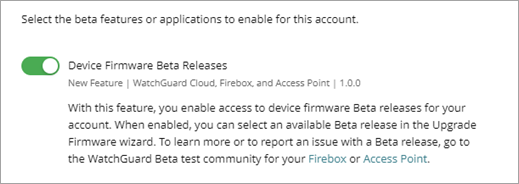
The firmware list can include beta releases. Beta releases provide early access to new features, enhancements, and resolved issues before they are released for general availability.
To include a beta firmware release as a possible upgrade selection:
- Select the account where you want to enable beta firmware releases.
- Select Administration > Beta Features.
The Beta Features page opens. - Enable the Device Firmware Beta Releases toggle. For more information about beta releases, go to Enable Beta Features and Applications.
- Return to the Firmware Upgrades window.
Configure Access Point Device Settings