Applies To: WatchGuard Core MDR, WatchGuard Core MDR for Microsoft, WatchGuard Total MDR, WatchGuard Open MDR
To enable WatchGuard MDR to monitor your Microsoft 365 and Microsoft Entra ID environment, you must configure a connection from your Microsoft 365 cloud environment to WatchGuard.
To connect WatchGuard MDR and your Microsoft 365 environment, complete these steps:
- Select the Alert Response Option
- Allow Permissions for the WatchGuard MDR for Office365 Application
- Enable Audit Log Search
- Add a Role Assignment for Automated Response (Auto only)
- Add the Integration in the Managed Services Portal
To complete these steps, you must have a Microsoft Azure Global Administrator account.
Supported Microsoft 365 Deployment Types
WatchGuard MDR with Microsoft 365 supports these deployment types:
Cloud-Based Deployment
For cloud-based Microsoft 365 deployments, WatchGuard MDR supports monitoring and automated responses.
Hybrid Deployment
For hybrid Microsoft 365 deployments that include both cloud-based and on-premises components, WatchGuard MDR supports monitoring only. Automated responses are not supported.
Fully on-premises Microsoft 365 deployments are not supported.
Select the Alert Response Option
When WatchGuard MDR detects potentially malicious activity in your Microsoft 365 environment, it opens an investigation. WatchGuard sends alerts to your alert contacts with investigation details and recommended or completed response actions. To review investigations and the full text of alert messages in the Managed Services portal, select Activity > Investigations. For more information, go to Review MDR Investigations.
Before you connect Microsoft 365, select how WatchGuard MDR responds when it investigates a threat. You set the alert response option as the Response Preference when you add the integration. Your selection controls whether WatchGuard MDR automatically contains some Microsoft 365 threats or waits for you to take action in the investigation. The steps you must follow in this topic depend on the option you select. The alert response options available to you depend on your Microsoft 365 environment.
The alert response options (shown as Response Preference in the Managed Services portal) are:
- Auto — The WatchGuard MDR for Office365 application can automatically disable a Microsoft user account, log out all active sessions, reset a password, and reset multi-factor authentication (MFA) for a user. WatchGuard MDR still opens an investigation and sends an alert that describes the actions taken. This option is available only for fully cloud-based Microsoft Azure and Microsoft 365 environments. For the Auto alert response method, you must follow the steps in these sections:
- On-Demand — WatchGuard MDR monitors your environment and recommends actions in the investigation alert. WatchGuard MDR does not automatically take containment actions. If the required permissions are set, you can click Disable User on the Investigations page to disable the impacted Microsoft 365 user account. This option is available for hybrid and fully cloud-based environments. For the On-Demand alert response method, you must follow the steps in these sections:
After you complete the connection, you can request detection or automated response exclusions for known activity. For more information, go to Request an Exclusion.
Allow Permissions for the WatchGuard MDR for Office365 Application
The WatchGuard MDR for Office365 application sends data from your Microsoft 365 environment to WatchGuard so WatchGuard MDR can detect potential threats. You must authorize the application for your Microsoft 365 environment and accept the requested permissions.
To allow the WatchGuard MDR for Office365 application to connect to your Microsoft 365 environment:
- Go to Approve WatchGuard MDR for Office365 and log in to your Microsoft 365 environment with a Microsoft Azure Global Administrator account.
A Permissions Requested dialog box opens.
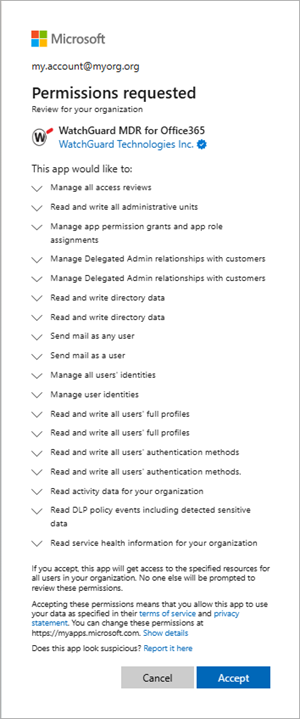
- Click Accept.
Enable Audit Log Search
Before WatchGuard can access Microsoft 365 data, you must enable unified audit logging for your Microsoft 365 organization. This setting might already be enabled.
The integration process can take from 60 to 90 minutes before data is available to WatchGuard MDR.
To enable unified audit logging:
- Go to the Microsoft Purview portal at purview.microsoft.com and log in with a Global Administrator account.
- From the left navigation menu, select Solutions, then click Explore All.

- From the Core section, click the Audit solution card.
- If auditing is not already enabled for your organization, from the blue banner, click Start Recording User and Admin Activity.
For more information, go to Turn Auditing On or Off in Microsoft documentation (external link).
Add a Role Assignment for Automated Response
To allow the WatchGuard MDR for Office365 authorized application to make user and authentication changes on your behalf in your Microsoft 365 environment, you must enable an additional Microsoft Entra ID role. You must complete these steps to use the Auto option for incident response.
Complete the Add a Role Assignment for Automated Response step only if you select the Auto alert response option and your Microsoft 365 deployment supports automated responses. For the required steps for each option, go to Select the Alert Response Option.
To add a role assignment for the WatchGuard MDR for Office365 application:
- Go to the Microsoft Azure portal at portal.azure.com and log in with a Global Administrator account.
- In the portal menu, select Microsoft Entra ID.
- In the left navigation menu, select Manage > Roles and Administrators.
The Roles and Administrators page opens.
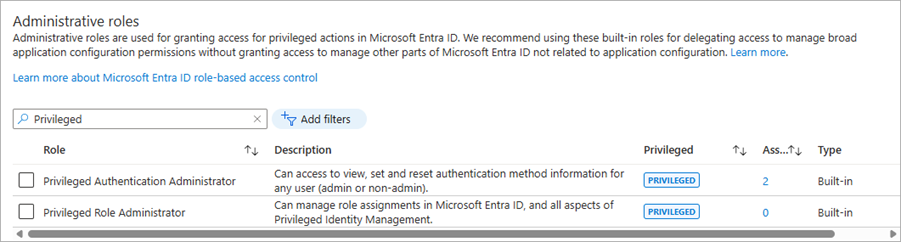
- From the Administrative Roles list, select the Privileged Authentication Administrator item.
- On the Privileged Authentication Administrator role page, click Add Assignment.
The Add Assignments page opens.
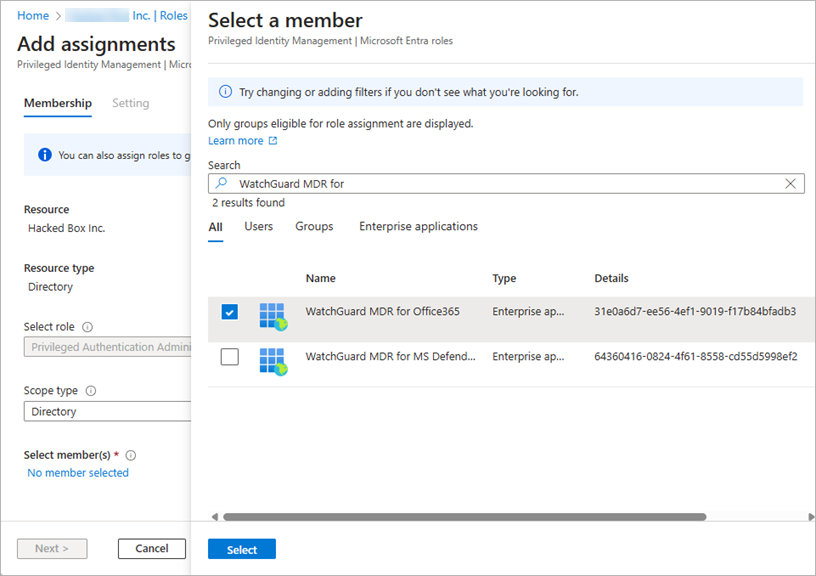
- Click No Member Selected.
- In the Search text box, enter WatchGuard MDR for Office365.
- Select the WatchGuard MDR for Office365 check box, then click Select.
If the role assignment is successful, the Privileged Authentication Administrator assignments page shows WatchGuard MDR for Office365.
Add the Integration in the Managed Services Portal
To add the integration:
- In WatchGuard Cloud, select Monitor > Managed Services.
The Managed Services portal opens in a new browser tab. - If you are a Service Provider, select your Subscriber account from the drop-down list.
- In the upper-right corner of the Managed Services portal, click
 .
. - From the drop-down list, select Onboarding.
- From the navigation menu, select Integrations.
The Integrations page opens.
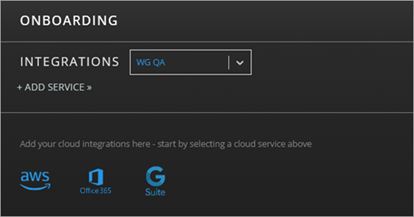
- Select Add Service > O365.
The O365 page opens.

- Click Add Integration.
The Add O365 Integration dialog box opens.
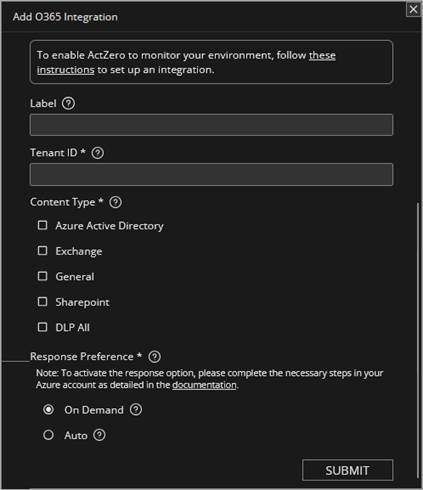
- In the Label text box, type a name for the integration.
- In the Tenant ID text box, type the tenant ID from your Microsoft account.
The tenant ID format is: XXXXXXX-XXXX-MXXX-NXXX-XXXX. For instructions from Microsoft to find your tenant ID, go to How to Find Your Microsoft Entra Tenant ID in Microsoft documentation (external link).
- In the Response Preference section, select an alert response option:
- On-Demand — WatchGuard MDR monitors your environment and recommends actions you can take to respond to the alert or investigation. WatchGuard MDR can take an action when you click Disable User on the Investigations page in the Managed Services portal only if you set the required permissions.
- Auto — WatchGuard MDR monitors your environment and automatically takes action on your behalf for some detections. If you do not set the required permissions correctly for an Auto response, the setup completes automatically and the alert response option defaults to On-Demand. For more information about the required permissions, go to Add a Role Assignment for Automated Response.
For more information about the alert and investigation response options, go to Select the Alert Response Option.
- Click Submit.
After you add the integration in the Managed Services portal, WatchGuard validates that the Microsoft Tenant ID is correct and that unified audit logging is enabled for your Microsoft 365 organization. This integration requires no additional testing.
Request an Exclusion
After you connect WatchGuard MDR with Microsoft 365, you can request exclusions for known, expected activity. The WatchGuard Security Operations Center (SOC) reviews and handles exclusion requests. Make exclusions as specific as possible. You can request these exclusions:
- Detection exclusion — Stops WatchGuard MDR so that it does not generate selected detections. For example, you might request a detection exclusion for a service account that regularly performs approved bulk mailbox operations, or for a detection that should not alert for activity from a specific country.
- Automated response exclusion — Continues to detect and alert on the activity, but does not take automated response actions for a specific user. An automated response exclusion applies to every Microsoft 365 detection for that user. You cannot exclude automated response for all users for a specific detection, except when you turn the detection off entirely. Automated response exclusions are permanent. To remove an exclusion, submit another support request.
To request an exclusion, submit a WatchGuard Support request that includes this information. Submit one support request for each exclusion.
To find the detection name, in the Managed Services portal, select Activity > Detections and review the Detection Type column.
- Whether the exclusion is for detection or automated response
- For a detection exclusion:
- The exact detection name. For example, o365-suspicious-login-detection.
- The user ID to exclude, if the exclusion is user specific. For example, [email protected].
- Any other relevant details that make the exclusion as specific as possible.
- The exclusion duration (temporary or permanent).
- For an automated response exclusion:
- The user ID to exclude from automated response actions.