Applies To: Locally-managed Fireboxes
References to DNSWatch in this topic relate to the legacy DNSWatch UI. To learn about DNSWatch in WatchGuard Cloud, go to About DNSWatch in WatchGuard Cloud in WatchGuard Cloud Help.
When DNSWatch denies the connection to a website, a block page appears in the browser. There are two block page types:
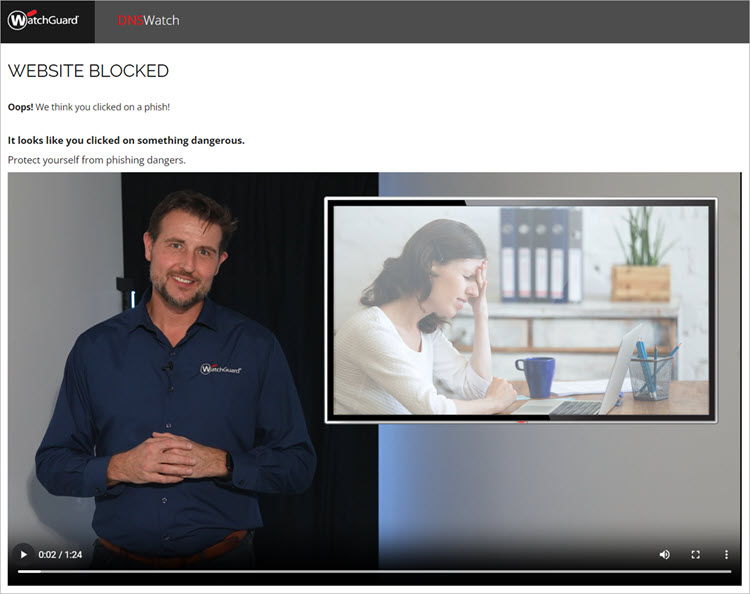
Security Block Page
The security block page appears when a user tries to get access to a malicious domain. The block page informs the user that the website was blocked and provides a short exercise to help educate the user about how to avoid phishing attacks.
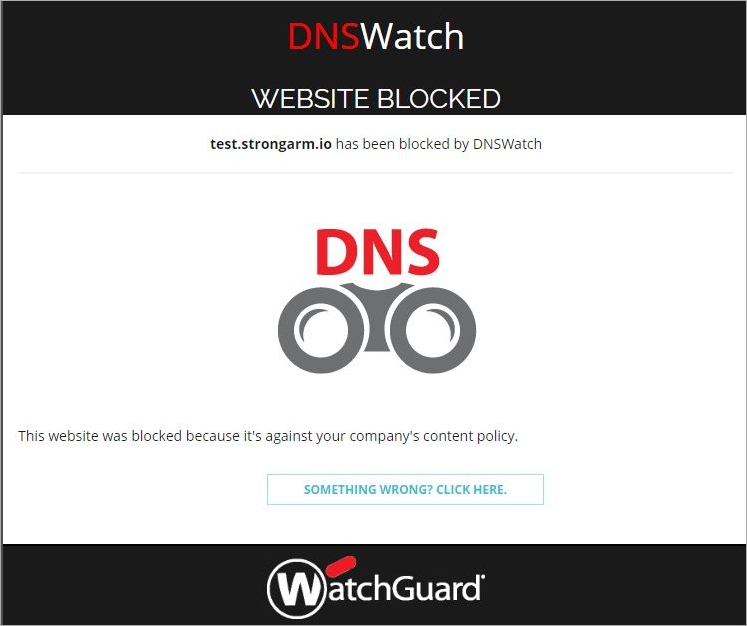
Content Block Page
The content block page appears when a user tries to get access to a domain that is not considered malicious but is blocked by a content filter policy.
You can add custom messages to block pages that appear when users try to get access to malicious or filtered content on a protected network. When a user is not on a protected network, the standard block page appears.
Block Page Overview
This table shows when different block pages appear to users:
| DNSWatchGO Client Installed | Device Location | Blocked Domain | Block Page Type | Where to Configure |
|---|---|---|---|---|
| Yes | On a protected network | Malicious | Security | Settings > Security Block Page Content |
| Filtered content | Content | Configure > Content Filtering Policies > Block Page tab | ||
| No | On a protected network | Malicious | Security | Settings > Security Block Page Content |
| Filtered content | Content | Configure > Content Filtering Policies > Block Page tab | ||
| Yes | Not on a protected network | Malicious | Security | Not configurable |
| Filtered content | Content | Not configurable |