DNS-Proxy: General Settings
Applies To: Locally-managed Fireboxes
In the DNS-Proxy general settings, you can modify the two protocol anomaly detection rules. We recommend that you do not change the default rule settings. You can also select whether to create a traffic log message for each transaction.

- Select Firewall > Proxy Actions.
The Proxy Action page opens. - Select the proxy action to edit.
- Click Edit.
- Select Proxy Action > General.
- Select Setup > Actions > Proxies.
The Proxy Action dialog box opens. - Select the proxy action to edit.
- Click Edit.
- Select General.
Settings
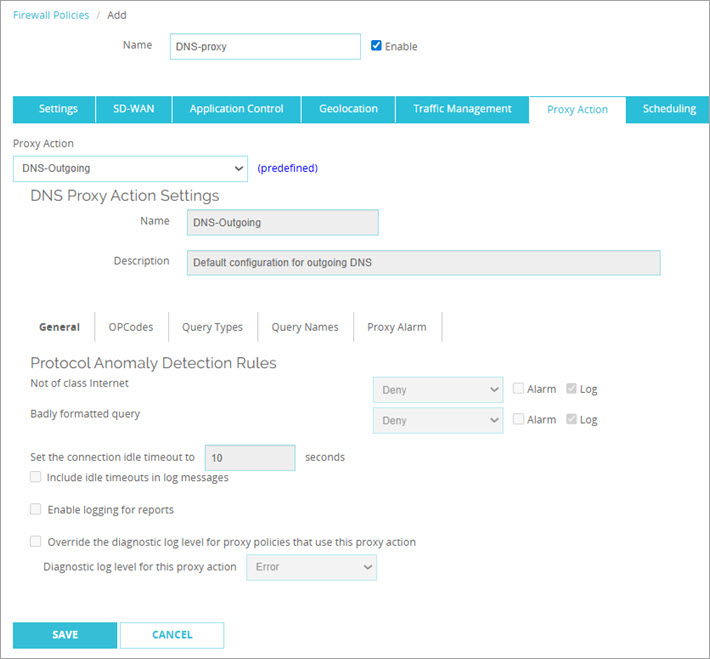
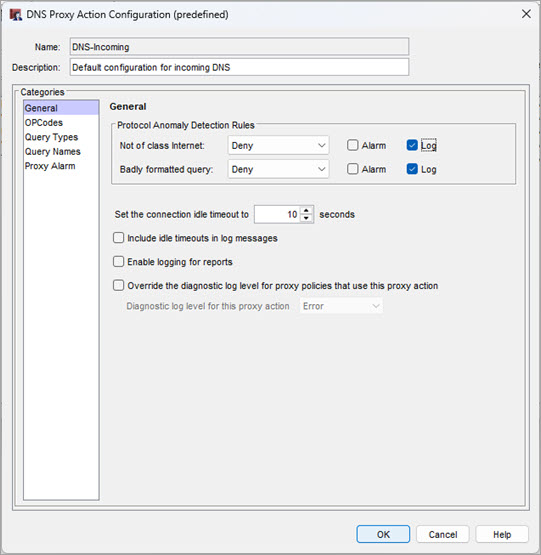
DNS-Proxy Action general settings in Policy Manager
Not of class Internet
Select the action when the proxy examines DNS traffic that is not of the Internet (IN) class. The default action is to deny this traffic. We recommend that you do not change this default action.
Badly formatted query
Select the action when the proxy examines DNS traffic that does not use the correct format.
Alarm
An alarm is a mechanism to tell users when a proxy rule applies to network traffic. Alarm notifications are sent in an SNMP trap, email, or a pop-up window.
To configure an alarm for this event, select the Alarm check box.
For more information about proxy alarms, see Proxy and AV Alarms.
For more information about notification messages, see Set Logging and Notification Preferences.
Log
To send a log message to the traffic log for this event, select this check box.
Set the connection idle timeout
Specify the amount of time the Firebox keeps an idle DNS proxy connection open before it closes the session. The default value is 10 seconds (Fireware v2026.4 or higher.)
When you upgrade to Fireware v2026.4 or higher, the Firebox changes the DNS proxy connection idle timeout to 10 seconds for all existing DNS-proxy actions. Fireware 2026.4 is supported on these models: Firebox M Series M4850, M5850, M6850, M695, M595, M495, M395, and M295, and Firebox T Series T185, T175, T145, T125, and T115.
Include idle timeouts in log messages
Select this check box to specify whether the Firebox logs an event when it closes a DNS proxy connection because of inactivity. This timeout applies only to UDP connections and does not affect TCP connections. (Fireware v2026.4 or higher.)
Enable logging for reports
Select this check box to create a traffic log message for each transaction. This option creates a large log file, but this information is very important if your firewall is attacked. If you do not select this check box, detailed information about DNS-proxy connections does not appear in your reports or log messages.
Override the Diagnostic Log Level for Proxy Policies That Use This Proxy Action
To specify the diagnostic log level for all proxy polices that use this proxy action, select this check box. Then, from the Diagnostic Log Level for This Proxy Action drop-down list, select a log level:
- Error
- Warning
- Information
- Debug
The log level you select overrides the diagnostic log level that is configured for all log messages of this proxy policy type.
For more information about the diagnostic log level, go to Set the Diagnostic Log Level.