Applies To: Locally-managed Fireboxes
From Fireware Web UI, you can download the complete Firebox device configuration to a file that you can open with Policy Manager or use to restore the Firebox configuration. The configuration file does not include the feature key. You can also generate a Firebox Configuration Report that you can look at in a web browser and print.
Download the Configuration File
From Fireware Web UI, you can download your Firebox configuration to a compressed file. This can be useful if you want to open the same configuration file in Policy Manager but are unable to connect to the Firebox from Policy Manager. This can also be useful if you need to restore the Firebox configuration or if you want to send your configuration file to a WatchGuard technical support representative.
When you download the configuration file, specify a password to encrypt the file. You must specify this password when you unzip the file. If you lose or forget the password, you cannot unzip the configuration file.
In Fireware v2026.2.1 and higher, Fireware v12.12.1 and higher, and Fireware v12.11.9 and higher, the Add Password dialog box opens. The downloaded configuration file is compressed in a .ZIP file.
To download the configuration file, from Fireware Web UI:
- Select System > Configuration File.
The Configuration File page appears.

- Click Download the Configuration File.
The Add Password dialog box appears.
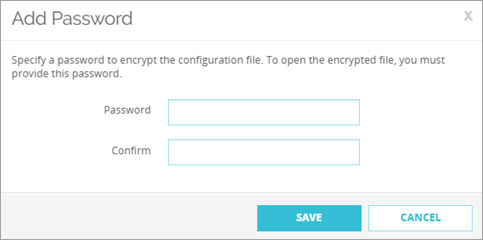
- Type and confirm a password to use to encrypt the configuration file.
- Click Save.
- Select the location where you want to save the exported configuration file.
In some browsers, the file is saved in your Downloads folder automatically.
The configuration file is saved in a compressed file format. Before you can use this file with Policy Manager, you must use a utility such as Winzip or 7-zip to extract the password-protected file to a location on your computer.
Upload a Firebox Configuration File
In Fireware v12.2 and higher, from Fireware Web UI, you can use the Restore Configuration File option to upload a Firebox configuration from these types of files:
- Compressed (.GZ) configuration files
- XML configuration files saved from the File > Save > As Version command in Policy Manager or extracted from a downloaded .GZ or .ZIP file
You can use this option to:
- Restore your Firebox configuration to a previous downloaded or saved configuration. Use this option if you want to restore the device to a previous saved configuration, but do not want to restore a backup image, which includes additional components such as the feature key, certificates, and passwords.
- Migrate a compatible configuration saved from a different Firebox of the same model to the current Firebox.
When you upload a configuration file, the Firebox checks the file to verify compatibility. If the Firebox model does not match or the OS compatibility setting is newer than the installed OS version, the Firebox does not restore the configuration file. If the OS version is not compatible, you can upgrade the Firebox, and then try again to restore the configuration file.
To upload a Firebox configuration, from Firebox Web UI:
- Select System > Configuration File.
The Configuration File page appears.
- Click Choose File or Browse to choose the configuration file to upload.
The button name depends on the browser you use. - Click Restore.
The Firebox configuration is updated to the settings from the configuration file.
If you upload a configuration file that enables subscription services that are missing or expired in the feature key, or if the Firebox does not have a feature key, the behavior for those services is the same as when a feature key expires.
Show the Firebox Configuration Report
From Fireware Web UI, you can generate the Firebox Configuration Report which includes a summary of your device configuration settings in an easy to read, printable format. The Firebox Configuration Report opens in a separate browser window.
To see the Firebox Configuration Report, you must enable pop-ups in your browser.
The Firebox Configuration Report gives you an overview of your device configuration. It can be a useful tool if you want to review your security policy implementation with your organization’s management team. The report includes information about most Firebox configuration settings.
The Firebox Configuration Report is divided into six main sections:
- Network — Network configuration settings
- Firewall — Firewall policies and proxy action settings
- Subscription Services — Subscription services settings
- Authentication — Configured authentication settings, users, and groups
- VPN — Branch Office VPN and Mobile VPN settings
- System — System information (including Firebox model, serial number, and Fireware build), configuration, aliases, logging, NTP, SNMP, NetFlow, global settings, and technology integrations.
To generate the Firebox Configuration Report:
- Select System > Configuration File.
- Click Firebox Configuration Report.
The Firebox Configuration Report opens in a new browser tab.
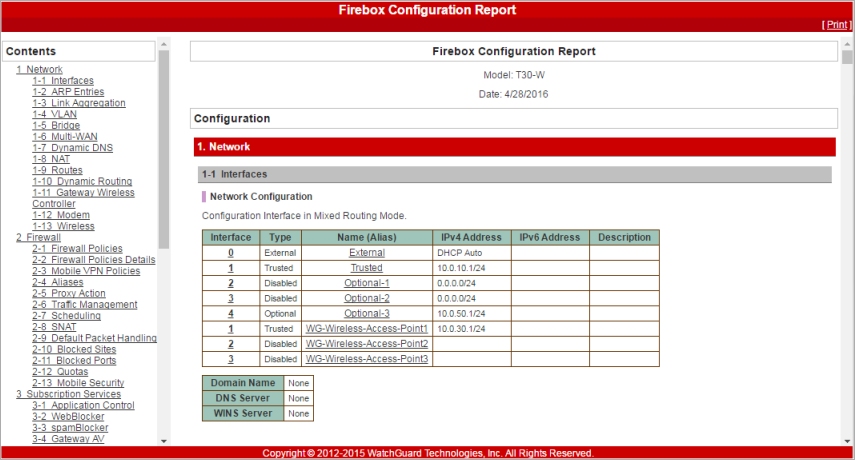
- From the Contents list, select a section to see section of the report.
- To print the report, click Print in the report header.
To make a PDF version of this report, print to a PDF file.
The Firebox Configuration Report shows you the current configuration settings for your Firebox. To help troubleshoot issues with your Firebox, you can also download a diagnostic log file (support.tgz) that includes packet trace information for traffic through your Firebox. For more information, go to Download a Diagnostic Log Message File in Fireware Web UI.