Applies To: Endpoint Security Elite and Endpoint Security 360
The Zero-Trust Application Service report enables you to see the effectiveness of the Zero-Trust Application Service over the last 30 days on your Windows endpoints. The report provides metrics that illustrate how zero trust works, and enables you to compare specific metrics in your Subscriber or Service Provider account to averages calculated across all WatchGuard accounts.
Your operator role determines what you can see and do in WatchGuard Cloud. Your role must have the Add Filters, Lists, and Scheduled Reports permission to view or configure this feature. For more information, go to Manage WatchGuard Cloud Operators and Roles.

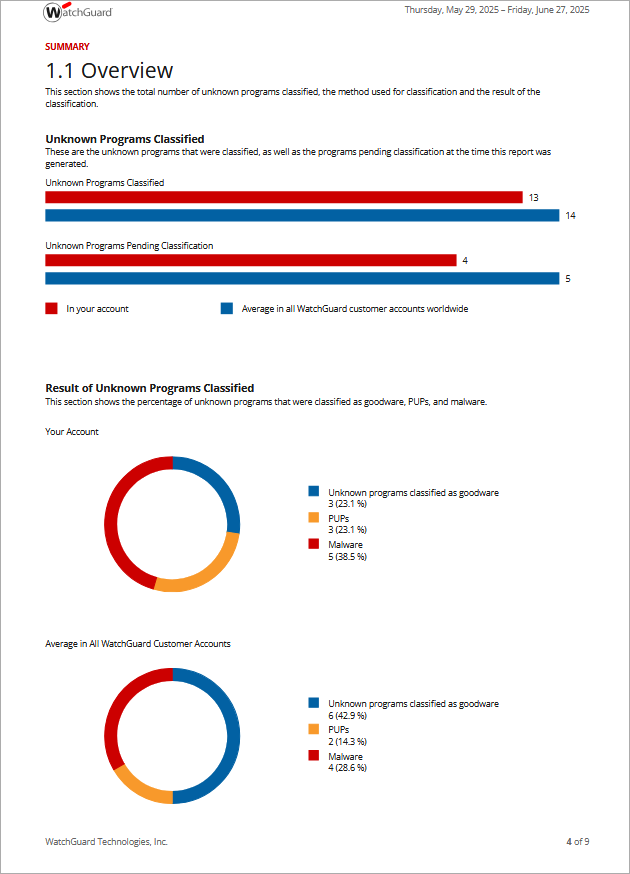
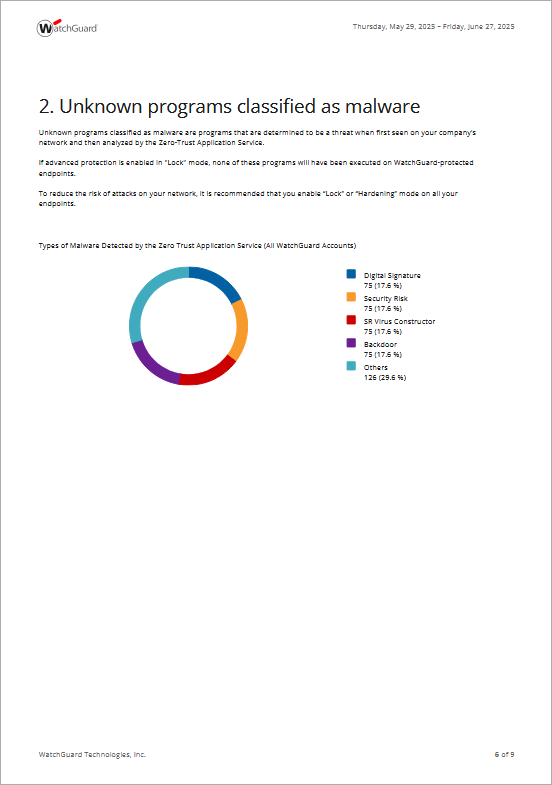
The Zero-Trust Application Service report includes graphical summaries of:
- Unknown Programs Classified — Number of unknown programs classified and pending classification.
- Result of Unknown Programs Classified — Percentage of unknown programs that were classified as malware, PUP, or goodware.
- Classification Method — Number of unknown programs classified, grouped by classification method (automatically or classified by an expert technician).
- Unknown Programs Classified as Malware — List of unknown programs that were later classified as malware.
- Latest Unknown Programs Classified as Malware — List of the most recent unknown programs that users tried to run which were later classified as malware.
- Program Classification Time — Number of unknown programs classified, grouped by the time it took Endpoint Security to classify them (0 to 60 seconds, 1 to 10 minutes, 10 to 60 minutes, 1 to 4 hours, more than 4 hours).
- Programs Blocked Due to Connectivity Failure — Percentage of programs, grouped by classification, that were prevented from running due to a connectivity failure (the security software could not get a classification from the cloud or the sample could not be sent for analysis).
Preview the Zero-Trust Application Service Report
You can preview the Zero-Trust Application Service report at any time. Or, you can schedule the report to send by email at a specified time.
The report includes only Windows, Linux, and Mac endpoints with an active Endpoint Security Elite or Endpoint Security 360 license.
Preview the Report
In the Add Scheduled Report dialog box, you can preview a report in a new browser tab before you schedule the report to send, download, or print.
To preview the Zero-Trust Application Service report, from WatchGuard Cloud:
- From Account Manager, select the account that you want to preview the Zero-Trust Application Service report for.
- Select Monitor > Endpoint Security.
- On the Status page, select Scheduled Reports.
- Click Add Scheduled Report.
- For the Report Type, select Zero-Trust Application Service report.

- Click Preview Report.
A preview of the report for the last 30 days opens in a new browser tab.
Schedule the Report
Schedule the report if you want to receive it by email daily, weekly, or monthly on specific days and at specific times.
To schedule the report, from WatchGuard Cloud:
- From Account Manager, select the account that you want to schedule the Zero-Trust Application Service report for.
- Select Monitor > Endpoint Security.
- On the Status page, select Scheduled Reports.
- Click Add Scheduled Report.
- In the Name text box, type a name for the scheduled report.
- In the Send Automatically section, select the frequency and time for the scheduled report. The Send Automatically toggle is enabled by default.
- For the Report Type, select Zero-Trust Application Service report.
Zero-Trust Application Service reports show data for the last 30 days
- In the To text box, type the email addresses to receive the reports, separated by commas.
- In the CC and BCC text boxes, type the email addresses to copy, separated by commas.
- In the Subject text box, type a subject for your email (for example, Zero-Trust Application Service Report).
- To specify the Format of the report, from the drop-down list, select PDF or Word.
- Click Add.