Applies To: Endpoint Security Elite, Endpoint Security 360, Endpoint Security Prime, WatchGuard EDR, WatchGuard EDR Core, Endpoint Security Basic
To open the multi-tenant management UI for endpoint security, your Service Provider account must have an active Endpoint Security product license in its inventory.
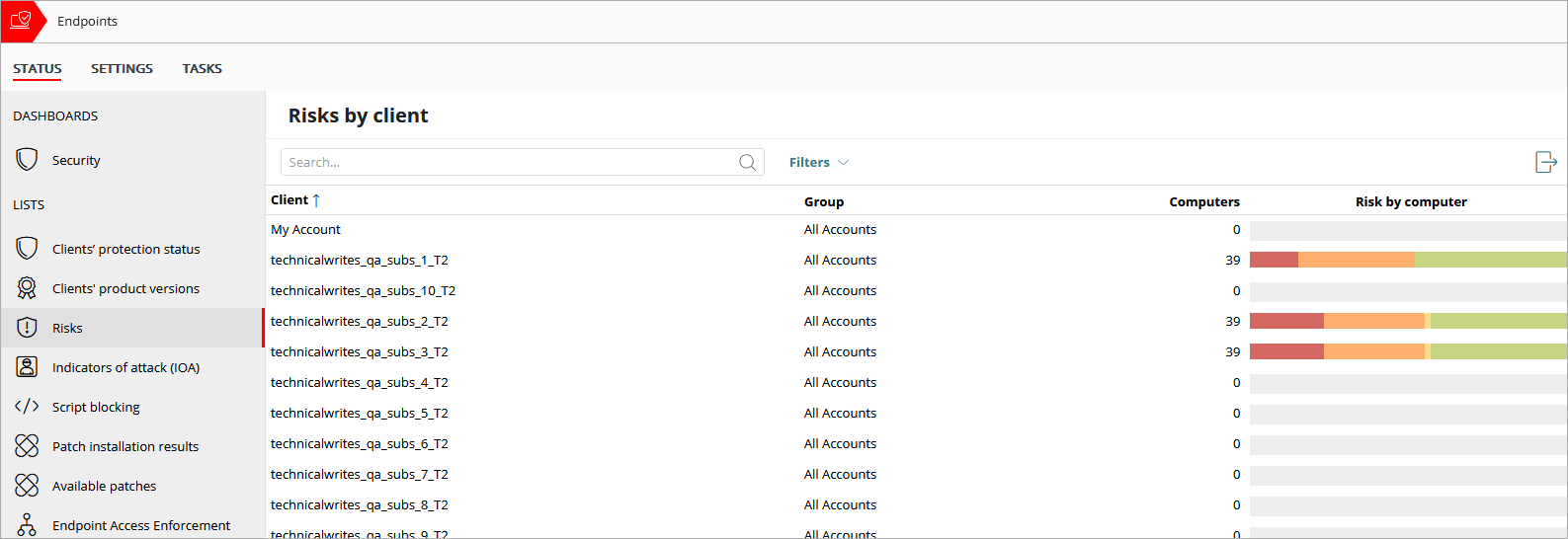
As a Service Provider, you can see a list of your clients, which includes the number of computers with risks and the risk level by computer, on the Status page.
To filter the list of clients by risk level, from WatchGuard Cloud:
- From Account Manager, select a Service Provider account.
To select your own Service Provider account, select Overview. Or, select a tier-n Service Provider account.
 - Select Monitor > Endpoint Security.
- On the Status page, select Risks.
- Click Filters.

- In the Computer Type list, select the type of endpoint you want to filter the list for.
- From the Platform drop-down list, select the operating system.
- From the Risk Level list, select the check box for each risk level you want to filter the list for.
For example, Critical, High, Medium, No Risk. - Click Filter.
Risks by Client Table
The table shows the number of risks by computer for each client account, and includes this information:
Client
The name of the WatchGuard Cloud account.
Group
The name of the WatchGuard Cloud account group the account belongs to.
Computers
The total number of computers and devices with detected risks.
Risks by Computer
The risk level by computer (Critical, High, Medium, or No Risk).
More information is available in the exported file. To export table results, in the upper-right corner of the page, click  .
.