Applies To: WatchGuard CloudDR
On the Inventory > Users page, you can review a list of cloud application users. You can filter the list by Organization, Domain, User Type, User Status, User Roles, Account Type, Claim Status, Severity, and Scopes Risk.
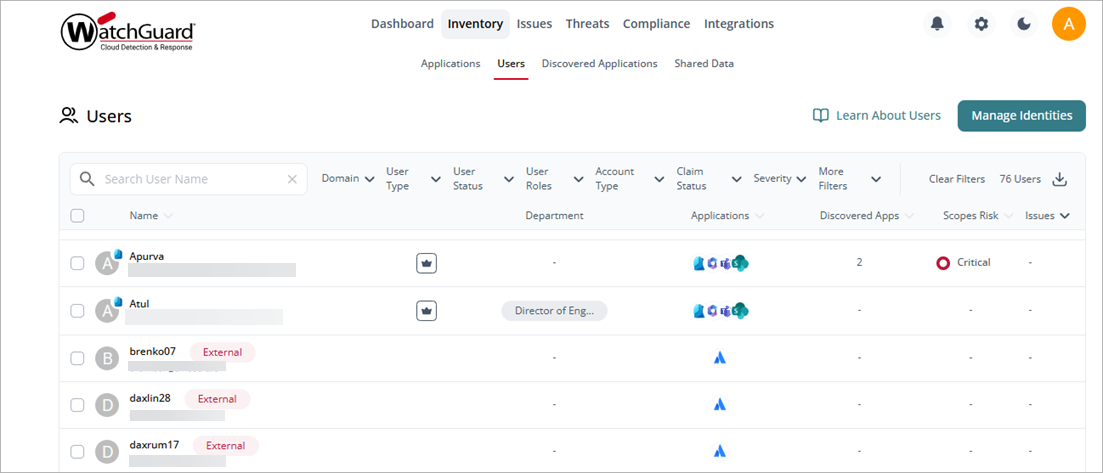
To search for a specific user , enter the user name in the Search User Name box.
To export the list to a .CSV file, next to the users, click  .
.
Information in the list includes:
Name
The name of the user, user email address, and a profile photo, if available. If the user is managed by an IdP, the user photo includes an IdP icon in the upper-right corner. Point to the photo to see which IdP manages the user account. If the user has administrative roles associated with it, a crown icon shows in at the top right corner.
If the account has a different domain than the configured directory or IdP domain, an External label shows. An Unidentified label shows when the user account does not have an associated domain (email address).
Organization
The name of the organization the user belongs to.
Department
The name of the department or team the user belongs to in the organization, if assigned.
Applications
The integrated cloud applications the user has access to.
Discovered Apps
The number of discovered applications the user has authorized in your cloud environment.
Scopes Risk
The overall scope risk for the user based on all the scopes of discovered applications the user authorized across in your cloud environment.
Issues
The total number of issues for the user across your cloud environment.
User Details Page
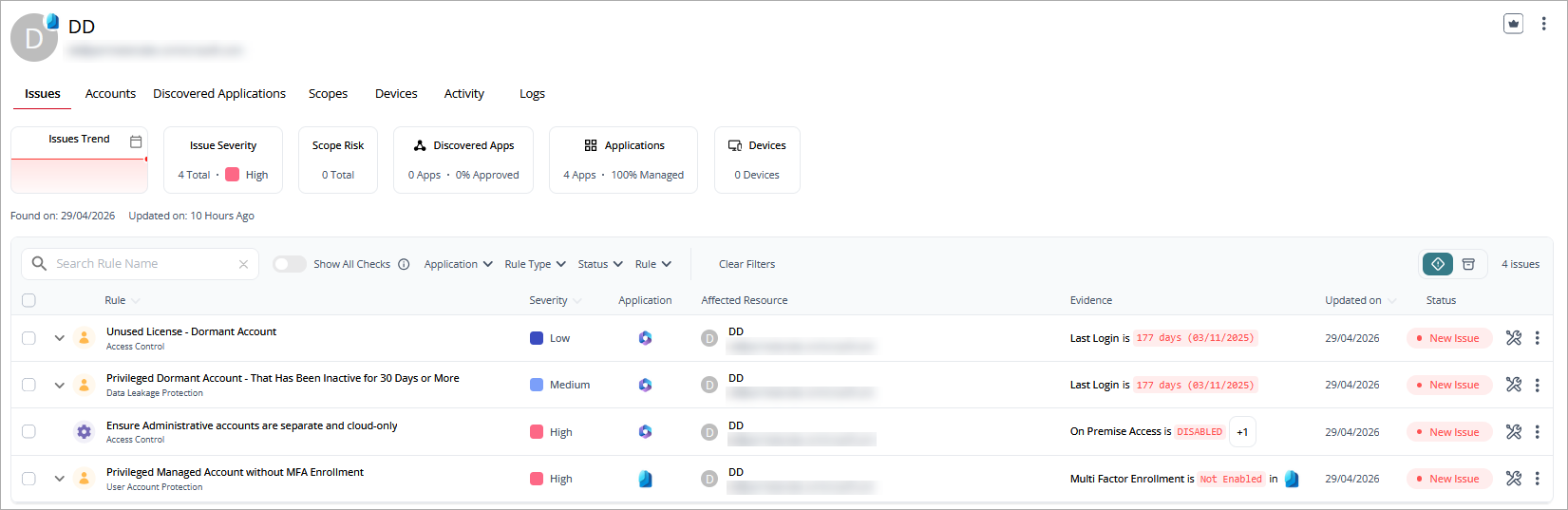
To view more detailed information about a specific user, click the user name. The user details page shows the discovery date for the user and the last time information associated with the user was updated.
To manage a user account, on the user details page, click  in the upper-right corner and select an action:
- Mark as Non-Human Account — Identify an account as a service account or non-human user.
- Manage Identities — Attach user accounts that belong to the same person or detach user accounts that do not belong to them.
- Claim Account — Accept and associate a user identity with a known user account.
- Unclaim Account — Disassociate a user identity from a known user account.
- Initiate Offboarding — Mark a user account for offboarding.
The user details page includes these widgets:
- Issues Trend — A graphical representation of open issues in the account. Click the calendar icon to filter the data for a different date range (Last 7 days, Last 30 days, Last 90 days, Lifetime).
- Issue Severity — The overall severity of the issues with the total number of open issues. Point to the number of issues to show the number at each severity level (Critical, High, Medium, Low).
- Scopes Risk —The highest risk of the scopes with the total number of authorized scopes. Point to the scopes risk to show the number of scopes risks at each risk level (Critical, High, Medium, Low, Info).
- Discovered Apps — The number of discovered applications that the user has access to and the percentage of applications that are approved for use.
- Applications — The number of applications that the user has access to and the percentage of applications that are managed.
- Shared Data — The number of files and folder where data was shared.
- Devices —The number of devices associated with this user.
- Activity — The number of risky events detected.
Above the widgets, you can click tabs to open detailed application information on these pages:
- Issues Page
- Accounts Page
- Discovered Applications Page
- Scopes Page
- Devices Page
- Activity Page
- Logs Page
Issues Page
The Issues page shows the checks performed for the user and the security domain. You can filter the list by the Rule Type, Status, Application, and Rule. For each issue in the table, you can:
- Fix it now
- Set a due date for the fix
- Accept the issue
- View issue details
You can filter the table to view active and archived issues. When you fix an issue, it moves to the issues archive.
To view only issues that are new, disable the Show All Checks toggle.
The information in the list includes:
- Rule — The name of the rule and security domain. Point to the rule to show the full name. Click
 next to the rule name to show the user role name, category, and type associated with this issue.
 - Severity — The severity level of the issue.
- Application — The application affected by the issue.
- Affected Resource — The resource the issue affects.
- Evidence — The last login date for the user.
- Updated on — The date when the issue data was last updated.
- Status — The status of the issue.
Accounts Page
The Accounts page lists the user's accounts. You can filter the list by Application.
The information in the list includes:
- Name — The name of the account and email address.
- Application — The application where the account has been used.
- MFA — Indicates whether multi-factor authentication is enabled for the account.
- Discovered Apps — The number of discovered applications associated with the account.
- Devices — The number of devices associated with the account.
- Roles — The number of roles associated with the account.
- Issues — The severity of issues associated with the account.
- Last Login — The last date when the account logged in to an application.
Discovered Applications Page
The Discovered Applications page lists recently discovered applications that are unknown to the organization. You can filter the list by AI Application, Approval Status, and Discovery Source.
To search the list, enter the application name in the Search Discovered Apps box.
The information in the list includes:
- Discovered App — The name of the discovered application.
- Applications — The application associated with the discovered application.
- Trust — The level of trust assigned to the application as a percentage. The higher the percentage, the more trust in the security of the application.
- Scopes — The number of scope areas in the discovered application.
- Risk — The overall level of risk assigned to the application.
- Approval Status — The status of the application for use in the organization (Approved, Not Approved, Not Reviewed).
Scopes Page
The Scopes page lists areas of scope in the application and their risk level. You can filter the list by Risk level.
To search for a scope name, enter the name in the Search Scope Name box.
The information in the list includes:
- Name — The name of the area of scope.
- Discovered Apps — The applications where the scope risk was identified.
- Applications — The application associated with the discovered application.
- Resource — The affected resources in the application.
- Type — The type of permission (Read, Admin).
- Risk — The overall risk level of the scope.
Devices Page
The Devices page lists the devices associated with the user account.
To search for a device, enter the name in the Search Device Name box.
The information in the list includes:
- Device Name — The name of the device.
- Applications — The cloud application accessed by the device.
- OS Type — The operating system on the device.
Activity Page
The Activity page shows user activity, including the number of unique accounts, unique events, and total events. You can filter the list for a date or date range, Action, Application, Location, and Severity.
The information on this page includes:
- Time — The time the event occurred.
- Action — The type of event that occurred.
- Actor — The application that initiated the event.
- Target Resource — The resource the event affected.
- Severity — The severity level of the event.
- Application — The application where the event was discovered.
- Location — The geographic location, based on IP address, where the event occurred.
next to the an activity to show details such as the IP address, user agent, and resource information associated with the event.Logs Page
The Logs page lists the activity logs associated with the user account.
The information on this page includes:
- Timestamp — The time the activity occurred.
- Activity description — A description of the type of activity, the application the activity occurred in, and the user who performed the activity.