Applies To: WatchGuard CloudDR
On the Inventory > Shared Data page, you can review a list of shared data folders and files. You can filter the list by Application, Organization, Owner, File Type, Share Risk, Severity, and Classifier Tags. You can show or hide folders in the list with the Show Folders toggle.
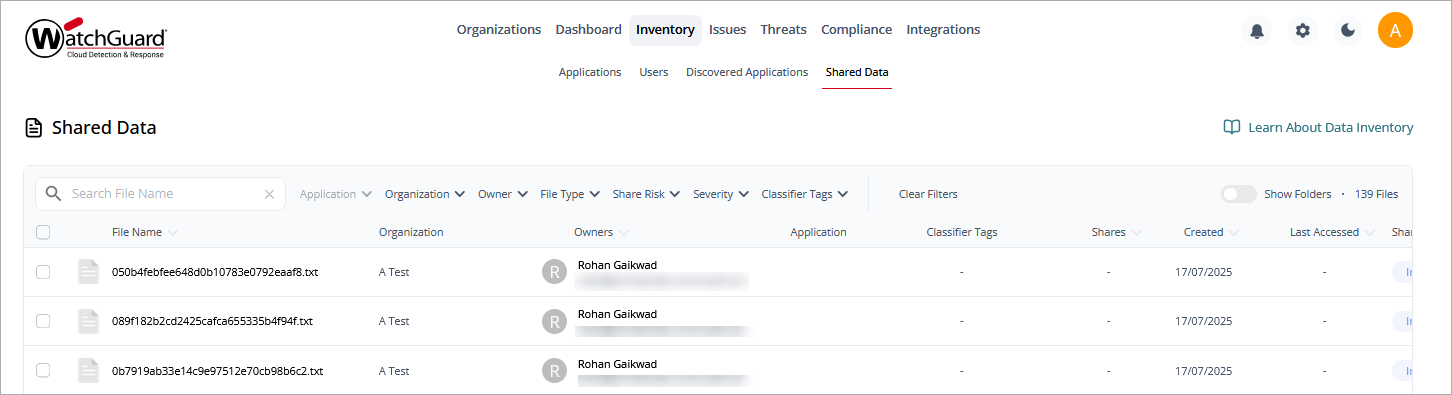
To search for a specific file, enter the file name in the Search File Name box.
To export the list to a .CSV file, next to the users, click  .
.
Information in the list includes:
File Name
The name of the file that was used to share data.
Organization
The name of the organization where the file was found.
Owners
The owner of the file.
Application
The cloud application where the file was shared.
Classifier Tags
Descriptive labels of the type of data or information that was shared.
Shares
The number of times the file was shared.
Created
The date when the file was created.
Last Accessed
The number of days since the file was last accessed.
Share Risk
An indicator of the type of risk that the share can cause (Internal, Organization, External, or Public).
Issues
The number of open issues for the file. Point to the number of issues to show the number of issues at each severity level (Critical, High, Medium, Low).
Shared Data Details
To view more detailed information about a file, click the file name. The shared data details page shows the discovery date for the file and when the file was last updated.
The Shared Data details page includes these widgets:
- Issue Severity — Total Number along with highest severity. Point to the severity to show an issue count breakdown according to severity level.
- Share Risk — Total Number of shares and highest risk. Point to the risk to show a scope count breakdown according to risk type.
- Application — The applications where identity is detected with the percentage of managed apps.
- Owner — The account that shared data.
Above the widgets, you can click tabs to open detailed information on these pages:
Issues Page
The Issues page shows a list of the checks performed for the file. You can filter the list by Status.
The information in the list includes:
- Rule — The name of the rule that created the issue. Point to the rule to show the full name and a description. Click
 next to the rule name to show file details.
 - Organization — The name of the organization.
- Severity — The security impact of this action on the organization.
- Application — The cloud application where the action was observed.
- Affected Resource — The name of the file that was shared.
- Evidence — A description of how the action was determined to break the rule.
- Updated On — The date when the state of the file and rule was last checked.
- Status — The status of the issue. Point to the issue for more information.
Permissions Page
The Permissions page shows the permission type, role, and risk for the user who engaged with the shared data. You can filter the list by Type, Role, or Risk.
The information in the list includes:
- Name — The accounts with which data is shared.
- Type — The type of access granted (User, Group, or Public).
- Role — The level of privilege (Reader, Writer, Commenter, or Owner).
- Last Accessed — The number of days since the shared data was accessed.
- Risk — The scope of the share (Internal, Organization, Public, or External).
Details Page
The Details page provides file details, including:
- Size
- MIME Type
- File URL
- File Creation Date
- Last Accessed On (includes user name and email address)
- Last Modified On (includes user name and email address)
Activity Page
The Activity page shows user activity, including the number of unique accounts, unique events, and total events. You can filter the list for a date or date range, Action, Actor, Location, and Severity.
The information on this page includes:
- Time — The time the event occurred.
- Action — The type of event that occurred.
- Actor — The application that initiated the event.
- Target Resource — The resource the event affected.
- Severity — The severity level of the event.
- Location — The geographic location, based on IP address, where the event occurred.
Logs Page
The Logs page lists the activity logs associated with the shared data file.
The information on this page includes:
- Timestamp — The time the activity occurred.
- Activity description — A description of the type of activity, the application the activity occurred in, and the user who performed the activity.