Applies To: WatchGuard CloudDR
On the Inventory > Applications page, you can review a list of the integrated cloud applications. You can filter the list by Organization, Severity, and Scopes Risk. The scopes risk is the risk calculated from the authorized scope of all discovered applications.
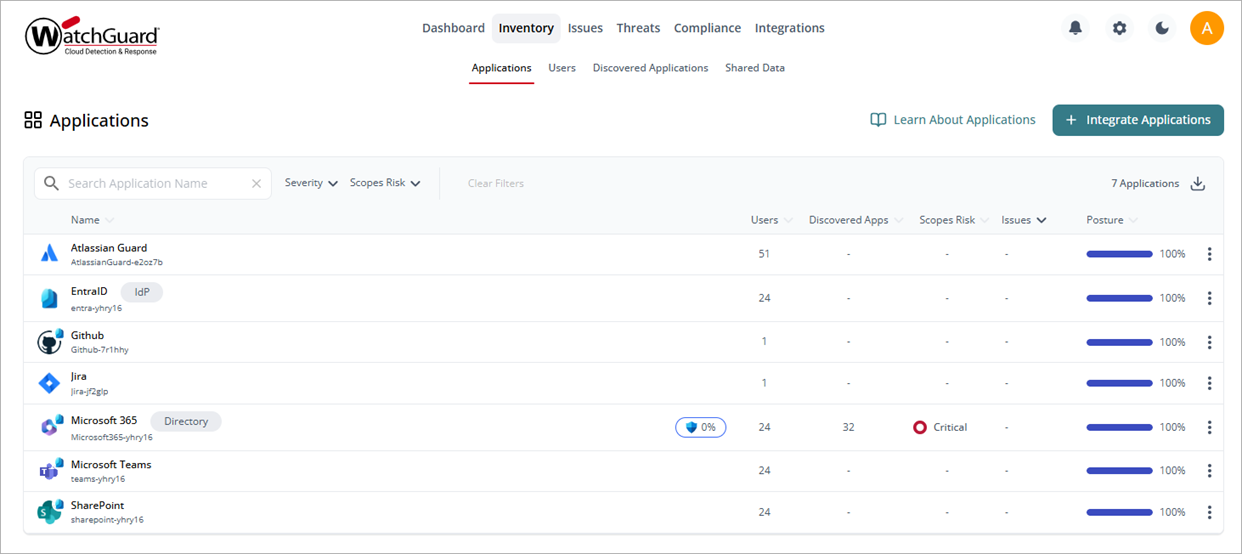
To search for a specific application, enter the application name in the Search Application Name box.
To export the list to a .CSV file, next to the total number of applications, click  .
.
Information in this list includes:
Name
The name of the application. A Directory label shows next to the application name to designate the application as the primary directory application. An IdP label shows next to the application name when the application is designated as the IdP.
If an application is managed by an IdP, the application logo includes an IdP icon in the upper-right corner. Point to the logo to show the IdP that manages the application.
Organization
The name of the organization that the application is found in.
Users
The number of users active in the application.
Discovered Apps
The number of discovered applications authorized from the application.
Scopes Risk
The scopes risk for the application. Scopes risk is calculated from the authorized scope of all discovered applications. Point to the scopes risk to show the number of applications at each risk level (Critical, High, Medium, Low, Info).
Issues
The number of open issues for the application. Point to the number of issues to show the number of issues at each severity level (Critical, High, Medium, Low).
Posture
The security posture of the application. This is the percentage of mitigated risk factors for the application. Point to the percentage to show the percentage for each risk factor.
Application Details Page
To view more detailed information about a specific application, click the application name.
The application details page opens.
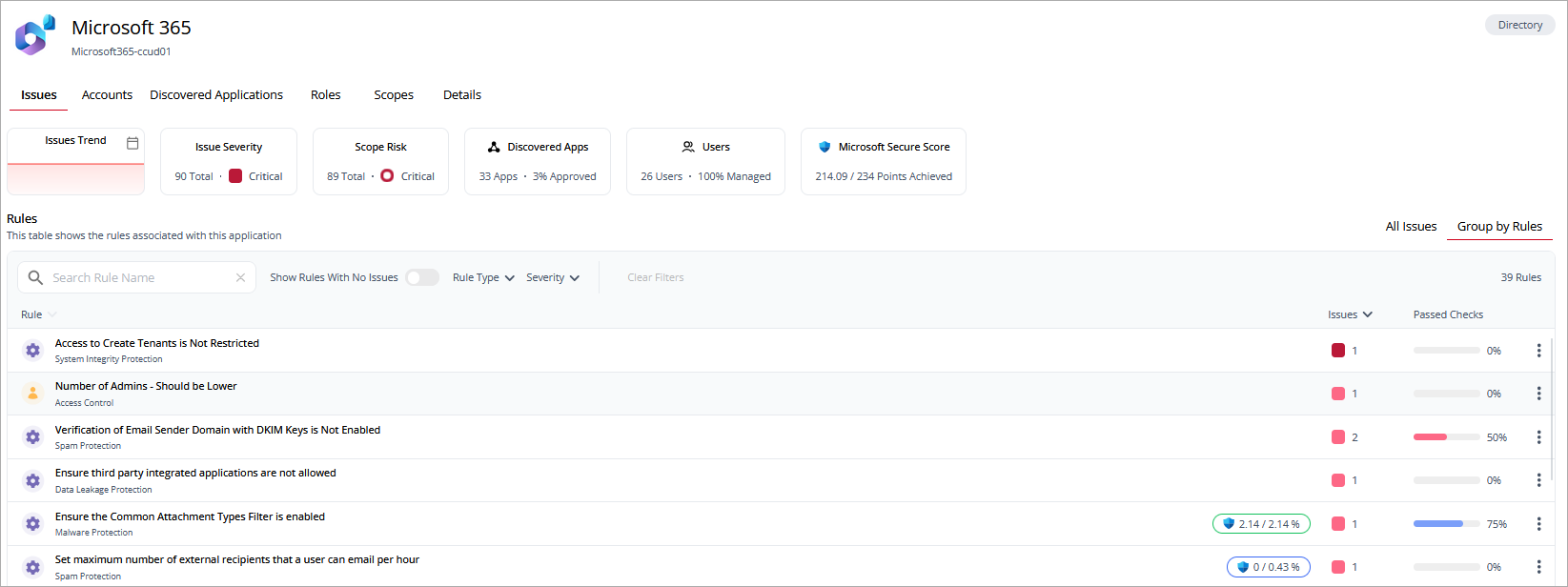
The application details page includes these widgets:
- Issues Trend — A graphical representation of open issues. Click the calendar icon to filter the display by a different date range (Last 7 days, Last 30 days, Last 90 days, Lifetime).
- Issue Severity — The overall severity of the application with the number of open issues. Point to the number of issues to show the number at each severity level (Critical, High, Medium, Low).
- Scope Risk — The overall scope risk of the application with the number of delegated scopes. Point to the scope risk to show the number at each risk level (Critical, High, Medium, Low, Info).
- Users — The total number of active users in the application.
Above the widgets, you can click tabs to open detailed application information on these pages:
Issues Page
The Issues page shows the checks performed for the application and security domain. The issues list include this information:
- Rule — The name of the rule and security domain. Point to the rule to show a detailed description.
- Issues — The number of data points that fail the rule condition. For example, if the rule type is Discovered App with a Critical scope severity, and a user has 3 of these active applications, then the number of issues shown is 3. The WatchGuard Security team assigns the severity to each issue based on risk.
- Passed Checks — The number of data points that meet the rule condition. For example, if an identity rule runs against an application with 100 users and the number of identities secured against this rule is 70, then the Passed Checks percentage shows 70.
For more detailed information, click the rule name or click  , then select Show More.
Accounts Page
The Accounts page shows user account details for the application, including:
- Name — The name of the user account. Application administrators and privileged names include a crown icon. User accounts with a paid license show a dollar sign icon. NHI accounts show a terminal icon. If a user is managed by an IdP, the user profile photo includes an IdP icon in the upper-right corner. Point to the photo to show the IdP that manages the user.
- MFA — The user accounts enrolled with MFA show an Enabled or Disabled label. If the MFA is managed by an IdP, the IdP icon shows in the upper-right corner of the Enabled label.
- Discovered Apps — The number of authorized discovered applications for the user account.
- Devices — The number of devices where the user account is used.
- Roles — The number of roles that the user account is assigned to.
- Issues — The number of open issues for the user account.
- Severity — This column shows the overall severity.
- Last Login — The last time the user account logged in to the application. To update the time, sync the application.
Discovered Applications Page
The Discovered Applications page shows recently discovered applications that are unknown to the organization. You can filter the list by Scopes Risk, AI Application, Approval Status, and Discovery Source.
To search the list, enter the application name in the Search Discovered Apps box.
Information in this list includes:
- Discovered App — The name of the discovered application.
- Users — The number of users that use the discovered application.
- Trust — The level of trust assigned to the application as a percentage. The higher the percentage, the more trust in the security of the application.
- Scopes — The number of scope areas in the discovered application.
- Risk — The overall level of risk assigned to the application.
- Issues — The number of issues associated with the discovered application.
- Approval Status — The status of the application for use in the organization (Approved, Not Approved, Not Reviewed).
Provisioned Applications
The Provisioned Applications page is available only when the application is designated as an IDP. It shows applications managed by the IDP. To search for an application, enter the application name in the Search Provisioned Application box.
Information in this list includes:
- Name — The name of the provisioned application.
- Users — The number of users with the provisioned application.
Roles Page
The Roles page shows system and custom roles and groups. You can filter the list by Role Category and Role Type. To search for a role, enter the role name in the Search Role Name box.
Information in this list includes:
- Role — The name of the application role.
- Role Category — The role access permissions (Read, Write, Admin, or Superadmin).
- Role Type — The type of role (System, Custom, or Unknown).
- Users — The number of users with the role in the application.
Click  next to a role to view details about users, associated issue count, and the highest severity.
Scopes Page
The Scopes page lists areas of scope in the application and their risk level. You can filter the list by Risk level. To search for a scope name, enter the name in the Search Scope Name box.
Information in this list includes:
- Name — The name of the area of scope.
- Discovered Apps — The applications where the scope risk was identified.
- Resource — The affected resources in the application.
- Type — The type of permission (Read, Admin).
- Risk — The overall risk level of the scope.
Details Page
The Details page provides information about the integration cloud application such as:
- Connection Status — The connection status of the application (for example, Success, Missing Config).
- Namespace — The instance of the application that is integrated.
- Application Owner — The user account that owns the application. To edit the application owner, click
 .
. - Service Description — A description of the application.
- Created on — The date when the application was installed.
- Last Updated — The date when the application was last updated in CloudDR.
For some user roles, this tab can also include a button to manually sync the application integration.