Applies To: WatchGuard CloudDR
GitHub is a cloud-based platform for version control and collaboration that enables individuals and teams to store, manage, and share their code and projects. GitHub offers a wide range of features such as issue tracking, pull requests, code review, and continuous integration. This guide describes how to integrate GitHub with CloudDR.
Available Features
- Misconfiguration Rules
- Identity Rules
- User Inventory
- Discovered Application Inventory
- Discovered Application Rules
Prerequisites
To configure this integration, you must have:
- A GitHub user account with required privileges, or you can use the owner account and a Personal Access Token (Classic) with the required privileges.
Required Privileges
To configure this integration, you must have these privileges assigned to the user.
| Scope | Use |
|---|---|
|
repo |
Access repositories [Meta Data] |
| admin:org | Read organizations, teams, and organization projects |
| user | Read all user data |
| admin:enterprise | Read enterprises |
| audit_log | Read audit log |
| read:project | Read projects [Meta Data] |
Create a Personal Access Token (Classic)
To create a Personal Access Token (Classic):
- Log in to the account that has the required scope at https://github.com/settings/apps.
- Expand the Personal access tokens drop-down list. Select Tokens (classic).
- Expand the Generate new token drop-down list. Select Generate new token (classic).
- In the Note section, add a description of what this token is used for.
- From the Expiration drop-down list, select No expiration.
- In the Select scopes section, select these scopes:
- admin: enterprise
- admin: org
- public_repo
- read: project
- repo: status
- security_events
- user
- read: audit_log
- Click Generate token. Copy and save the token in a secure location.
Configure the GitHub Integration in CloudDR
To integrate GitHub with CloudDR:
- In WatchGuard Cloud, select Configure > CloudDR.
- Select the Integrations tab.
- (Service Providers) From the Select Integrations View drop-down list, select Add Integrations.
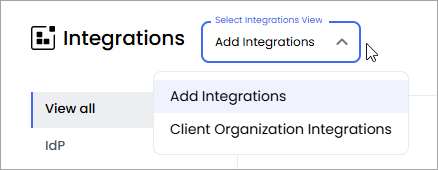
- In the GitHub widget, click Add.
- Click Start Integration.
- On the Organization page, in the Organization text box, enter your GitHub organization name. To find your GitHub organization name:
- Log in to your GitHub account.
- Select your profile picture to open the user navigation menu. Select Organizations.
- On the Organization page, copy the organization name that shows in the address bar. For example, https://github.com/example where example is your organization name.
- Click Next.
- On the API Token page, in the API token text box, paste the API token you previously saved.
- Click Submit.