Applies To: WatchGuard Core MDR, WatchGuard Core MDR for Microsoft, WatchGuard Total MDR, WatchGuard Open MDR
WatchGuard MDR sends monthly and weekly reports to the recipient email addresses you provide on the portal Report Settings page. For information about the types of reports and how to view them, go to View MDR Reports.
To manage report settings, you must be a Service Provider (Owner or Helpdesk), a tier-n Subscriber (Admin or Analyst) with Service Access enabled, or a tier-1 Subscriber (Admin). For more information about permissions in the Managed Services portal, go to Permissions for the Managed Services Portal.
Add Report Recipients and Language Settings
You can add up to three email addresses to receive monthly and weekly MDR reports.
To add report recipients and select the Monthly report language:
- In WatchGuard Cloud, select Monitor > Managed Services.
The Managed Services portal opens in a new browser tab. - If you are a Service Provider, select your Subscriber account from the drop-down list.
- In the upper-right corner of the Managed Services portal, click
 .
. - From the drop-down list, select Onboarding.
- From the navigation menu, select Report Settings.
The Report Settings page opens.
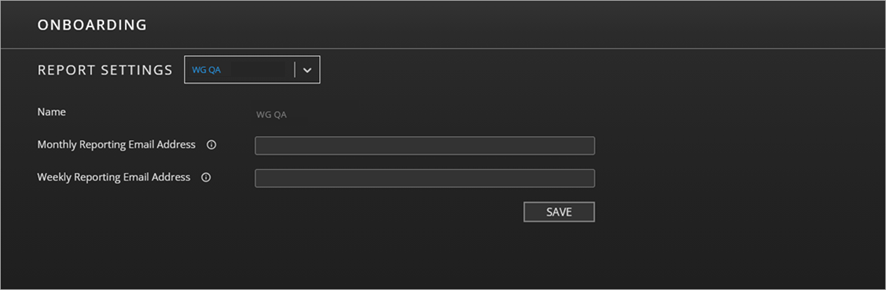
- To add recipients for monthly or weekly reports, in the Monthly Reporting Email Address and Weekly Reporting Email Address text boxes, enter up to three email addresses. Separate email addresses with a comma or use a distribution list to add more recipients.
- For the Monthly report only, in the Report Language section, select English or Español.
The Report Language setting applies only to the Monthly report.
- Click Save.
Monthly Report Customization
In WatchGuard Cloud, Service Providers can add their company logo to the Monthly report.
For more information, go to Add Custom Branding.