Applies To: WatchGuard MDR Vulnerability Scanner
With WatchGuard MDR Vulnerability Scanner, you can configure vulnerability scanning for endpoints that run the WatchGuard Agent and schedule internal and external scans from the Managed Services portal. After scans complete, findings show on the Vulnerabilities pages so you can review them and manage risk.
Before You Begin
Before you configure vulnerability scanning, make sure that you:
- Purchase and allocate WatchGuard MDR Vulnerability Scanner licenses to the Subscriber account. For more information, go to About WatchGuard MDR Licenses.
- Review system requirements. For more information, go to Review System Requirements.
To install and configure vulnerability scanning, you must be a Service Provider (Owner), a tier-n Subscriber (Admin) with Service Access enabled, or a tier-1 Subscriber (Admin). For more information about permissions in the Managed Services portal, go to Permissions for the Managed Services Portal.
Your account must have an active WatchGuard MDR Vulnerability Scanner license. If the license is not active, you cannot schedule scans.
Review System Requirements
The computers on which you install the WatchGuard Agent and Vulnerability Scanner must meet these requirements.
Hardware and Software Requirements
- Operating System — Linux-based system. For supported Linux distributions and architectures, go to Supported Linux Distributions.
- CPU — 4 2-GHz cores.
- Memory — Minimum 4 GB (we recommend 8 GB RAM).
- Available Disk Space — Minimum 30 GB of free space in addition to space used by the host operating system.
Network and Firewall Rules
The Linux computer that runs the WatchGuard Agent and Vulnerability Scanner must allow outgoing traffic on HTTP 443.
For external scans, you must add a location-specific IP range to an allowlist on your firewall. To find the correct IP range for your region, go to Cloud Sensors in the Tenable documentation.
Supported Linux Distributions
The computers on which you install the WatchGuard Agent and Vulnerability Scanner must run one of these supported Linux distributions:
| Linux Distribution | Supported Versions |
|---|---|
| AlmaLinux 8.10 and 9.5 |
x86_64 |
|
Amazon Linux 2 |
x86_64 |
| CentOS Stream 9 | x86_64 |
| Debian 11, 12, and 13 | x86_64 |
| Fedora 41 and 42 | x86_64 |
| Oracle Linux (including Unbreakable Enterprise Kernel) 7, 8, and 9 |
x86_64 |
| Red Hat EL 7.9 | x86_64 |
| Red Hat EL 8.4, 8.6, 8.8, 8.10, 9.0, 9.2, 9.4 and later |
x86_64 |
| Rocky Linux 8.10 and 9.5 |
x86_64 |
| SUSE 12 SP5, SUSE Enterprise 15 SP3 and later | x86_64 |
| Ubuntu 16.04, 18.04, 20.04, 22.04, and 24.04 | x86_64 |
Install the WatchGuard Agent
The WatchGuard Agent is an application that you install on endpoints in your network so that WatchGuard Cloud can communicate with them and deploy software. Install the WatchGuard Agent on each Linux computer you want to add a WatchGuard Agent MDR service to.
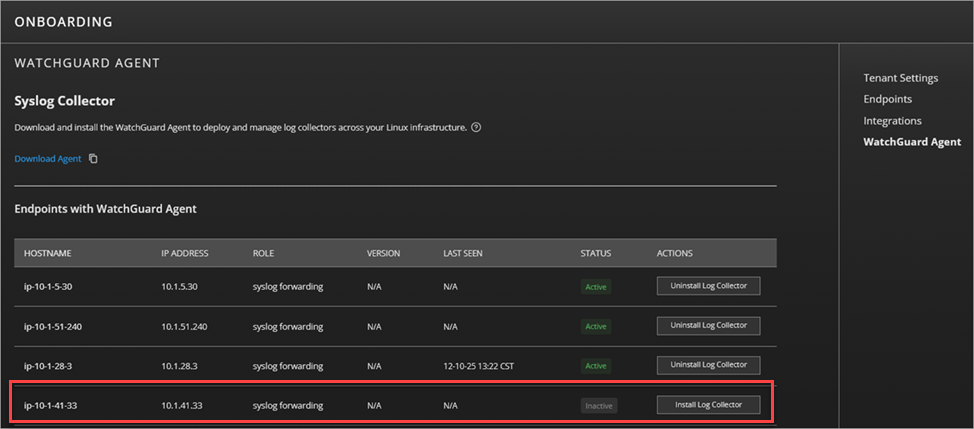
If the WatchGuard Agent is already installed on the endpoint, it shows in the Endpoints with WatchGuard Agent list on Monitor > Managed Services > Onboarding > WatchGuard Agent.
To install the WatchGuard Agent:
- Log in to your WatchGuard Cloud account.
- Select Monitor > Managed Services.
The Managed Services portal opens in a new browser tab. - If you are a Service Provider, select an account from the drop-down list.
- In the upper-right corner of the Managed Services portal, click
 .
. - From the drop-down list, select Onboarding.
- From the navigation menu, select WatchGuard Agent.
The WatchGuard Agent page opens.
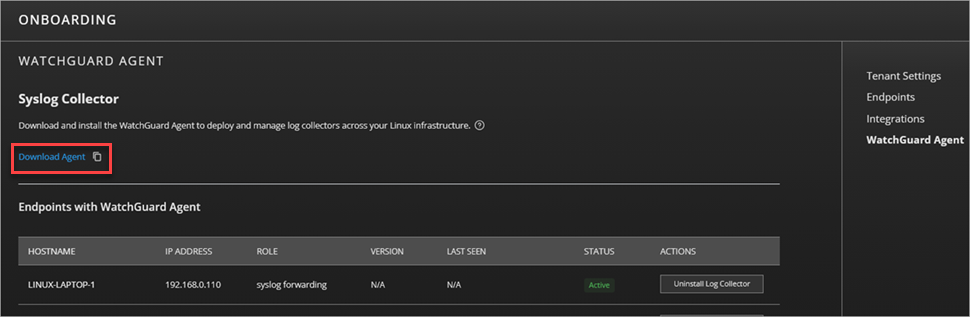
- Click Download Agent.
The WatchGuard Agent.RUN file downloads. - Copy the .RUN file to the Linux computer you want to install a WatchGuard Agent MDR service on.
- To install the WatchGuard Agent, from the Linux computer, run this command:
sudo bash "WatchGuard Agent.run" - To verify that the WatchGuard Agent installed successfully, make sure that the endpoint shows in the Endpoints with WatchGuard Agent list in the Managed Services portal.
Install Vulnerability Scanner
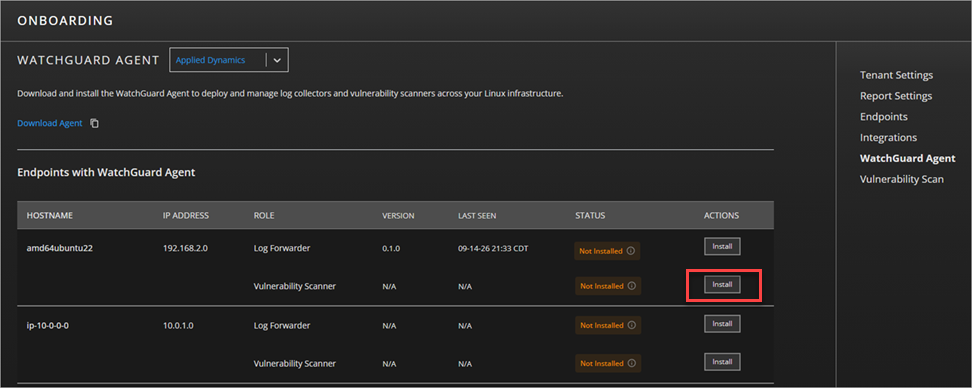
After you install the WatchGuard Agent, you can install the Vulnerability Scanner service on that endpoint. An endpoint can have more than one service role, such as Log Forwarder and Vulnerability Scanner.
To install Vulnerability Scanner:
- Log in to your WatchGuard Cloud account.
- Select Monitor > Managed Services.
The Managed Services portal opens in a new browser tab. - If you are a Service Provider, select an account from the drop-down list.
- In the upper-right corner of the Managed Services portal, click
 .
. - From the drop-down list, select Onboarding.
- From the navigation menu, select WatchGuard Agent.
The WatchGuard Agent page opens and shows the Endpoints with WatchGuard Agent list. - In the Actions column for the endpoint, click Install.
After the installation completes, the Status column shows Active for Vulnerability Scanner.
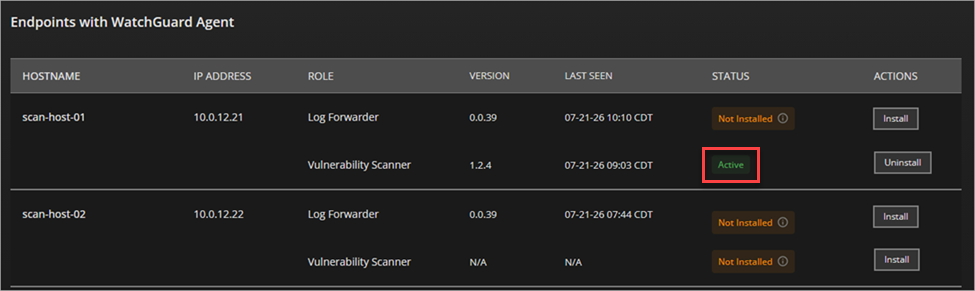
The Status column can show:
Active
Vulnerability Scanner is installed and runs on the endpoint.
Not Installed
The WatchGuard Agent is installed, but Vulnerability Scanner is not installed.
Deactivated
Vulnerability Scanner was installed previously and is no longer active.
Configure Vulnerability Scan Settings
After you install Vulnerability Scanner, schedule internal and external scans on the Vulnerability Scan page. For each scan, you specify the IP address range, the day of the month to run the scan, and the time of day to start the scan.
You cannot submit a scan schedule if a scan for the account completed and returned results within the last seven days. The IP addresses in your scan ranges cannot exceed the number of IP addresses included in your Vulnerability Scanner license.
To configure vulnerability scan settings:
- Log in to your WatchGuard Cloud account.
- Select Monitor > Managed Services.
The Managed Services portal opens in a new browser tab. - If you are a Service Provider, select an account from the drop-down list.
- In the upper-right corner of the Managed Services portal, click .
- From the drop-down list, select Onboarding.
- From the navigation menu, select Vulnerability Scan.
The Vulnerability Scan page opens.
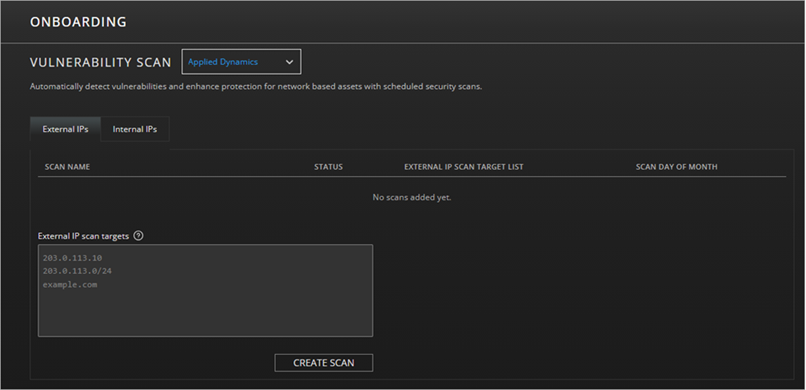
- To configure an external scan, select the External IPs tab, then specify these settings:
- In the External IP Scan Targets text box, type one or more public IP addresses, CIDR ranges, or Fully Qualified Domain Names (FQDNs) to include in the scan, then click Create Scan. For example, type 203.0.113.0/24 or www.example.com.
- To set the scan day and time, click
 .
. - From the Scan Day drop-down list, select the day of the month to run the scan (1–28).
- From the Scan Time drop-down list, select the time of day to start the scan.
- From the Time Zone drop-down list, select the time zone.
- Click Save.
You can have only one external scan configured at a time. To include a different external IP address or asset in a scan, edit the existing scan and update the scan settings.
- To configure an internal scan, select the Internal IPs tab, then specify these settings:
- From the Scanner drop-down list, select an endpoint with Vulnerability Scanner installed.
- In the Internal IP Address Range text box, type one or more private IP addresses, CIDR ranges, or FQDNs to include in the scan, then click Create Scan. For example, type 10.0.1.0/24.
- To set the scan day and time, click .
- From the Scan Day drop-down list, select the day of the month to run the scan (1–28).
- From the Scan Time drop-down list, select the time of day to start the scan.
- From the Time Zone drop-down list, select the time zone.
- Click Save.
- To configure additional internal scans, click Create Additional Scheduled Scans.
The External IPs and Internal IPs pages show your scheduled scans and include the scan status, the external or internal IP scan target list, and the day of the month the scan runs.
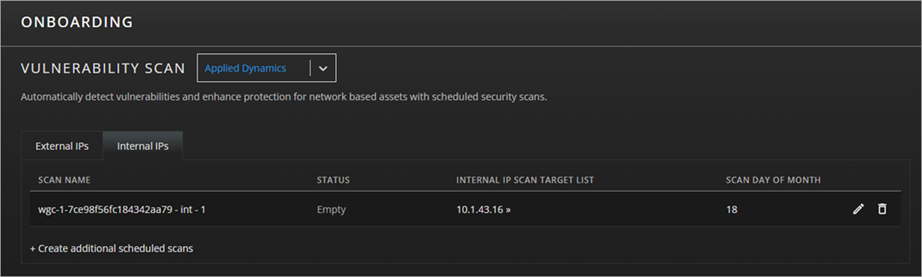
A scan can show one of these statuses:
Aborted
An error stopped the scan. Partial results might be available.
Canceled
A user canceled the scan.
Completed
The scan completed.
Empty
The scan is ready to start.
Initializing
The system is preparing the scan to run.
Pausing
The system is pausing the scan.
Paused
The scan is paused.
Pending
The scan is waiting for a scanner to start.
Processing
The system is processing scan data and results.
Publishing
The system is saving scan results for you to review.
Resuming
The system is restarting tasks for a paused scan.
Running
The scan is in progress.
Stopped
A user stopped a pending, running, or paused scan.
Stopping
The system is processing a request to stop the scan.
For detailed instructions about how to review scan findings after scans complete, go to Review Vulnerability Scan Results.
Verify the Service Status
To verify service status for vulnerability scanning, view the Vulnerability Scan section on the Service Status page in the Managed Services portal.
To verify the status:
- In WatchGuard Cloud, select Monitor > Managed Services.
The Managed Services portal opens in a new browser tab. - If you are a Service Provider, select your Subscriber account from the drop-down list.
- Select Connections > Service Status.
The Service Status page opens.

For more information, go to Review MDR Connection Service Status.
Uninstall Vulnerability Scanner
To stop vulnerability scans on an endpoint, you can uninstall the Vulnerability Scanner on the WatchGuard Agent page. If you uninstall Vulnerability Scanner, the WatchGuard Agent and other services remain on the endpoint.
To uninstall Vulnerability Scanner from an endpoint:
- Log in to your WatchGuard Cloud account.
- Select Monitor > Managed Services.
The Managed Services portal opens in a new browser tab. - If you are a Service Provider, select an account from the drop-down list.
- In the upper-right corner of the Managed Services portal, click .
- From the drop-down list, select Onboarding.
- From the navigation menu, select WatchGuard Agent.
The WatchGuard Agent page opens and shows the Endpoints with WatchGuard Agent list. - In the Actions column for the endpoint with Vulnerability Scanner, click Uninstall.
The WatchGuard Agent uninstalls the Vulnerability Scanner from the endpoint.
Troubleshoot the WatchGuard MDR Vulnerability Scanner
Use the information in this section to help you diagnose and resolve issues with the WatchGuard MDR Vulnerability Scanner.
To troubleshoot the WatchGuard MDR Vulnerability Scanner:
- Make sure that the computer that runs the WatchGuard Agent and Vulnerability Scanner meets the requirements described in the Review System Requirements section.
- Make sure that the Vulnerability Scanner is installed as a systemd service and that it runs without errors.
- To verify the service status, run this command:
- sudo systemctl status nessusd
- If the service is not active, investigate the reported errors or try to restart it.
- To verify the service status, run this command:
- You can view the WatchGuard Agent logs at /usr/local/management-agent/log for further troubleshooting.
- For service or scan-related issues after a successful installation, review the Nessus logs in /opt/nessus/var/nessus/logs.
Review Vulnerability Scan Results