Applies To: WatchGuard CloudDR
The CloudDR management UI is where Managed Service Providers (MSPs) and their customers can detect, prioritize, and address potential security risks in their cloud applications.
To open the CloudDR management UI, from WatchGuard Cloud:
- From Account Manager, select the account you want to open the CloudDR management UI for.
This account must have an active CloudDR license. It becomes the organization selected in the CloudDR management UI. - Select Monitor > CloudDR or Configure > CloudDR.
The CloudDR management UI is divided into these sections:
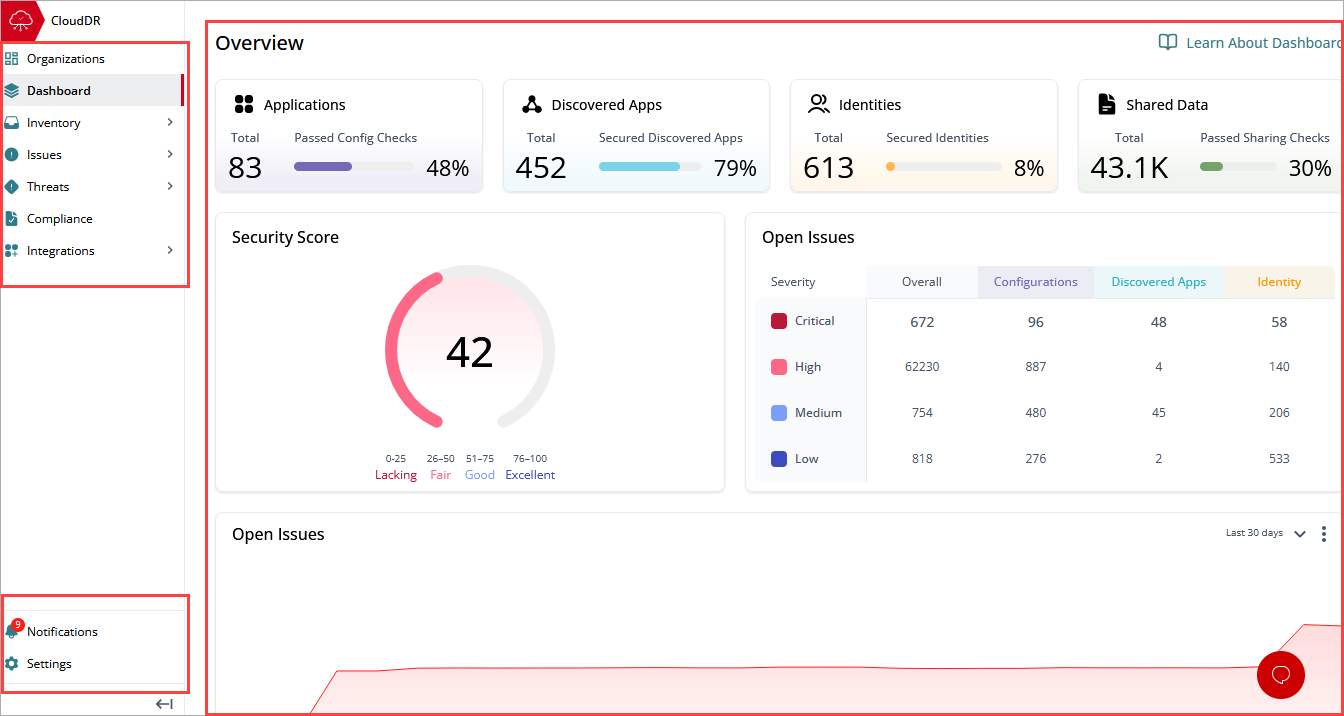
CloudDR Menu
WatchGuard CloudDR helps detect, prioritize, and address potential security risks in your cloud applications. To facilitate this, the CloudDR management UI is divided into multiple pages. From the left pane menu, select the page you want to open.
Organizations
Open the Organizations page to review a list of your managed organizations (accounts) and users. You can also click  to open the Organizations panel. For more information, go to About Organizations in WatchGuard CloudDR.
Dashboard
Open the Dashboard page to review a visual summary of your cloud application security status. For more information, go to About the WatchGuard CloudDR Dashboard.
Inventory
Open the Inventory page to review your cloud application security posture with detailed information about your SaaS applications, users, and discovered applications. For more information, go to Inventory in WatchGuard CloudDR.
Issues
Open the Issues page to review an actionable list of all existing open issues CloudDR identified in your SaaS setup as well as a list of all the rules. Rules are the security scenarios that CloudDR evaluates to identify security issues. For more information, go to Issues in WatchGuard CloudDR.
Threats
Open the Threats page to review correlated events that indicate a potential security risk. For more information, go to Threats in WatchGuard CloudDR.
Compliance
Open the Compliance page to review your security posture and issues from a compliance framework perspective. For more information, go to Manage Compliance in CloudDR.
Integrations
Open the Integrations page to review the status of integrated applications and integrate additional applications. For more information, go to About WatchGuard CloudDR Integrations.
Notifications and Settings
In the lower area of the CloudDR menu, you can view notifications about your account or about specific events that occur in integrations and CloudDR.
You can also click  to open the organization settings for the account. For more information, go to Organization Settings in WatchGuard CloudDR.
Details Pane
When you select a page from the CloudDR menu, the right pane in the management UI shows detailed information. The information in the details pane is specific to the account selected in Account Manager. If you selected Overview from Account Manager, the details pane shows aggregated information for all of the account you manage.