Applies To: Cloud-managed Fireboxes, Locally-managed Fireboxes
When you purchase a Firebox or add-on service, you must activate your Firebox with WatchGuard. When you activate your Firebox, you also enable your hardware replacement warranty, receive technical support, start your subscription to licensed security services, and get access to the latest firmware updates.
When a Firebox license expires, you can renew the license or, for eligible devices, you can activate the Firebox with a different license type.
Activate a Firebox
To activate a Firebox, you enter:
- Serial Number — The hardware serial number located on the device.
- License Key — For some Fireboxes, the license key for the Firebox software license you purchased.
For Firebox bundles that include a software license, you do not enter a license key during activation.
For more information on how to find your device serial number, go to the How to Find Serial Numbers on Your Appliances video tutorial (6 minutes).
When you activate a device or service, it is available immediately for allocation and configuration.
To activate your WatchGuard Firebox:
- Go to https://myproducts.watchguard.com/activate.
- Log in to your WatchGuard account. If you do not have a WatchGuard account, on the login page, click Create an Account.
The Activate Products page opens. - In the Enter a Serial Number or License Key text box, type the Firebox serial number. Make sure to include any hyphens.
- Click Next.
- If the Device License Key page opens:
- Type your Firebox software license key, then click Next.
The Activate Device wizard starts. - If you want to activate a Firebox license with MSSP points, select the Activate For Use in MSSP Command check box, then click Next.
The Activate Device wizard starts.
- Type your Firebox software license key, then click Next.
- If the Device License Key page does not open, your Firebox does not require a software license key for activation.

- If the Device License Key page opens:
- Enter a friendly name for the device.
- In the Compliance section, select an option. License activation for devices goes through regulatory checks for export compliance.
- I am activating this product for my organization — Select this option when you want to activate the device for your organization. The account must include a valid billing address.
- I am activating this product for another organization, as a reseller or intermediary — Select this option when you want to activate the device for an account you manage. You must enter the address of the end-user business.
- Click Activate.

If your activation is rejected and you think this was in error, contact WatchGuard Customer Care.
After you activate a device, the device appears on the Manage Products > Network Security page for your account. You can start free trials for services from the Product Details page. For information on trials, go to About Free Trials on the Product Details Page.
WatchGuard Cloud enables you to see and manage your products and services in one place. For information on how to add a device to WatchGuard Cloud, go to Get Started — Add a Device to WatchGuard Cloud. Fireboxes activated by a Service Provider appear in the Service Provider Inventory in WatchGuard Cloud. You can then allocate them to your account or any account you manage.
Renew a Firebox License
When a Firebox license is expired or about to expire, you can renew the license. You must have a renewal license key from your authorized reseller.
To renew a Firebox license:
- Open a web browser and go to https://myproducts.watchguard.com/manage-products.
- Log in to your WatchGuard account.
The Manage Products page opens. - Search for the device with the license you want to renew. You can search by friendly name, serial number, or Firebox model.
- Click the friendly name of the Firebox.
The Product Details page opens. - Click Renew License.
The Enter a License Key dialog box opens. - Enter the license key for the renewal.
- Click Activate.
Alternatively, you can activate a renewal license directly from the Manage Products > Network Security page. Click Renew next to the Firebox with the license you want to renew, enter the license key, and click Activate.
Reuse a Firebox with a Different License Type
For eligible devices, after a Firebox license expires, you can reuse the same Firebox with a different license type. You cannot reuse a Firebox model that has reached end-of-sale.
This procedure removes the existing license from the Firebox. After the existing license is removed and the device is in the Ready to Activate status, you can immediately activate the Firebox with a Term license or MSSP points. To activate the Firebox with a term license, you must have a license key from your authorized reseller.
To activate the Firebox with a subscription license, complete the first part of this procedure. After the device is in the Ready to Activate status, follow your usual process to contact your distributor and add the device to a subscription contract.
This process removes the friendly name from the Firebox. If you want to use the same name for the Firebox after you activate it with a different license, copy the name before you begin. After the process is complete, click  and select Rename Device. Enter the name and click Update.
To reuse a Firebox with a different license type:
- Open a web browser and go to https://myproducts.watchguard.com/manage-products.
- Log in to your WatchGuard account.
The Manage Products page opens. - In the Network Security widget, click View Products.
The Manage Products > Network Security page opens. - Next to the Firebox you want to reuse, click and select Reuse Device.
The Reuse Device dialog box opens. - To confirm that you want to remove the existing license, click Continue.
If the Firebox is eligible to use with a different license type, the device preparation process begins. You can wait for the process to complete or you can return to the Manage Products page later to activate the Firebox with the new license type. You can view the status of the process on the Recent Activations page. - To activate the Firebox with the new license, on the Manage Products > Network Security page, click Ready to Activate.
The Activate Device dialog box opens.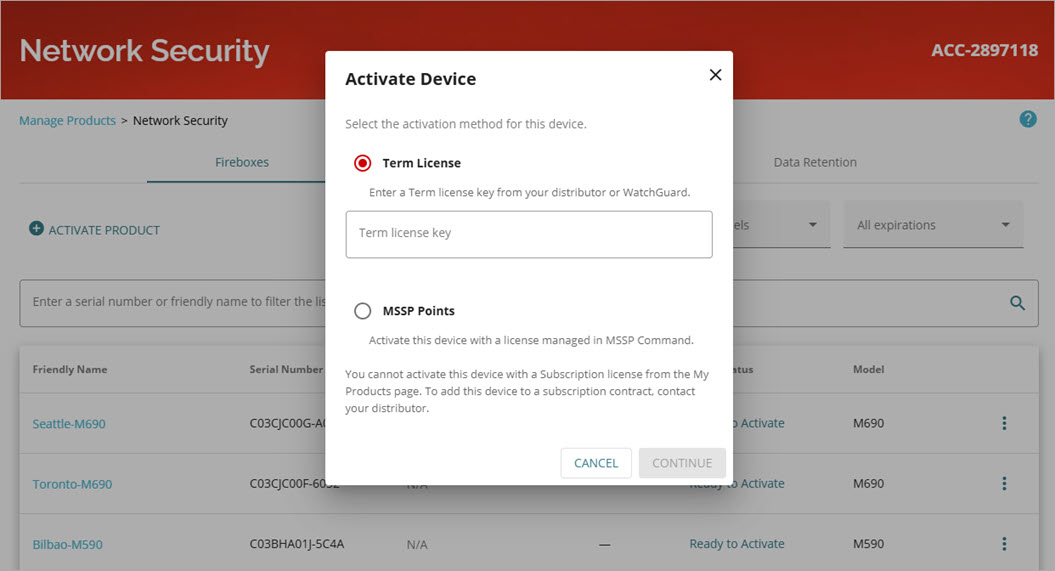
- Select the activation method for the device. If you select Term License, you must enter the license key from your authorized reseller.
To activate a Firebox with a subscription license, you must contact your distributor to add the device to a subscription contract.
- Click Continue.
The Firebox is activated. This might take a few minutes.
About the Product Details Page
Get Started with WatchGuard Devices
Video Tutorial: How to Find Serial Numbers on Your Appliances
Activate a Firebox (Video tutorial)