Applies To: Cloud-managed Fireboxes

This document applies to Fireboxes you manage in WatchGuard Cloud. For information that applies to Fireboxes managed in Fireware Web UI or WatchGuard System Manager, go to:
Overview
NetFlow is a protocol that is used to collect and analyze IP network traffic. To gain more insights into your network traffic, you can configure the Firebox as a NetFlow exporter. For example, you can use NetFlow data to troubleshoot network performance issues or investigate security concerns. For more information about NetFlow and how to use your cloud-managed Firebox as a NetFlow exporter, go to About NetFlow and NetFlow Settings for Cloud-Managed Fireboxes.
Configuration Settings
These are the NetFlow settings you can configure for a cloud-managed Firebox:
Version
The NetFlow protocol version. The version determines the fields included in the NetFlow flow record. To monitor IPv6 traffic, you must use V9.
Collector Address
The IPv4 or IPv6 address of the NetFlow collector. The collector is the server that collects NetFlow data from the Firebox.
Port
The port number on the collector to send NetFlow data to. The Firebox must be able to communicate with the collector at the specified IP address and port with the UDP protocol.
Active Flow Timeout
The amount of time an active connection should wait before it terminates, up to 60 minutes. By default, the Active Flow Timeout value on the Firebox is 30 minutes.
To avoid data loss, we recommend that you specify an Active Flow Timeout value that is lower than the Active Flow Timeout value on the collector. If the Active Flow Timeout value is lower on the collector, the collector might stop listening while the Firebox sends data.
Sampling Mode and Sampling Rate
In Sampling mode, the Firebox randomly selects 1 out of every n packets to sample. For example, if you specify a Sampling Rate of 100, the Firebox samples 1 out of every 100 packets.
Sampling Mode is less accurate because not all packets are sampled. For this reason, we do not recommend Sampling Mode for small networks.
Monitor Traffic Generated by the Firebox and Monitor Traffic Destined for the Firebox
You can select to monitor Firebox-generated (self-generated) traffic, which is outbound traffic generated by the Firebox itself. You can also select to monitor traffic destined for the Firebox.
Ingress/Egress
You can select to monitor ingress traffic, which is traffic that arrives on a network. You can also select to monitor egress traffic, which is traffic that exits a network.
If you select both Ingress and Egress for multiple networks, be aware that you might collect duplicate NetFlow data. To avoid duplicate data, select Ingress or Egress, but not both.
You can configure Netflow settings in an individual Firebox configuration or in a Firebox template. If a Firebox subscribes to a template with Netflow configured, a lock icon shows next to the NetFlow feature toggle in the Firebox configuration, and you cannot configure it in the Firebox configuration for that device. To view the name of the template where Netflow is configured, hover over the lock icon. For more information about Firebox templates, go to About Firebox Templates.
Your operator role determines what you can see and do in WatchGuard Cloud. Your role must have the Devices permission to view or configure this feature. For more information, go to Manage WatchGuard Cloud Operators and Roles.
Configure NetFlow Settings
To configure NetFlow settings for a cloud-managed Firebox, from WatchGuard Cloud:
- Select Configure > Devices.
- Select a cloud-managed Firebox.
- Click Device Configuration.
- Click the Device Settings widget.
The Settings page opens.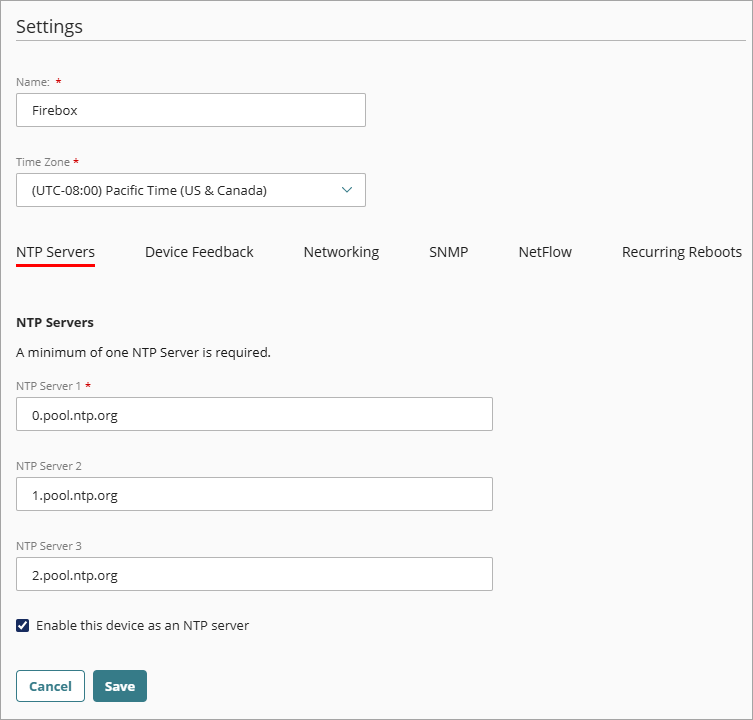
- Select the NetFlow tab.
The NetFlow settings page opens. - Enable NetFlow.
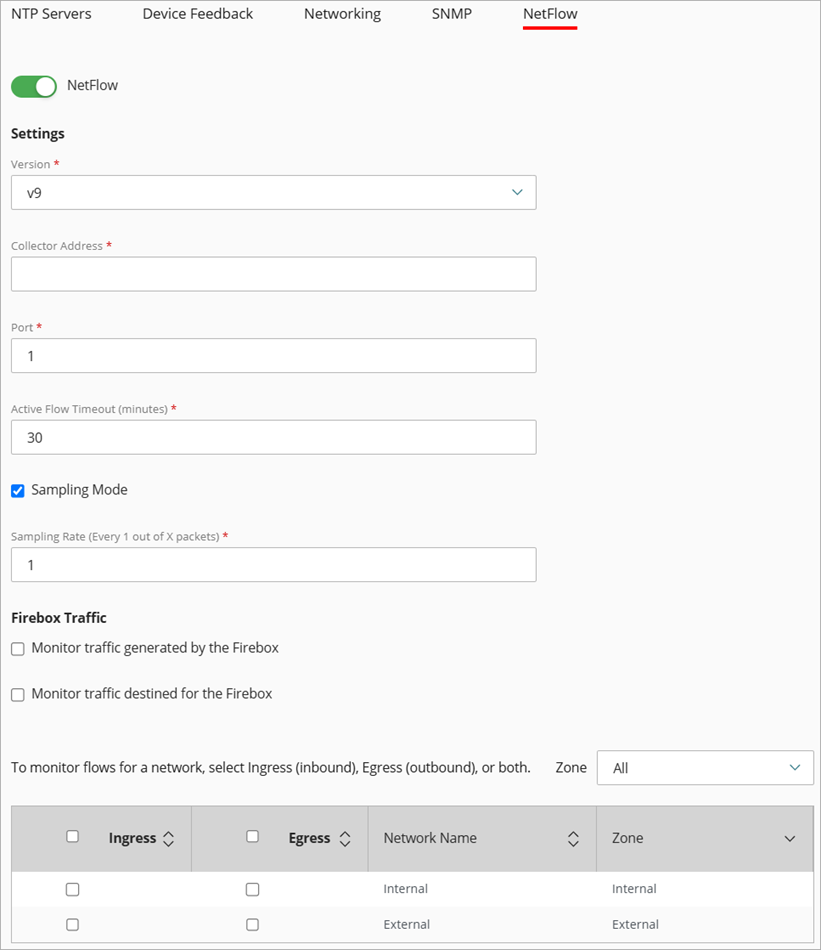
- From the Version drop-down list, select the NetFlow protocol version. To monitor IPv6 traffic, you must use V9.
- In the Collector Address text box, type the IPv4 or IPv6 address of the collector. The collector is the server that collects NetFlow data from the Firebox.
- In the Port text box, type the number of the port on the collector to send NetFlow data to. The Firebox must be able to communicate with the collector at the specified IP address and port with the UDP protocol.
- In the Active Flow Timeout text box, enter a number of minutes from 1 though 60. The Active Flow Timeout is the amount of time an active connection should wait before it terminates. By default, the Active Flow Timeout value on the Firebox is 30 minutes.
To avoid data loss, we recommend that you specify an Active Flow Timeout value that is lower than the Active Flow Timeout value on the collector. If the Active Flow Timeout value is lower on the collector, the collector might stop listening while the Firebox sends data.
- (Optional) To enable Sampling Mode, select the Sampling Mode check box and, in the Sampling Rate text box, enter a sampling rate from 2 to 65535 packets.
- (Optional) To specify which Firebox traffic to monitor, select Monitor Traffic Generated by the Firebox, Monitor Traffic Destined for the Firebox, or both.
- To enable NetFlow for a network, next to the network name, select Ingress, Egress, or both.
If you select both Ingress and Egress for multiple networks, be aware that you might collect duplicate NetFlow data. To avoid duplicate data, select Ingress or Egress, but not both.
- To save configuration updates to the cloud, click Save.
About NetFlow and NetFlow Settings for Cloud-Managed Fireboxes
Add a Cloud-Managed Firebox to WatchGuard Cloud
Add a Cloud-Managed FireCluster
Configure Device Feedback Settings for a Cloud-Managed Firebox