Applies To: Cloud-managed Fireboxes

This document applies to Fireboxes you manage in WatchGuard Cloud. For information that applies to Fireboxes managed in Fireware Web UI or WatchGuard System Manager, go to: Define Firebox Global Settings.
Overview
Device feedback helps WatchGuard to troubleshoot and secure our services, assess the threat landscape, and comply with our legal obligations (such as export control rules). It is also used to improve our products and features. It can include information about how your Firebox is used and issues you encounter with your Firebox, but does not include any information about your company or any company data that is sent through the Firebox. Because of this, device feedback is technical in nature and mainly consists of non-identifiable information. All device feedback that the Firebox sends to WatchGuard is encrypted.
For detailed information about device feedback, threat telemetry, and fault reports, go to About Device Feedback Settings for Cloud-Managed Fireboxes.
Configure Device Feedback Settings
To view and update device feedback settings for a cloud-managed Firebox, from WatchGuard Cloud:
- Select Configure > Devices.
- Select a cloud-managed Firebox.
- Click Device Configuration.
- Click the Settings widget.
The Settings page opens.
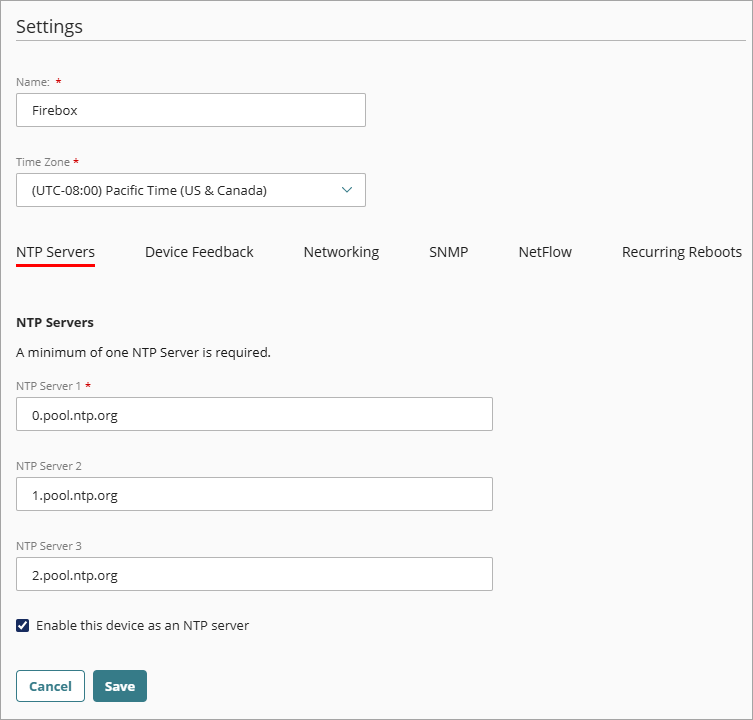
- Select the Device Feedback tab.
The Device Feedback settings page opens.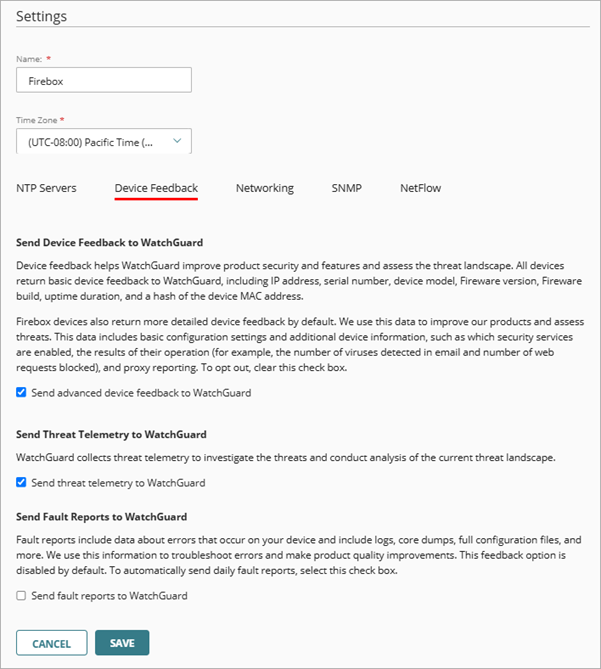
- To opt out of device feedback, clear the Send Advanced Device Feedback to WatchGuard check box.
- To opt out of threat telemetry feedback, clear the Send Threat Telemetry to WatchGuard check box.
- To automatically send daily fault reports, select the Send Fault Reports to WatchGuard check box.
- To save configuration updates to the cloud, click Save.
Add a Cloud-Managed Firebox to WatchGuard Cloud