Applies To: Cloud-managed Fireboxes, Locally-managed Fireboxes
Overview
With WatchGuard Cloud you can monitor the live status and usage of your cloud-managed Fireboxes and locally-managed Fireboxes with cloud reporting.
Live status requires a minimum Fireware version. For information on minimum and recommended Fireware versions, go to Fireware Requirements in the WatchGuard Cloud Release Notes.
Your operator role determines what you can see and do in WatchGuard Cloud. Your role must have the Devices permission to view or configure this feature. For more information, go to Manage WatchGuard Cloud Operators and Roles.
When the Firebox is connected to WatchGuard Cloud, you can use these pages to view live information on the traffic that passes through your Firebox:
Traffic Monitor
View real-time data on currently active connections and live logs. For more information, go to Monitor Traffic on Fireboxes and FireClusters.
FireCluster
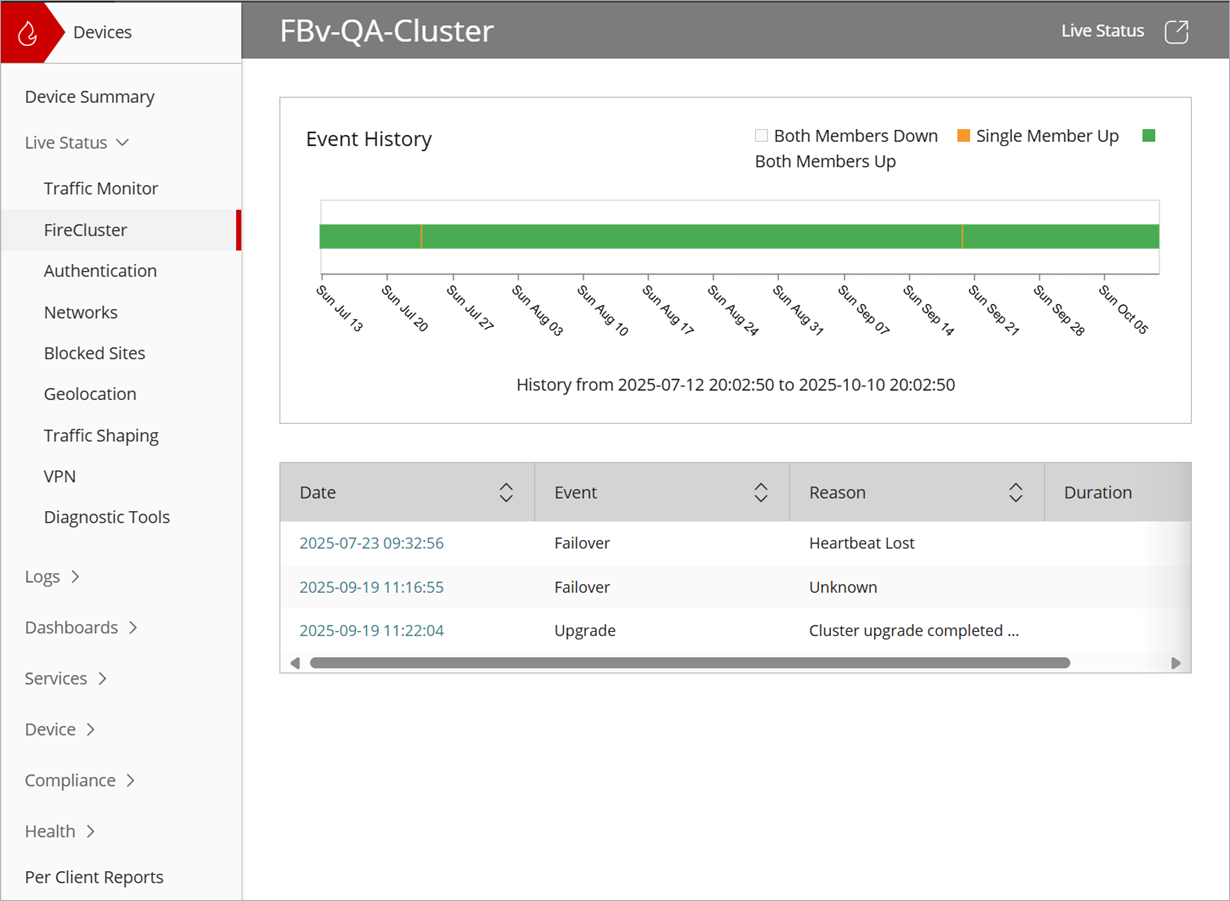
View a graph that shows cluster member availability for a period of time. View a list of recent FireCluster events. Click an event to view detailed information and to download a .JSON file. For more information, go to Monitor FireClusters.
Authentication
View information about the users that are authenticated to the Firebox and enable diagnostics. For more information, go to Monitor Authentication on Fireboxes and FireClusters.
Networks
View information on ARP, DHCP, and the routes that are configured on your Firebox. For more information, go to Monitor Networks on Fireboxes and FireClusters.
Blocked Sites
View a list of sites that are temporarily or permanently blocked by the Firebox. From the Blocked Sites list, you can add and manage temporary blocked sites. For more information, go to Monitor and Manage Blocked Sites on Fireboxes in WatchGuard Cloud.
Geolocation
View connections allowed by Geolocation for each country. For more information, go to Monitor Geolocation on Fireboxes and FireClusters. Not available for devices with a Standard Support license.
VPNs
View information about the Branch Office Virtual Private Networks (BOVPNs) and mobile VPNs configured for your Firebox. For more information, go to Monitor VPNs on Fireboxes and FireClusters.
Diagnostic Tools
Run network diagnostic tasks (Ping, TCP Dump, and DNS Lookup) and download a diagnostic snapshot file. For more information, go to Run Network Diagnostic Tasks in WatchGuard Cloud.
Traffic Shaping
View real-time data on currently active traffic shaping rules. For more information, go to Monitor Traffic Shaping on Fireboxes and FireClusters.
View Live Status Reports
To view Live Status reports, from WatchGuard Cloud:
- Select Monitor > Devices.
- Select a Firebox.
The Device Summary page for the selected Firebox opens. - Select Live Status, then select a report.
When you have a cloud-managed Firebox selected in Account Manager, you can also open live status from any page in the Monitor > Devices and Configure > Devices menus. To open live status in a new window, click  in the upper, right corner of the WatchGuard Cloud window.
Add a Cloud-Managed Firebox to WatchGuard Cloud
Add a Locally-Managed Firebox to WatchGuard Cloud