Applies To: WatchGuard Core MDR, WatchGuard Core MDR for Microsoft, WatchGuard Total MDR, WatchGuard Open MDR
When you first get started with WatchGuard MDR, you must configure the tenant settings for your account. The tenant settings include alert and business contact information and the escalation mode for alert contacts.
For tier‑1 Service Providers, you configure tenant settings at initial setup. WatchGuard MDR automatically propagates these settings to all managed tier‑n accounts.
After the initial setup, WatchGuard does not propagate changes you make to tenant settings at the parent level. You must apply these changes individually to each tier‑n account.
To manage tenant settings, you must be a Service Provider (Owner), a tier-n Subscriber (Admin) with Service Access enabled, or a tier-1 Subscriber (Admin). For more information about permissions in the Managed Services portal, go to Permissions for the Managed Services Portal.
To change tenant settings for an account:
- Log in to your WatchGuard Cloud account.
- Select Monitor > Managed Services.
- To change the settings for the tier-1 account, continue to step 4.
To change the settings for a tier-n account, select the Subscriber account from the drop-down list. - In the upper-right corner of the Managed Services portal, click
 .
. - From the drop-down list, select Onboarding.
- From the navigation menu, select Tenant Settings.
The Tenant Settings page opens.
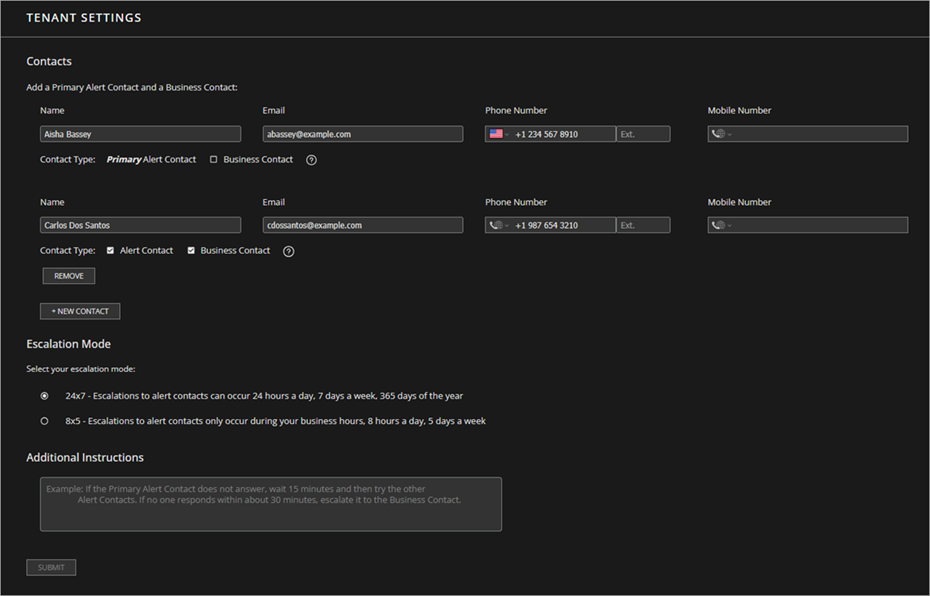
- In the Contacts section, enter contact information for the primary alert contact. This person is the designated contact for security alerts and incident notifications.
- Designate a contact as a business contact. The business contact is the designated contact for all business-related communication for the account. You can designate the primary alert contact as the business contact or you can add additional contacts.
- To add additional contacts, click New Contact and enter the contact information.
- To designate the contact as an alert contact, select the Alert Contact check box.
- To designate the contact as a business contact, select the Business Contact check box.
You must designate at least one alert contact and at least one business contact. You can assign these roles to the same contact or to different contacts.
- In the Escalation Mode section, select an escalation mode:
- 24x7 — Escalations to Alert Contacts Can Occur 24 Hours a Day, 7 Days a Week, 365 Days of the Year
- 8x5 — Escalations to Alert Contacts Only Occur During Your Business Hours, 8 Hours a Day, 5 Days a Week
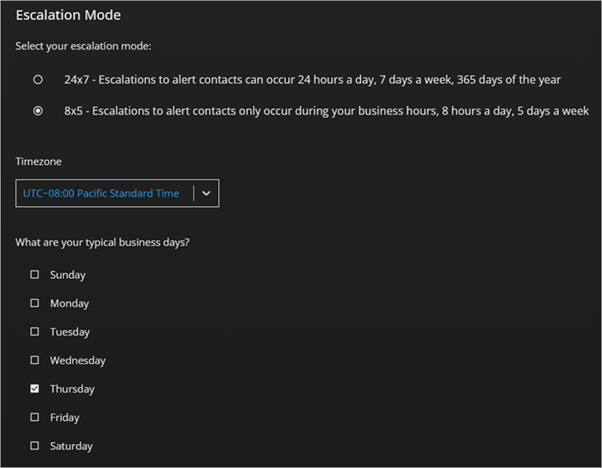
- If you select 8x5 as the escalation mode, from the Timezone drop-down list, select the time zone for the primary alert contact.
- Select the check boxes for the business days when the alert contacts are available.
- In the Additional Instructions text box, type any special instructions for the MDR team related to your alert contacts.
- Click Submit.