Applies To: Endpoint Security Elite, Endpoint Security 360, Endpoint Security Prime, WatchGuard EDR, WatchGuard EDR Core, Endpoint Security Basic
Endpoint groups contain computers manually assigned by the administrator. You can create groups within groups, and you can manually move computers from one endpoint group to another in the Endpoint Security management UI. A computer can only belong to a single endpoint group.
You can also move Windows computers to the group they are assigned to in Active Directory. For more information, go to Move Active Directory Groups.
Your operator role determines what you can see and do in WatchGuard Cloud. Your role must have the Manage Computer Tree permission to view or configure this feature. For more information, go to Manage WatchGuard Cloud Operators and Roles.
Move Multiple Computers
You can move multiple computers from one group to another.
To move multiple computers:
- In WatchGuard Cloud, select Configure > Endpoint Security.
- Select Computers.
- From the left pane, select My Organization.
- To list all managed computers, from the left pane, select the All group.
- To locate the specific computers you want to move, use the search box.
- In the list of computers, select the check boxes next to the computers you want to move.
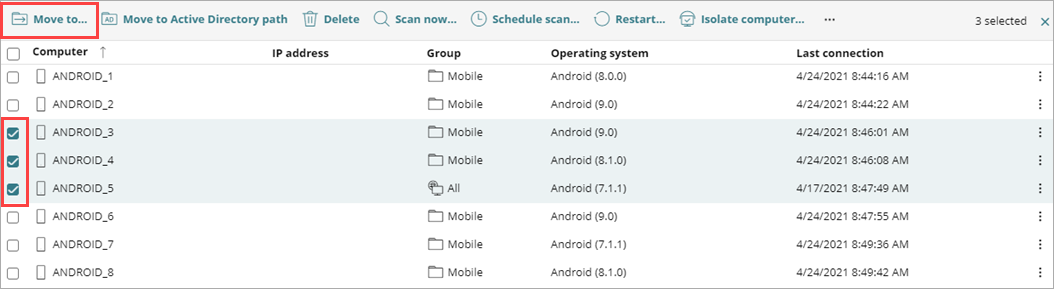
If you click Delete, you remove the computers from the management UI. If you do not uninstall the WatchGuard Agent, then the computer reappears in the list the next time it connects to WatchGuard Cloud. To fully remove a computer, you must delete it and remotely uninstall the Endpoint Security software. For more information, go to Remote Uninstallation (Windows, Mac, and Linux Computers).
- In the toolbar, click Move to.
The Move to dialog box opens.

- Select the target endpoint group you want to move the computers to.
- Click Move.
The computers move to the selected endpoint group.
Move a Single Computer
You can move a single computer from one endpoint group to another.
To move a single computer to an endpoint group:
- In WatchGuard Cloud, select Configure > Endpoint Security.
- Select Computers.
- From the left pane, select My Organization.
- In the list of computers, select the computer you want to move.
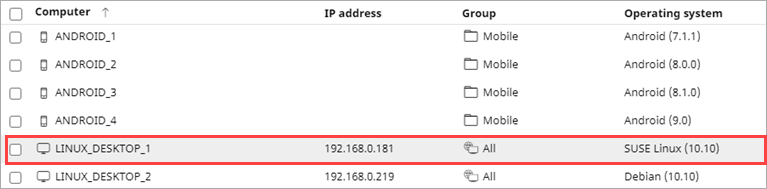
- On the Details tab, find the Group property.
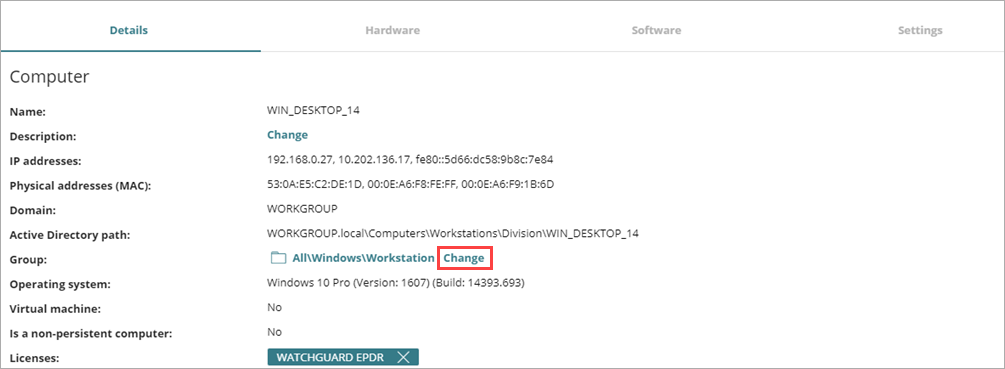
- Click Change.
The Move to dialog box opens.
- Select the target group to move the computer to.
- Click Move.
Move Active Directory Groups
A computer that belongs to an Active Directory group is synchronized with the Active Directory server and cannot be moved to another Active Directory group through the Endpoint Security management UI.
To do this, you must move the computer in Active Directory and then wait up to one hour for the Endpoint Security management UI to reflect this change. After one hour, you can move the computer in the management UI to the correct Active Directory group.
If you move a computer from an Active Directory group to an endpoint group, changes made to the company’s Active Directory groups are not reflected in the endpoint groups.
Move Computers to an Active Directory Group
When you move a computer to its Active Directory path, the settings and tasks associated with the computer in the current endpoint group could change.
To move a computer to its Active Directory group, from the Endpoint Security management UI:
- Next to the computer you want to move, click
 .
. - In the toolbar, select Move to Active Directory path.
- In the confirmation dialog box, click Move.

Return Multiple Computers to their Active Directory Group
You can return all of the computers in endpoint groups outside of their Active Directory path to their Active Directory group.
To return multiple computers to their Active Directory group:
- In the groups list, click next to an Active Directory group.
- Select Retrieve All Computers Residing on this Active Directory Branch.