
Related Topics
Import or Export WebBlocker Exceptions
You define WebBlocker exceptions separately for each WebBlocker action. If you manage several Fireboxes or configure more than one WebBlocker action on the same Firebox, you can export WebBlocker exceptions rules from one WebBlocker action and import them into another WebBlocker action on the same Firebox or on a different Firebox.
There are two way you can transfer WebBlocker exceptions between WebBlocker actions. You can write a text file that defines the rules and import it to your WebBlocker actions. Or, you can use Policy Manager to add WebBlocker exceptions in one WebBlocker action, export the file to a text file, and use Policy Manager to import that file into another WebBlocker action.
You cannot use Fireware Web UI to export or import WebBlocker exceptions.
Define WebBlocker Exceptions in a Text File
You can define WebBlocker exceptions in a normal ASCII text file that uses the standard UTF-8 character set.
You must include only one rule per line. The syntax for rules is:
[rule_name, action, enabled | disabled, log | no log, match_type,] pattern_value
where:
rule_name is the name of the rule as it appears in the exception list. The default is WB Rule n.
action = Allow or Deny. The default action is Allow.
enabled|disabled = Whether the rule is currently enabled or disabled. The default is enabled.
log|no log = Specifies whether you want a log message when the action is taken. The default is no log.
match_type = Specifies the type of match: exact match, regular expression or pattern match. The default is pattern match.
value = value to be matched.
The rule_name, action, and match_type parameters are optional. If you do not specify these options, Policy Manager uses the default value.
To add comments to the file, start the comment line with the symbol "#". Make sure each comment is on a separate line.
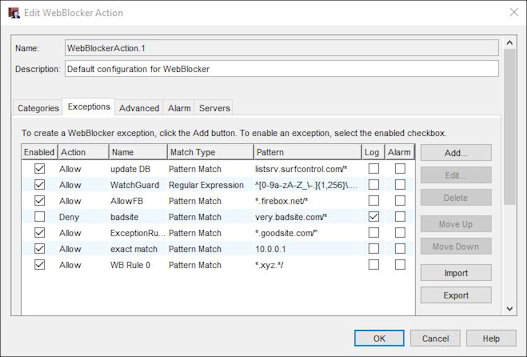
This example file contains five exceptions.
#
# Here are five exception rules
#
AllowFB, allow, enabled, No Log,*.firebox.net/*
badsite, deny, disabled, Log, very.badsite.com/*
ExceptionRule1,*.goodsite.com/"
exact match, 10.0.0.1
*.xyz.*/
Export WebBlocker Exceptions to a Text File
When you export WebBlocker exceptions, the Firebox saves the current rules to an ASCII text file in the format described previously.
To export WebBlocker exceptions to a file:
- From the Exceptions tab of the WebBlocker Configuration dialog box, define exceptions as described in Add WebBlocker Exceptions.
- Click Export.
- In the Open dialog box, select where you want to save the exceptions file and click Save.
You can use the saved file to import these exceptions into the WebBlocker configuration for a different Firebox.
Import Exceptions from a Text File
To import exceptions from a text file, you must use Policy Manager.
To import WebBlocker Exceptions:
- Select Subscription Services > WebBlocker > Configure.
- Select the WebBlocker action and click Edit.
- Select the Exceptions tab.
- Click Import.
- Find the text file and click Open.
- If exceptions are already defined in WebBlocker, you are asked whether you want to replace the existing rules or append the imported rules to the list of existing rules. Click Replace or Append.
If you click Append, the imported rules appear in the Exceptions list below the existing rules.
If you import the example text file in the previous section, and click Append to add the exceptions to the two default exceptions, the Exceptions list look like this:
- Save the configuration to the Firebox.