Applies To: WatchGuard Cloud
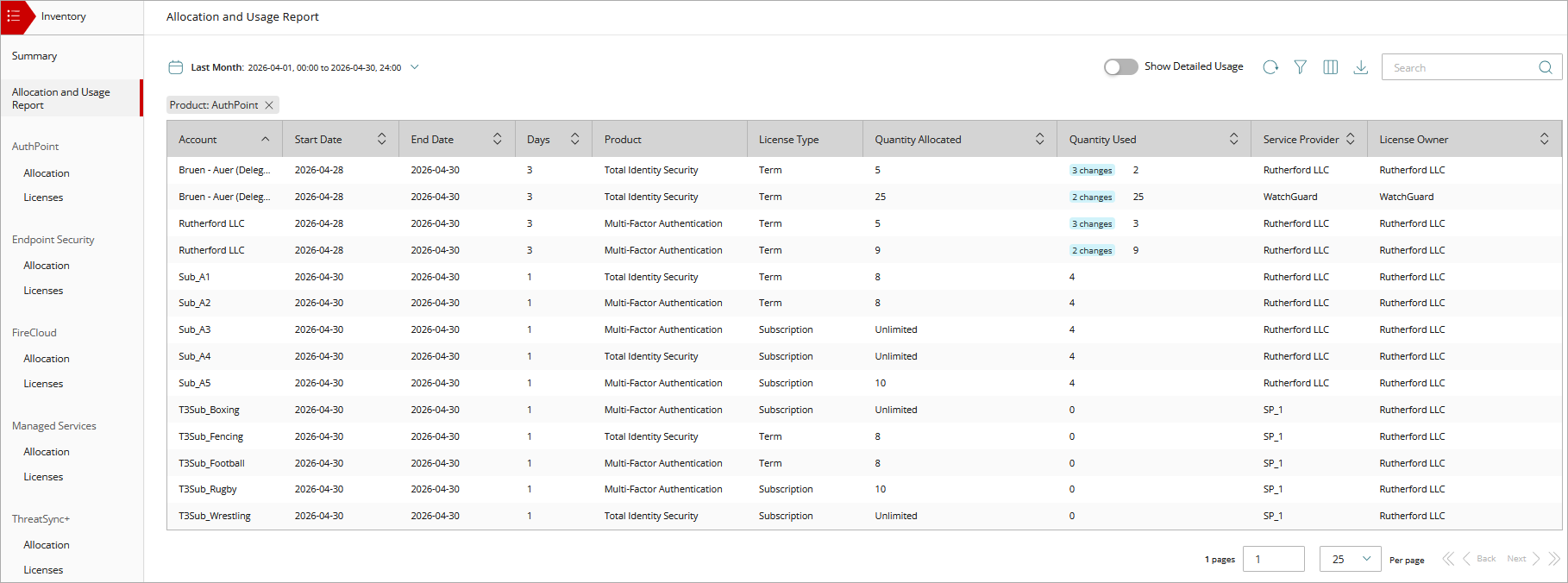
On the Allocation and Usage Report page, Service Providers can review product allocations and subscription usage for the software products in their account and accounts they manage. This includes inventory they have allocated to delegated accounts.
To open the Allocation and Usage Report, select Inventory > Allocation and Usage Report.
Your operator role determines what you can see and do in WatchGuard Cloud. Your role must have the Manage Inventory permission to view or configure this feature. For more information, go to Manage WatchGuard Cloud Operators and Roles.
The Allocation and Usage Report does not include information on Firebox and access point allocations.
You can use the information in this report to review usage for products for a specific time period (for example, this month and last month). The report provides a quick and easy way to review how many users are allocated and used for all product licenses and allocation types (term and subscription) for a specific account. You could use the report to reconcile usage against your WatchGuard invoice. Report data is available according to your data retention period.
The Allocation and Usage report was developed in February 2026 and released in March 2026. Allocation changes that occurred before February 2026 show a start date of 11 February 2026 in the report.
The report shows a summary of product allocations and subscription usage for software products in your accounts for the selected period of time. When there are changes to usage for a product in an account, you can point to the changes in the Quantity Used column to show a list of the changes that occurred between the start date and end date.
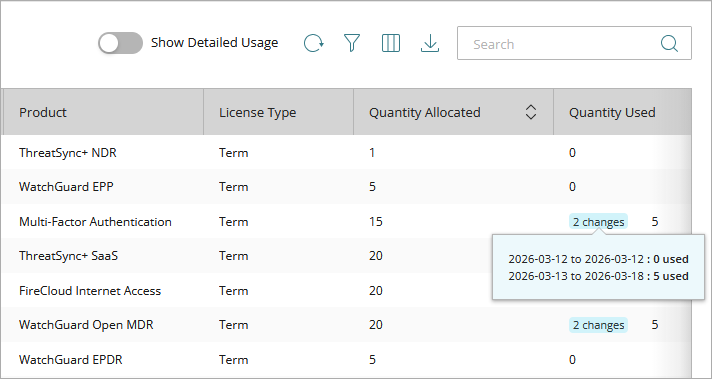
To view usage changes in detail, enable the Show Detailed Usage toggle.

When the toggle is enabled, a new row shows for each usage change. For example, if you have an AuthPoint term license with 20 users, and the quantity used is 10, and then the next day, the quantity used changes to 20, then the report shows two lines for the license — one line for the time period when the quantity used was 10 and a second line for the time period when the quantity used was 20.

To show allocation and subscription usage for the current month or the previous month, click  and select This Month or Last Month . To show allocation and subscription usage from a specific period of time, click and select Custom. Select a From and To date and time. Click Save.
To search for an account in the report, in the Search box, type text, then click  .
.
To refresh the report, next to the Search box, click  .
.
To export the report, click  . The rows and columns from the selected date range in the table are saved to a .CSV file. The .CSV file downloads to the default download location for your browser.
If delegated access to an account is removed or an account is deleted, the account's usage and allocation data is preserved.
Filter the Report
You can filter the report for a specific product and license type.
To filter the report:
- Next to the Search box, click
 .
.

- In the Filter dialog box, select the product group you want to filter the report for. For example, if you select AuthPoint and Endpoint Security, you filter the report for AuthPoint products including Multi-Factor Authentication and Total Identity Security, and Endpoint Security products such as WatchGuard EDR and Endpoint Security Prime.
- Click License Type and select the types of licenses you want to filter the report for (that is, Term and Subscription).
- Click Apply Filters.
Click Clear Filters to remove the selections on all pages of the filter settings.
Customize the Columns in the Report
Customize the columns in the report when you do not want to include all of the default columns. For example, if the Service Provider or license owner is the same for all accounts, then you might want to exclude these columns. You can also change the order of the columns in the report.
To customize the columns in the report:
- Click
 .
.
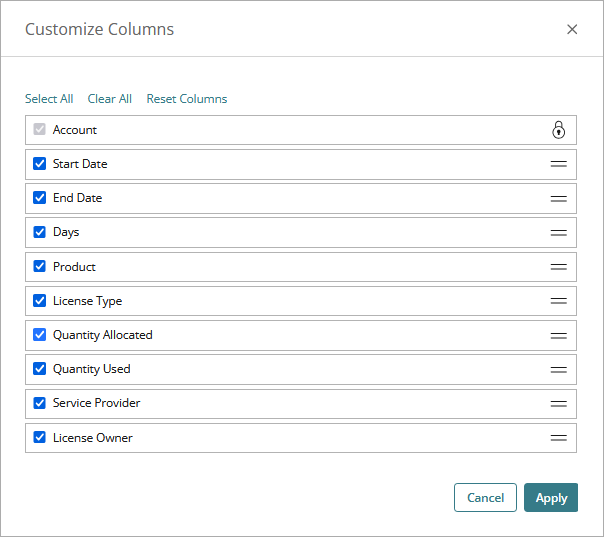
- In the Customize Columns dialog box, clear the check box for any columns you want to exclude. You cannot exclude the Account column from the table.
- To change the order of the columns in the table, click and drag the handle for a column up or down the list.
The list order from top to bottom shows in the table from left to right. You cannot move the Account column, which is always the first column in the table. - Click Apply.
To return to the default table columns and order, click Reset Columns. The default table columns and order show the next time you view the report.
Allocation and Usage Report Columns
These columns are available by default in the Allocation and Usage Report:
Account
The name of the WatchGuard Cloud account.
Start Date
The date when an allocation change occurred.
End Date
The date until which the allocation change was effective.
Days
The number of days the allocation change was in effect.
Product
The allocated product name.
License Type
The type of product license (for example, Term or Subscription).
Quantity Allocated
The number of users or endpoints that were allocated at the Start Date.
Quantity Used
The number of users or endpoints that were used from the Start Date until the end of the day before the End Date. This is a summary and does not reflect real-time updates. When the Show Detailed Usage toggle is not enabled, the number of changes between the start date and end date show in blue. Point to the number of changes to show a list of the changes that occurred.
Service Provider
The name of the Service Provider that changed the product allocation.
License Owner
The owner of the product license that was allocated. In the case of inventory allocated to a delegated Service Provider account, the report includes usage and allocations that the delegated Service Provider has made to accounts they manage. The report shows the parent Service Provider as the License Owner that allocated the inventory to the delegated Service Provider.