Applies To: WatchGuard Cloud
Customers can search for a Service Provider to help them manage their account. They might need long term help with the management of their account, security services, and inventory, or they might only need someone to manage their account for a short period of time. If customers contact you to request help with the management of their accounts and you agree to do so, then they delegate their account to you. The delegated account must be part of your account hierarchy.
Account delegation does not provide access to all features or services. Inventory management is only available for delegated tier-1 Subscriber accounts and delegated Service Provider accounts. For more information, go to Inventory Management for Delegated Accounts. In Service Provider to Service Provider account delegation, the managing Service Provider can view all of the accounts managed by the delegated Service Provider.
Request Account Access
As the managing Service Provider, you must initiate the account delegation process with a request for account access. Account delegation continues until it is removed by either side.
To request access to manage an account, you generate a verification code and send it to the owner or administrator of the account you want to access. The recipient uses the verification code to approve your access request and delegate management of their account to you.
Service Providers can only manage a delegated account in the same cloud region as their account.
Your operator role determines what you can see and do in WatchGuard Cloud. Your role must have the Manage Tenants permission to view or configure this feature. For more information, go to Manage WatchGuard Cloud Operators and Roles.
To request delegated account access:
- From Account Manager, select the account you want to request delegated access to.
- Select Administration > Overview.
- Click Request Access to an Account or Request Access (if you already manage delegated accounts, the Managed Access tile is different).

- On the Managed Access page, click Request Account Access.

- To generate the verification code, click Next.
- Click Copy to Clipboard to copy the verification code shown on the page. You must send an email with the verification code to the owner of the account. We recommend that you use the provided text as a template.
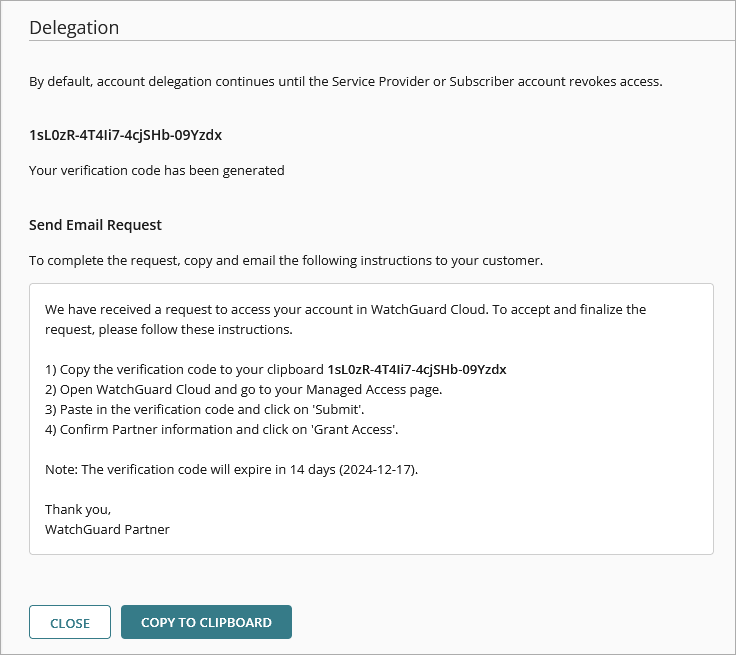
- Send the verification code to the owner of the delegated account.
The client uses the verification code to give you access to their account. When they approve your request for account access, the account is shown as a delegated account on the Managed Access page. By default, account delegation continues until you or the delegated account remove access.
To remove delegation from a tier-1 Subscriber or Service Provider account, you must first remove all inventory (devices and services) and inherited Firebox templates from the account. For information on delegated inventory, go to Inventory Management for Delegated Accounts.
View and Manage Delegated Accounts
Accounts that have been delegated to you are visible in Account Manager. You cannot view accounts delegated to your managed Service Provider accounts. To identify a delegated account, look for the label (Delegated) next to the account name.
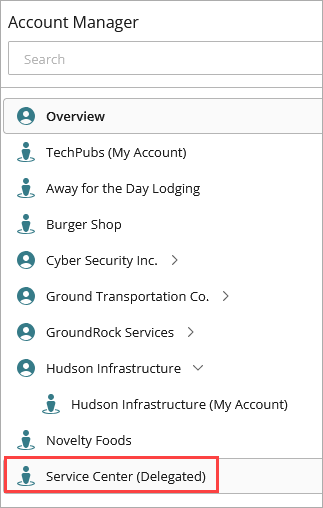
Only accounts that accept your access request show in Account Manager. Delegated accounts do not show while the request is pending and they are removed after your account access is revoked.
You can also view all of the accounts with delegated access on the Managed Access page in the Delegation section.
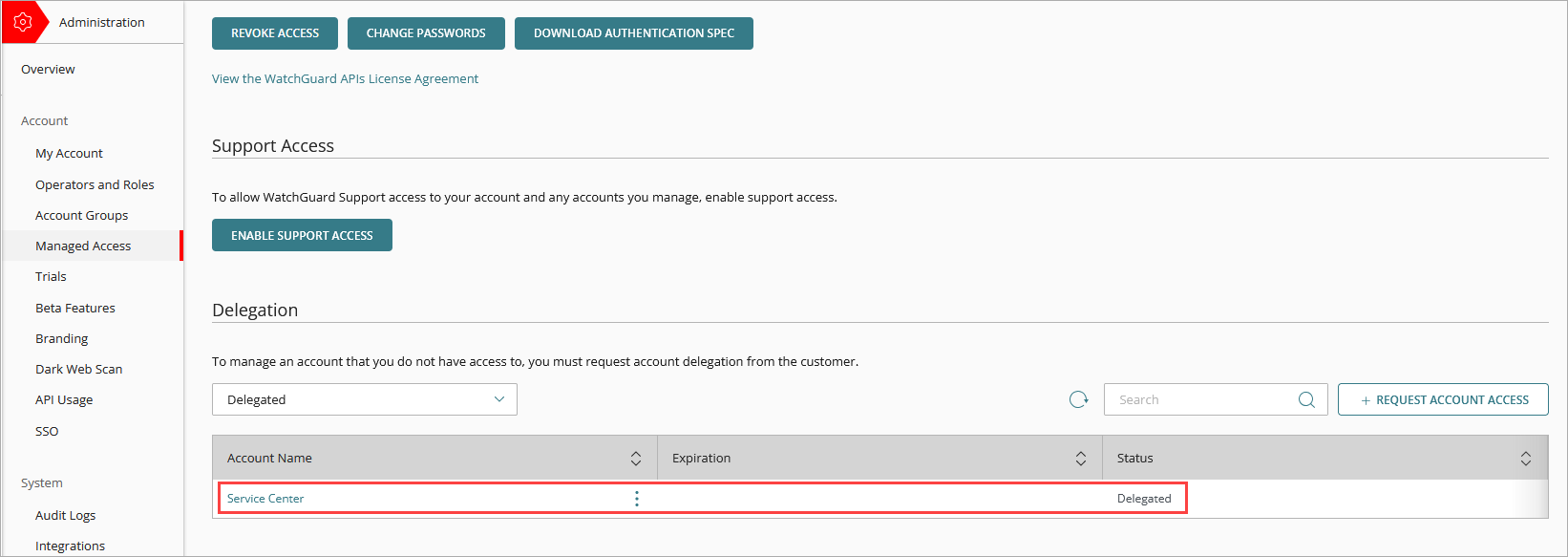
You can log in to and manage a delegated account as if it were a managed customer account from Account Manager.
To log in to and manage a delegated account:
- From Account Manager, select the delegated account.
The Subscriber view opens for the account.
The same role mapping permissions apply when an operator from your account makes changes to a delegated account. For more information, go to Role Mapping.
Remove Access
You can remove your access from an account.
To remove delegated access from a tier-1 Subscriber or Service Provider account, you must first remove all inventory (devices and services) and inherited Firebox templates from the account.
To remove access:
- From Account Manager, select the account you want to remove access from.
- Select Overview > Administration.
- Select Managed Access.
- In the Delegation section, filter the list to show all delegated accounts.
- In the row for the account you want to remove access from, click
 .
. - Click Remove Access.
- In the confirmation dialog box, click Remove Access.
Manage Account Access Requests
You can manage your pending access requests on the Managed Access page.
To view account access requests that have not been accepted, from the drop-down list in the Delegation section, select Pending. The Token ID column shows the relevant verification code and the Expiration column shows the date that the verification code expires.
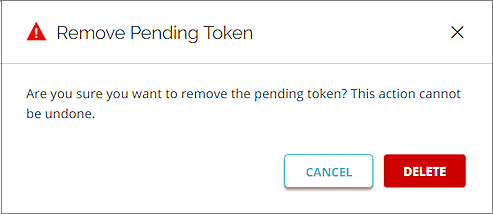
To cancel an account access request, click  and select Remove Pending Token. Click Delete. When you delete a verification code, it is no longer valid and does not work if the account tries to use it to give you delegated access to their account.
Permissions in Delegated Accounts for Service Providers
As a Service Provider, you can configure products and security services for your managed accounts. You can manage the inventory of your managed tier-1 Subscriber accounts. Tier-1 Service Providers can also manage the inventory of delegated tier-1 Subscriber and Service Provider accounts.
In the delegated account, you can only edit and remove licenses and devices that you added to the delegated account.
As a Service Provider with delegated access to an account, you cannot update platform settings, such as accounts and operators in the delegated account. Also, you cannot manage licenses and devices that the delegated account added to their account. You cannot see accounts delegated to your managed Service Provider accounts.
You cannot manage a delegated account that is in a different cloud region. The delegated account must be part of the managing Service Provider's hierarchy.
When you manage a delegated account with the Service Provider Owner role, you have read and write permissions equivalent to the Subscriber Analyst role. For information on roles, go to Manage WatchGuard Cloud Operators and Roles.
This table lists the permissions available to the managing Service Provider in the account they have delegated access to.
| Permissions | Description | Enabled or Disabled by Default | Ready Only or Read/Write Permission |
|---|---|---|---|
| Account Administration | Provides access to all account administration functionality in the built-in role. | Enabled | Read Only |
| - Configure Beta Features | Provides the ability to enable and disable beta features. | Disabled | Read/Write |
| - Configure Branding | Provides the ability to edit custom branding. | Disabled | Read/Write |
| - Manage Data Retention Licenses | Provides the ability to allocate and deallocate Data Retention Licenses. | Disabled | Read/Write |
| - Manage WatchGuard Orion | Only available to tier-1 Subscriber accounts. Provides the ability to manage Orion threat hunting services for their account. | Disabled | Read/Write |
| System Administration | Provides access to all system administration functionality in the built-in role. | Enabled | Read/Write |
| ThreatSync Core | Provides access to the ThreatSync management UI. | Enabled | Read/Write |
| AuthPoint | Provides access to the AuthPoint management UI. | Enabled | Read/Write |
| Devices | Provides access to monitor and configure devices (Fireboxes and access points). | Enabled | Read/Write |
| Endpoint Security | Provides access to the Endpoint Security management UI. | Enabled | Read/Write |
| FireCloud | Provides access to the FireCloud management UI. | Enabled | Read/Write |
When you manage a delegated account as a Service Provider with the Sales, Helpdesk, or Auditor role, you have read and write permissions equivalent to the Subscriber Observer role.
This table lists the permissions available to the managing Service Provider in the account they have delegated access to.
| Permissions | Description | Enabled or Disabled by Default | Read Only or Read/Write Permission |
|---|---|---|---|
| Account Administration | Provides read-only access to all account administration functionality in the built-in role. | Enabled | Read Only |
| - Configure Beta Features | Provides the ability to enable and disable beta features. | Disabled | Read/Write |
| - Configure Branding | Provides the ability to edit custom branding. | Disabled | Read/Write |
| - Manage Delegation | Provides the ability to delegate and revoke account access. | Disabled | Read/Write |
| - Manage Data Retention Licenses | Provides the ability to allocate and deallocate Data Retention Licenses. | Disabled | Read/Write |
| System Administration | Provides read-only access to all system administration functionality in the built-in role. | Enabled | Read Only |
| - Acknowledge Alerts |
Provides the ability to view and acknowledge alerts. |
Disabled | Read/Write |
| - Configure Notification Rules | Provides the ability to add, edit, and delete notification rules. | Disabled | Read/Write |
| - Schedule Reports | Provides the ability to schedule or delete. | Disabled | Read/Write |
| ThreatSync Core | Provides read-only access to the ThreatSync management UI. | Enabled | Read Only |
| AuthPoint | Provides read-only access to the AuthPoint management UI. | Enabled | Read Only |
| Devices | Provides read-only access to device management. | Enabled | Read Only |
| Endpoint Security | Provides read-only access to the Endpoint Security management UI. | Enabled | Read Only |
| FireCloud | Provides read-only access to the FireCloud management UI. | Enabled | Read Only |
For more information on the permissions available for different operator roles in WatchGuard Cloud, go to Default Permissions for Built-in Roles.
Inventory Management for Delegated Accounts
Service Provider to Service Provider Delegation and Inventory Management