Applies To: WatchGuard Cloud-managed Access Points (AP130, AP230W, AP330, AP332CR, AP340, AP430CR, AP432)
Overview
You can reboot an access point remotely from WatchGuard Cloud. A reboot refreshes access point resources and optimizes channel selection, and can also help access points recover from wireless client connectivity issues or poor performance.
You can reboot an access point immediately, or you can also schedule a one-time reboot for a more convenient time to avoid network disruption. You can also schedule recurring reboots in the device configuration or Access Point Site configuration. For more information, go to Schedule Recurring Reboots for Access Points.
You can also reboot an access point with the physical reset button on the device. For more information, go to Reboot an Access Point with the Reset Button.
When you reboot an access point, any connected wireless clients will be temporarily disconnected until the device restarts. Follow these best practices to reboot access points at appropriate times to avoid network disruption:
- Schedule a reboot during times of low network activity, such as late night or very early morning when client traffic is minimal.
- Avoid business‑critical hours to prevent client disconnects during reassociation and channel renegotiation.
- We recommend you reboot an access point after major RF environment changes or other wireless SSID, radio, or VLAN configuration changes so access points can re‑evaluate the wireless environment and select optimal channels.
- For recurring reboots, select a consistent weekly maintenance window on a specific day, such as on a Sunday, to ensure a predictable service impact. Your organization might have regular maintenance windows defined for this purpose.
- Stagger reboots across groups of access points to prevent large coverage gaps and maintain overall network availability. You can stagger reboots for access points subscribed to an Access Point Site.
Reboot an Access Point from WatchGuard Cloud
To reboot an access point immediately, from WatchGuard Cloud:
- Select Configure > Devices or Monitor > Devices.
- Select the access point.
The Device Settings page opens for the selected access point.

- Click Reboot Device.
The Reboot Device dialog box opens.
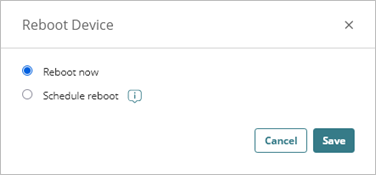
- To reboot the device immediately, select Reboot now.
- Click Save.
A confirmation message opens.
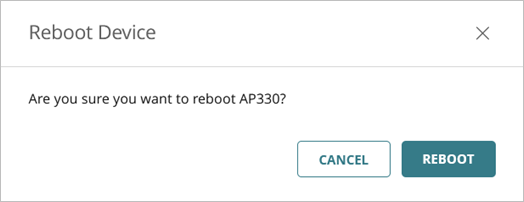
- Click Reboot.
A message appears in the banner and the access point reboots.
Schedule an Access Point Reboot from WatchGuard Cloud
To schedule a reboot of an access point at a later time, from WatchGuard Cloud:
- Select Configure > Devices or Monitor > Devices.
- Select the access point.
The Device Settings page opens for the selected access point.
- Click Reboot Device.
The Reboot Device dialog box opens.
- Select Schedule Reboot.
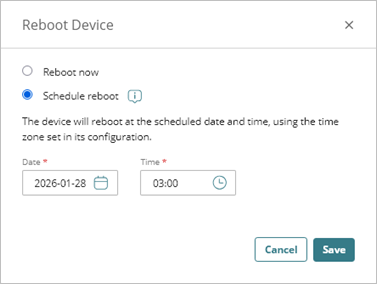
- In the Date text box, click
 and select a date for the reboot.
 - In the Time text box, type the time for the reboot in 24-hour format (for example, 23:59), or drag the Hours and Minutes sliders to select times, then select Done.
The date and time are based on the time zone configured for the access point. Make sure that the selected date and time correspond to the local time at which you want to reboot the access point.
- Click Save.
A message appears in the banner. The device reboots at the scheduled time.If you edit and change a scheduled one-time reboot to an immediate reboot (Reboot now), this immediate manual reboot will not change the future scheduled one-time you created, or any recurring reboots you have configured. If you need to cancel the scheduled one-time reboot, you must edit and cancel it.
View Scheduled Reboots
If you have scheduled a one-time reboot or recurring reboot, the scheduled date and time shows on the Device Settings (Configure > Devices) and Device Summary (Monitor > Devices) pages in the time zone configured for the access point.
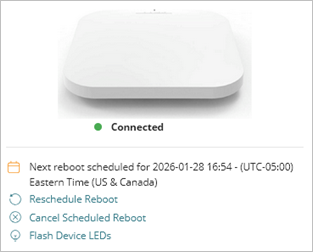
- If the next scheduled reboot is a one-time reboot, you can reschedule or cancel the reboot.
- If a one-time reboot is scheduled and you want to reboot the access point now but still perform the scheduled reboot, click Reschedule Reboot, then select Reboot Now.
- If a one-time reboot is scheduled and you want to reboot the access point now instead of at the scheduled time, click Cancel Scheduled Reboot to cancel the scheduled reboot. Then click Reboot Device and select Reboot Now.
- If the next scheduled reboot is a recurring reboot, you cannot reschedule or cancel the recurring reboots from the Device Settings or Device Summary pages.
- When recurring reboots are scheduled, you cannot schedule a one-time reboot, but you can reboot the device immediately. This does not affect the upcoming scheduled recurring reboot.
- If you want to reschedule or cancel a recurring reboot, you must update the schedule where it is configured. To determine if the recurring reboot was scheduled from the device configuration or an access point site, hover over the lock icon, next to the scheduled reboot date and time.
Reboot an Access Point with the Reset Button
You can also reboot an access point with the physical reset button on the device. For information about the location of the reset button, go to the Hardware Guide for your access point.
- Use a paper clip or other small object to press the reset button through the hole on the device.
- Press and release the reset button.
- The device LEDs will turn off and then show solid red or orange to indicate the device is rebooting.
Caution: Do not hold the reset button down. If you hold the reset button down for more than 10 seconds, the device will be reset to factory-default settings.
About WatchGuard Cloud Account Manager (Service Providers)
About WatchGuard Cloud Device Manager (Subscribers)