Applies To: WatchGuard Cloud-managed Access Points (AP130, AP230W, AP330, AP332CR, AP340, AP430CR, AP432)
WatchGuard access points have two or three radios and can operate on the 2.4 GHz, 5 GHz, and 6 GHz bands depending on the device model. Wireless radio settings are applied globally to the wireless networks you configure.
You can also use Access Point Sites to apply common radio settings to multiple access points that subscribe to the site. For more information, go to About Access Point Sites.
The access point radio settings available, such as wireless modes, channels, channel width, and maximum transmit power, depend on the country of operation for the access point.
- The 2.4 GHz band has a much better range than a 5 GHz wireless network because it uses longer wavelengths. However, the 2.4 GHz band is very congested with a lot of interference and few non-overlapping channels from which to select (1, 6, 11).
- The 5 GHz band supports faster data rates at shorter distances than the 2.4 GHz band and has more non-overlapping channels available to reduce interference.
- The 6 GHz band supports the fastest data rates and provides the most non-overlapping channels, which helps minimize interference in dense wireless environments. However, because 6 GHz uses higher frequencies, it has a shorter range and lower wall penetration than both 2.4 GHz and 5 GHz networks.
Configure Radio Settings for an Access Point
To configure device-level radio settings in WatchGuard Cloud for an access point:
- Select Configure > Devices.
- Select the access point you want to configure.
- Select Device Configuration.
The Device Configuration page opens.
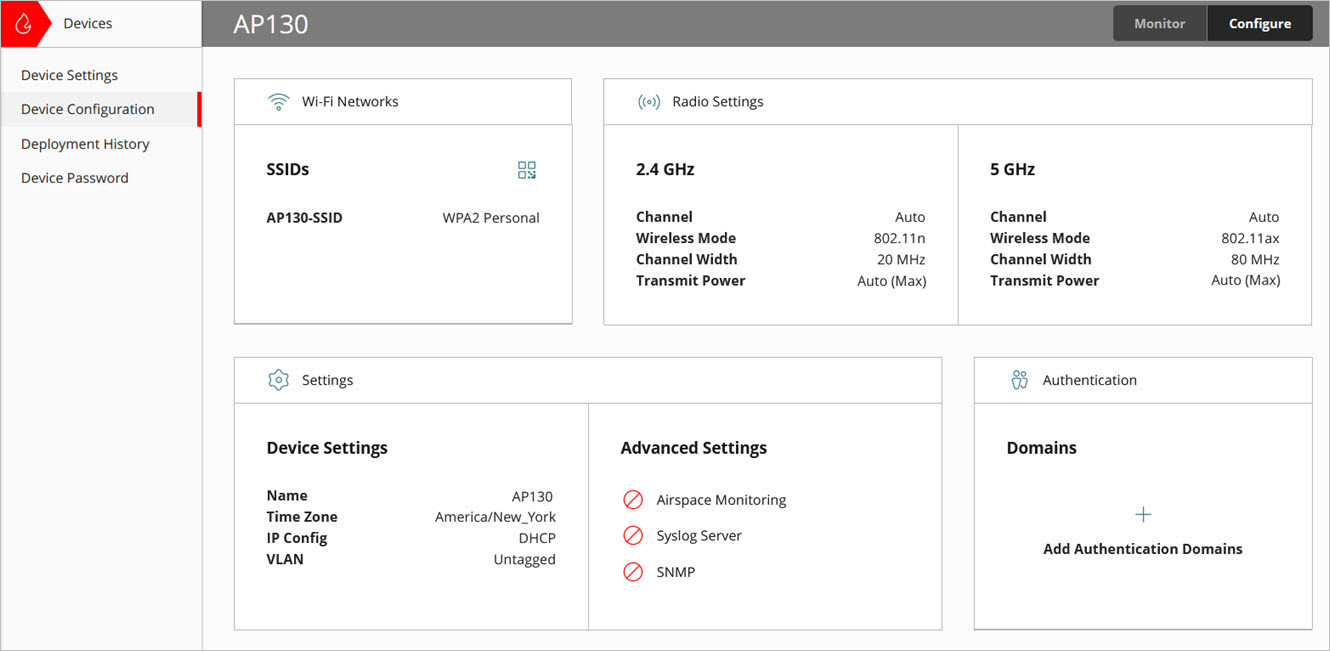
- Click a radio band to configure the settings for the selected radio.
For more information on the configuration options available, go to Radio Settings.
Configure Radio Settings for an Access Point Site
To configure radio settings for an Access Point Site:
- Select Configure > Access Points Sites.
- Select an existing site, or add a new site.
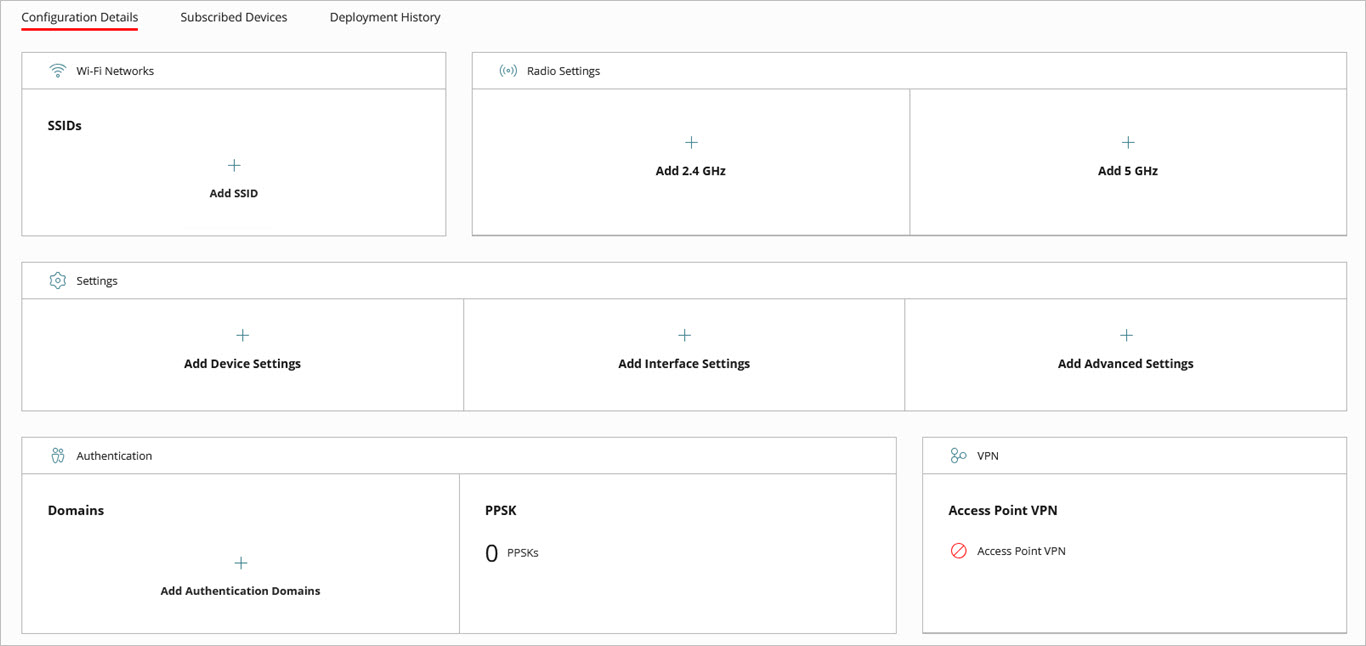
- From the Configuration Details tab, in the Radio Settings tile, click a radio band to add settings for the selected radio.
For more information on the configuration options available, go to Radio Settings.
Radio Settings
On the Radio Settings page for an access point device or access point site, you can enable or disable a radio, configure the wireless mode, channels, channel width, and transmit power.
Changes to radio settings require the access point radios to restart to apply the new configuration. During this time, wireless clients are temporarily disconnected as the radio settings deploy.
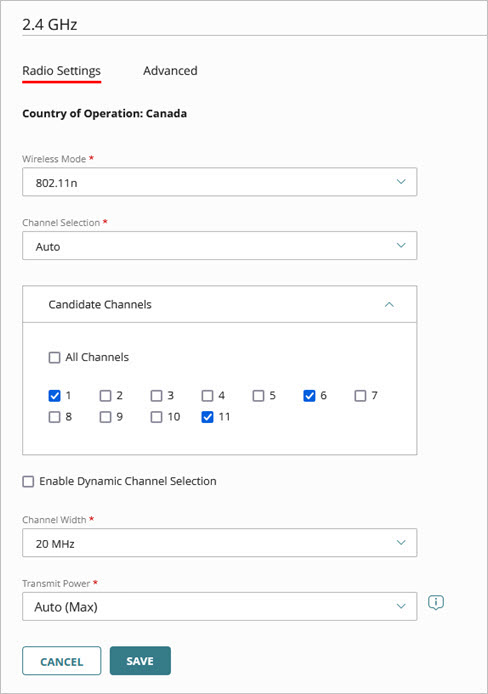
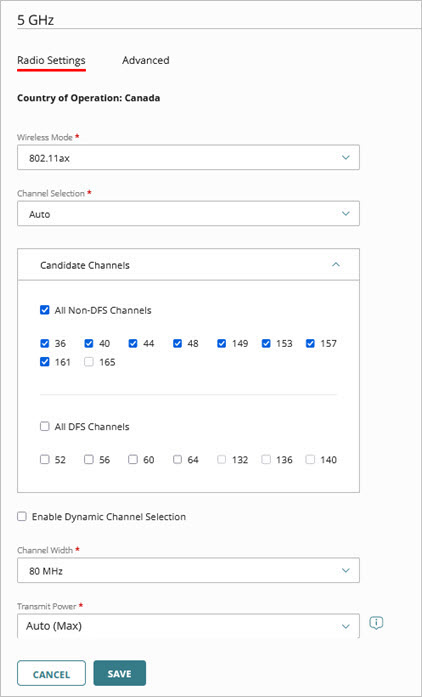

Device-level radio settings for the 2.4 GHz, 5 GHz, and 6 GHz radios

Access Point Site radio settings for the 2.4 GHz, 5 GHz, and 6 GHz radios

You can enable or disable specific radio bands. For example, you can disable the 2.4 GHz radio band on specific access points in high-density deployments to reduce RF interference.
The Enable or Disable Radio feature requires access point firmware v3.4 or higher.
The country of operation of the access point is automatically detected by WatchGuard Cloud. This determines the maximum transmit power, wireless modes, and the wireless channels available to the access point in the regulatory domain for the region.
Access point sites are unable to determine the country of operation for subscribed devices. Any settings defined in the access point site that are not available for the country of operation for a specific access point are not used by the device.
The wireless frequency band and the country of operation of the access point determine the wireless modes available.
- The 2.4 GHz radio supports:
- 802.11ax (default) — This mode enables wireless devices that use 802.11b/g/n/ax to connect to the access point.
- 802.11n — This mode enables wireless devices that use 802.11b/g/n to connect with the access point.
- The 5 GHz radio supports:
- 802.11ax (default) — This mode enables wireless devices that use 802.11a/n/ac/ax to connect to the access point.
- 802.11ac — This mode enables devices that use 802.11a/n/ac to connect to the access point.
- The 6 GHz radio supports:
- 802.11be (default) — This mode enables wireless devices that use 802.11ax and 802.11be to connect to the access point.
- 802.11ax — This mode enables wireless devices that use 802.11ax to connect to the access point.
For access point CR device models that you can deploy outdoors or in rugged indoor environments, you can enable the use of indoor channels on the 5 GHz radio to use the correct channels in your region when you deploy the device indoors.
In some regions, the use of outdoor channels on the 5 GHz band is limited or restricted. When you enable indoor channels, the list of candidate channels for automatic or manual channel selection includes all channels available for indoor use in your region.
Caution: Some countries have restrictions on the 5 GHz radio channels allowed for indoor or outdoor use. You are responsible for compliance with regional-based regulations.
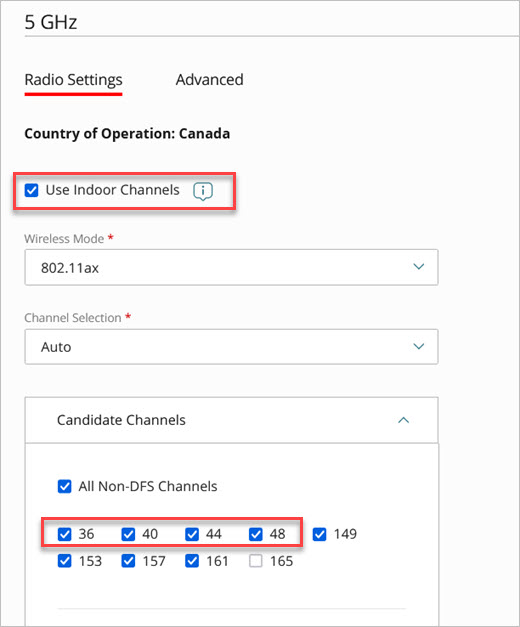
- The use of indoor channels on access point CR models requires firmware v2.5.7 or higher.
- You can configure the use of indoor channels only at the device-level configuration for a CR model access point. You cannot configure indoor channel support in an access point site.
Candidate channel selection is different for device-level configurations and access point site configurations.
You can view a history of access point channel change activity in the Access Point Channel History Report.
Device-Level Configuration
- The available channels depend on the detected country of operation, and the wireless mode and channel width you configure.
- By default, the preferred channel is set to Auto. In this mode, the access point automatically selects a quiet channel with the least interference from the available channels in the selected band.
- When the access point boots or if the configuration updated and radios restarted, auto channel selection performs a quick, passive scan on every candidate channel for approximately 100ms each. This process takes about 5 to 7 seconds to fully scan all radio bands.
- The scan takes into consideration any nearby interference and wireless signals, and detects any neighboring devices to help select an optimal channel.
- You can specify the channels available from the Candidate Channels selection list.
- Dynamic Channel Selection (DCS) is also enabled by default that scans the network at regular intervals (default is every 6 hours) to find a channel with the least interference. When an access points reboots or reloads its configuration, the device uses the last channel selected by DCS. If that channel is not available, the access point selects another candidate channel. For more information about DCS, go to Dynamic Channel Selection (DCS).
- You might want to choose Manual channel selection instead of using automatic channel selection. We recommend you use manual channel selection in very dense environments if you need to fine-tune the use of channels to prevent co-channel and adjacent channel interference. Make sure that you use site scanning tools to accurately survey your Wi-Fi environment to enable you to select channels that are not already in use by other devices in your airspace.
- In some regions, you can select DFS (Dynamic Frequency Selection) channels that operate in the 5 GHz band. DFS enables additional available channels for the access point to use that are also shared by radar systems.
- DFS might disrupt connections when the access point detects radar signals. The access point stops transmission if it detects radar signals on that channel, disconnects any clients on the 5 GHz radio, and changes to another available channel. We recommend you remove any DFS channels from your available channel list if they cause recurring channel events.
- If a specific channel is not available in the country of operation for an access point, the device does not use that channel.
- DFS channels are enabled by default.
Access Point Site Configuration
- For an access point site, you select the candidate channels that subscribed access points can choose from with automatic channel selection.
- An access point site is unable to determine the country of operation for access points subscribed to the site. If a candidate channel is unavailable in the country of operation for a specific access point, the device does not use that channel.
- For channel selection on the 5 GHz radio for an access point site, you can select Use All Non-DFS Channels and Use All DFS Channels. DFS enables additional available channels for the access point to use that are also shared by radar systems. DFS channels are enabled by default.
- DFS might disrupt connections when the access point detects radar signals. The access point stops transmission if it detects radar signals on that channel, disconnects any clients on the 5 GHz radio, and changes to another available channel. Remove any DFS channels from your available channel list if they cause recurring channel events.
- If a specific channel is not available in the country of operation for a subscribed access point, the device does not use that channel.
- DFS channels are not selected by default.
- Dynamic Channel Selection (DCS) is enabled by default in an access point site with a scan interval of 6 hours. For more information about DCS, go to Dynamic Channel Selection (DCS).
- DCS Interference Mitigation is enabled by default. For more information, go to Dynamic Channel Selection Interference Mitigation.
The Client Balancing feature uses the BSS transition management (BTM) feature of the 802.11v protocol, along with information about the current state of the network, to steer wireless clients to the most optimal access point.
Client Balancing optimizes the network by evenly distributing client connections across multiple access points in dense Wi‑Fi deployments to improve performance, reliability, and scalability. It helps clients connect to less congested, stronger signal access points to maintain better signal quality, faster throughput, and prevent dropped connections throughout the network.
Wireless clients are steered to less-congested access points, even if the signal strength is not as strong as a nearby access point that already has many connected clients.
Client Balancing steers clients to another access point based on these conditions:
- If the target access point’s signal strength is at least 20 dB stronger than the current access point.
- If the target access point’s signal strength is similar to or stronger than the current access point (within −10 dB to +20 dB difference) and has a lighter client load.
- If the target access point’s signal strength is 10 dB weaker or more than the current access point, and the current access point is overloaded (above 70% load). The target access point must have a lighter load and be able to accept the client.
Depending on wireless client behavior, the client device might accept or reject the access point client balancing recommendation and make its own selection of which access point and radio to associate with based on the client's internal roaming logic.
If you enable Client Balancing, note the following:
- Client Balancing is supported on firmware v3.2.7 and higher.
- You can only enable Client Balancing in the radio settings of an Access Point Site configuration. Client Balancing is not available in the device-level configuration.
- Access points that use Client Balancing must belong to the same Access Point Site.
- Access points must be in the same subnet and on the same broadcast domain.
When you use Auto channel selection, you can also enable Dynamic Channel Selection to perform regular wireless network scans to evaluate channel utilization and switch to the best channel to prevent co-channel and adjacent channel interference. The access point scans the network based on the configured Scan Interval to find a channel with the least interference. DCS is enabled by default.
The access point rescans the network when the DCS scan interval resets or if the DCS configuration is updated and deployed to the access point. A scan does not take place if any other configuration change is performed and deployed to the access point.
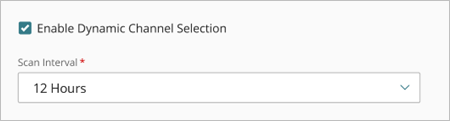
- DCS is enabled by default with a Scan Interval of 6 hours. With this default setting, the scan occurs four times daily at 00:00, 6:00, 12:00, and 18:00.
- A full DCS scan by an access point takes approximately up to 12 to 15 minutes to scan all radio bands and channels. DCS scans occurs in the background and does not affect connectivity with wireless clients.
- DCS scans are staggered by up to 15 minutes to prevent multiple access points from scanning the network at the same time.
- DCS evaluates channels by the number of BSSIDs that use a channel, and the current amount of channel utilization to determine the best channel to use. Any channels with a current utilization greater than 80% are not used. If utilization of all channels is 80% or more, DCS will not change the operating channel.
- Based on the scan results, DCS selects the most optimal candidate channels to choose from.
- If one of these candidate channels is already the current channel, no channel change occurs.
- If the current channel is not in this candidate channels list, DCS selects a new channel from the list and initiates the channel switch.
- If DCS selects a new channel, the access point notifies wireless clients about the impending channel switch.
- During the channel change, wireless clients temporarily disconnect to change to the new channel.
- Wireless client channel-change behavior is dependent on each individual device. Most clients will accept the channel change and perform a smooth transition to the new channel after a brief disconnection. Some clients might take longer to accept the channel change and reconnect, and in some cases might ignore the channel change request.
DCS might take several seconds to change channels. DCS channel changes can cause disruption to video or voice calls if the channel changes and the wireless client reconnects to the access point. If you frequently encounter these issues, change the Scan Interval to a longer interval, or disable Dynamic Channel Selection and use a static wireless channel.
Interference Mitigation enables the 5 GHz radio to manage the current real-time channel congestion and interference by immediately switching to a less congested channel if the current channel utilization exceeds the configured threshold.
- Interference Mitigation is currently only supported on firmware v3.2.7 and higher.
- The Dynamic Channel Selection feature must be enabled before you can enable Interference Mitigation.
- DCS Interference Mitigation is enabled by default on supported access points with the minimum firmware version.
- Interference Mitigation is not supported on the 2.4 GHz radio.
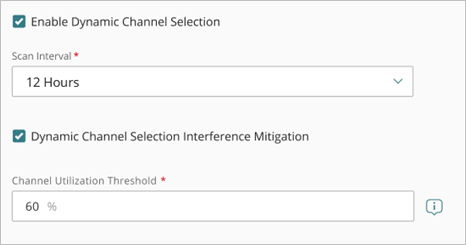
You can configure the Channel Utilization Threshold.
- The default channel utilization threshold is 60%.
- If you set this percentage to lower values, the access point might change channels too often.
- If the percentage is set to higher values, the current channel might become too congested and cause interference before it reaches the threshold to switch to a new channel.
- If the utilization exceeds the threshold three times in 10 seconds, the access point uses automatic channel selection to switch to another channel.
- After a channel change, DCS interference mitigation will not scan again for 30 minutes to avoid frequent channel changes.
PSC Channels in Wi-Fi 7 (and 6 GHz operation) are a subset of 20 MHz primary channels spaced every 80 MHz that access points use to advertise their presence. Clients prioritize scanning these channels first which reduces discovery time and improves connection efficiency in the 6 GHz band.
The channel width controls how broad the signal is and how many frequencies the signal uses. Greater channel widths provide faster speed and throughput, but can cause greater interference in high density areas.
The channel widths available are based on the country of operation for the access point.
We recommend you start with 20 to 40 MHz channel widths. Use higher channel widths only if you require very high application throughput demand in low-density deployments with a small number of wireless devices.
- The 2.4 GHz band supports 20 and 20/40 MHz channel widths. The default is 20 MHz.
If you use a 20/40 MHz channel width for the 2.4 GHz band, devices will only use 40 MHz in a very quiet deployment with light band utilization. In most cases, devices will use 20 MHz instead of 40 MHz for normal or higher utilization and interference.
- The 5 GHz band supports 20, 40, and 80 MHz channel widths. The default is 40 MHz. Use a 40 MHz or 20 MHz channel width to increase the number of available channels.
- When you configure a 40 or 80 MHz channel width for the 5 GHz radio on your access point radio, neighboring channels are bonded together (2 channels for 40 MHz width and 4 channels for 80 MHz width) to increase throughput. When you enable or disable a bonded channel in the available channels list in the access point radio configuration, the other channels in the bond are also enabled or disabled at the same time.
- The 6 GHz band supports 20, 40, 80, 160, and 320 MHz channel widths. The default is 80 MHz.
For an access point site, if an 80 MHz channel width is not available in the country of operation of a subscribed access point, the device uses a channel width of 40 MHz or 20 MHz depending on the country. If the country supports both 40 MHz and 20 MHz, the access point uses a 40 MHz channel width. If the country only supports 20 MHz, the access uses a 20 MHz channel width.
You can configure the maximum transmit power on the access point. You can set the transmit power between 8 dBm to 28 dBm, or use Auto (Max) that uses the maximum transmit power allowed for the country of operation.
The default values are:
- 2.4 GHz — 10 dBm
- 5 GHz / 6 GHz — 16 dBm
The transmit power of an access point contributes to the effective range of the signal that reaches wireless clients. This helps you determine where to install access points to provide sufficient signal coverage in your deployment.
The maximum transmit power available is based on the regulatory limits set by your country of operation for the access point. The transmit power is tested and certified for each access point model for conformity to regional standards. We recommend you review the regulations for your specific country of operation to understand the transmit power limits for the frequency bands and channels available in your region.
You can view the current transmit power for each radio on the device details page and monitoring page for the access point.
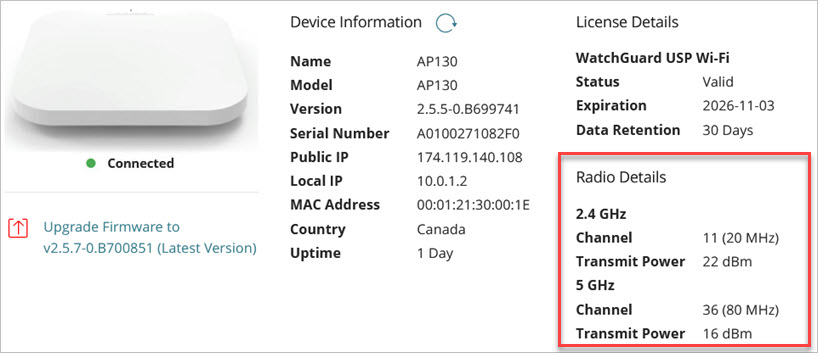
The transmit power shown is a best approximation and does not include antenna gain (EIRP). The actual transmit power depends on several factors:
- Any manual transmit power setting you specify
- The maximum power allowed by your regulatory domain
- The maximum power supported by the radio
- The wireless mode, channel, channel width, and data rate (MCS index) you use
- Any antenna gain — The access point antennas add additional gain (~2 to 5 dBi) to the base signal broadcast by the access point. This value is not included in the transmit power approximation that appears in WatchGuard Cloud.
We recommend you use external measurement tools to accurately measure the signal strength of your access points from different areas of your deployment to help determine the optimal transmit power.
Advanced
In the advanced radio settings page for an access point, you can configure roaming settings for fast handover, specify client association limits, and enable specific 802.11 protocols for the radio.

Fast Handover helps wireless clients roam between WatchGuard access points and connect to the access point with the strongest signal.
In access point firmware v3.4 and higher, you can configure these advanced Fast Handover thresholds:
- Association Request Threshold — This is the minimum signal strength required to connect to the access point. The access point rejects new association requests if a client’s signal strength is below the specified RSSI level. The default value is -70 dBm.
- Probe Request Threshold — The access point ignores probe requests from clients below a certain signal strength, which encourages the clients to discover and connect to closer access points. The default value is -75 dBm.
- Force Disconnect Threshold (Minimum RSSI Threshold in firmware v3.2 and lower) — The access point disconnects active clients if their signal strength is below the threshold to force the client to roam to a better access point. We recommend that the Forced Disconnect Threshold be at least 5 dbm or more lower than the Association Request Threshold to prevent client disconnection and reconnection loops. The default value is -80 dBm.
For each threshold, enter 0 to disable the setting, or enter a valid value between -100 dBm to -60 dBm. The closer the RSSI value is to 0, the stronger the signal. For example, -60 dBm is a better signal strength than -70 dBm.
In access point firmware v3.2 and lower, you can only set a Minimum RSSI Threshold that disconnects active clients if their signal strength is below the threshold to force the client to roam to a better access point.
Client Limit Per Radio
You can enable a limit on the number of clients that can associate to each access point radio. In the Number of Associations text box, type the maximum number of associated clients (1 to 127).
Allow 802.11a (5 GHz only)
On the 5 GHz radio, you can enable the use of 802.11a on your network if required to support legacy client devices that use this wireless mode. This option is disabled by default.
Allow 802.11b/g (2.4 GHz only)
On the 2.4 GHz radio, you can enable the use of 802.11b/g on your network if required to support legacy client devices that use these wireless modes. This option is enabled by default.
If you select a wireless mode that supports multiple 802.11 standards, the overall performance can drop because the slower devices might dominate the throughput because devices that use a slower mode can take much longer to send or receive the same amount of data.
Minimum Supported Data Rate
For each radio, you can set a minimum supported data rate for clients. This prevents slow clients from connecting and transmitting at legacy low rates that consumes disproportionate airtime and degrades overall network throughput. Lower minimum rates increase coverage and client compatibility, while higher minimum rates improve airtime efficiency, roaming behavior, and overall wireless performance.
The default values are:
- 2.4 GHz — 6 Mbps
- 5 GHz / 6GHz — 12 Mbps
The Minimum Supported Data Rate feature requires access point firmware v3.4 or higher.
About the WatchGuard Cloud User Interface