Applies To: Endpoint Security Elite, Endpoint Security 360, Endpoint Security Prime, WatchGuard EDR, Endpoint Security Basic
You can review the results of a task and access a filter tool to find specific computers that received the task.
Your operator role determines what you can see and do in WatchGuard Cloud. Your role must have the Launch Scans and Disinfect permission to view or configure this feature. For more information, go to Manage WatchGuard Cloud Operators and Roles.
To review the current results of any published task, on the Tasks page, click View results.

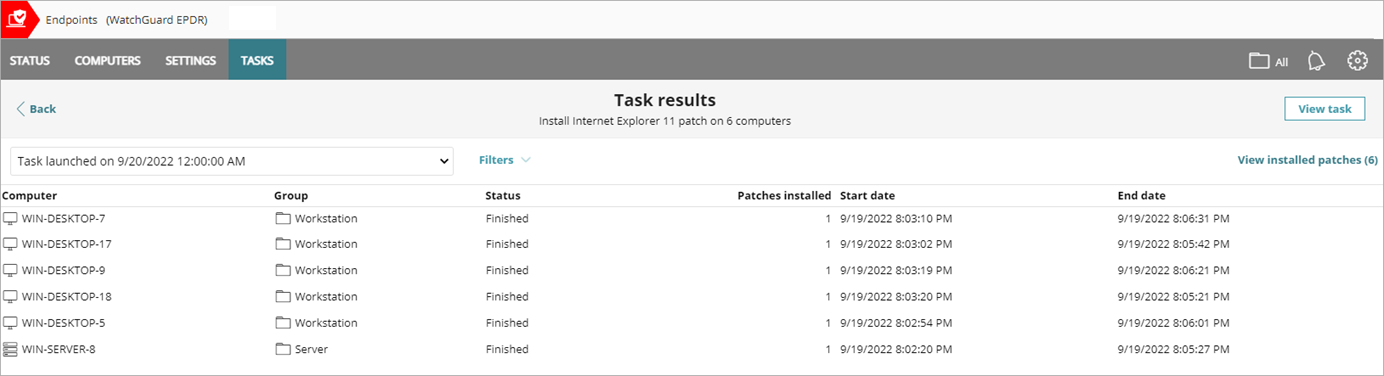
The Task Results page opens with a list of task results.
The Task Results page shown for Service Provider accounts only includes Client, Group, and Detections or Patches Installed columns. To see the complete task details, you must open the management UI for the Subscriber account.
The Task Results page includes these columns:
- Computer — Name of the computer where the task ran.
- Group — Folder in the WatchGuard Endpoint Security folder tree that the computer belongs to.
- Detections — In scan tasks, indicates the number of detections made on the computer.
- Status — Status of the task, either Pending, In progress, Failed, Expired, Canceled, or Finished.
- Start Date — Task start date.
- End Date — Task end date.
You can filter the task results by date, status, or detections.

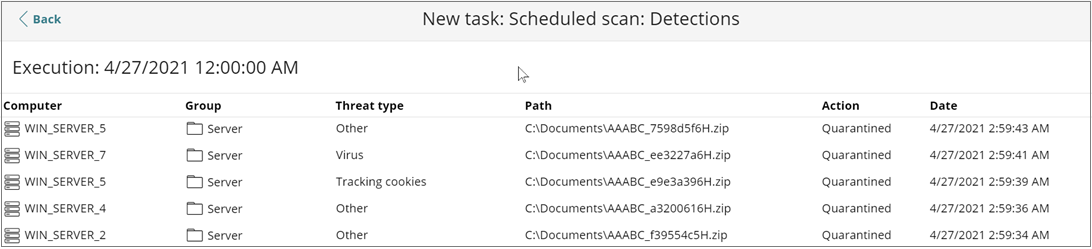
To view detailed information about detections, select View detections.
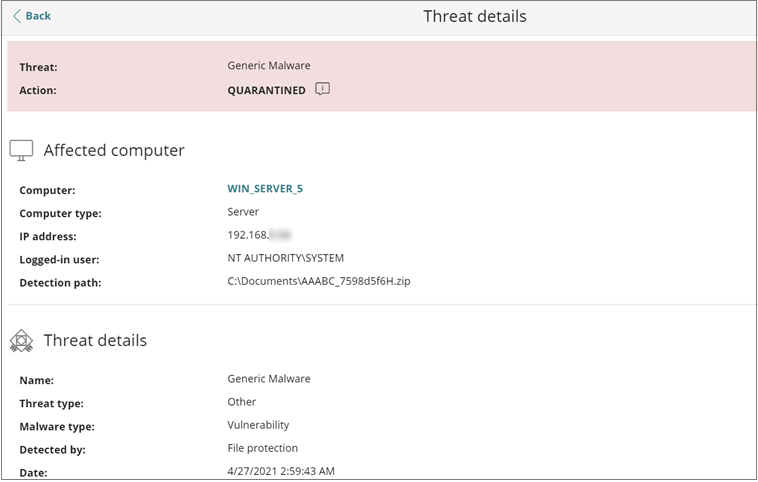
Select a specific computer to view the threat details: