Applies To: Endpoint Security Elite, Endpoint Security 360, Endpoint Security Prime, WatchGuard EDR, and EDR Core
When you exclude a signal in Endpoint Security, you add a deletion rule to automatically remove future signals that meet the same criteria. You might want to do this when you determine the signal to be a false positive or unimportant. You can only add deletion rules that affect computers in your managed accounts.
When you add an exclusion, Endpoint Security does not detect or block the signal program and its libraries going forward. After one month, Endpoint Security automatically deletes signals removed from an incident.
For information on how to add an automatic deletion rule for IOA signals, go to Automatic IOA Deletion Rules.
Your operator role determines what you can see and do in WatchGuard Cloud. Your role must have the Endpoint - Security Manage Incidents permission to view or configure this feature. For more information, go to Manage WatchGuard Cloud Operators and Roles.
To add an exclusion and automatic deletion rule for a signal, from the Incident details page:
- In the Signal pane, select the signal you want to exclude.
- Click
 .
. - Select Do Not Detect Again.
- In the Add Automatic Deletion Rule dialog box, enter a Name for the deletion rule.
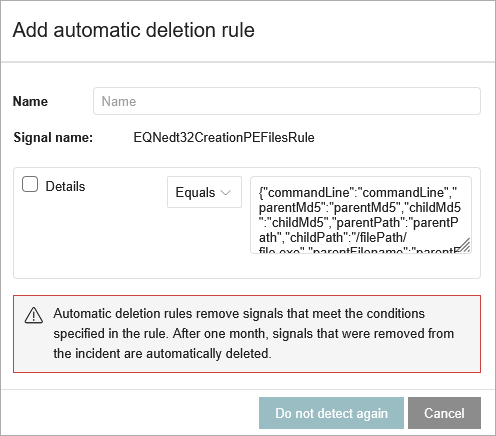
- Select the Details check box.
- From the drop-down list, select an option:
- Equals — Enter the exact content.
- RegEx — Enter the content with a regular expression to add flexibility to the rule. For information on regular expressions, go to the Microsoft Regular Expression Quick Reference Guide. (external link)
- Click Do Not Detect Again.
The rule removes all signals that meet the criteria defined in the rule. Signal exceptions show in the Detected Items Allowed by Administrator tile and list. The Incidents list shows the status of automatically deleted signals as Automatically Closed.
To test and validate your regular expressions, go to http://regexstorm.net/tester. (external link)
To block a previously excluded item:
- Select Status > Security.
- Click the Detected Items Allowed by the Administrator tile.
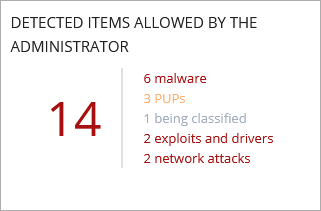
- In the Detected Items Allowed by the Administrator list, click
 next to the item you want to block.
When you block a signal that was previously excluded, Endpoint Security:
- Removes the item from the Detected Items Allowed by the Administrator list.
- Adds an entry to the History of Items Allowed by the Administrator list. The Action column in the list shows Exclusion Removed by the User.
- Adds the item to the corresponding list:
- Malware activity
- PUP activity
- Exploit activity
- Threats detected by the antivirus
- Network attack activity
- Resumes the generation of incidents for the item.
If the signal is a virus, the item reappears in the Threats Detected by the Antivirus list. If the item is an unknown item in the process of classification, it reappears in the Currently Blocked Programs Being Classified list.
Automatic IOA Deletion Rules
When you exclude a signal that is an IOA, Endpoint Security creates an automatic IOA deletion rule. You can edit the rule to make it more general or specific, to apply only to certain computers or groups, or to avoid IOA detections that meet certain characteristics.
Your operator role determines what you can see and do in WatchGuard Cloud. Your role must have the Endpoint Security - Manage Incidents permission to view or configure this feature. For more information, go to Manage WatchGuard Cloud Operators and Roles.
To edit an automatic IOA deletion rule, from the Endpoint Security management UI:
- Select Settings > Automatic IOA Deletion Rules.
- Select the rule you want to edit.
- Edit the Name, if required.
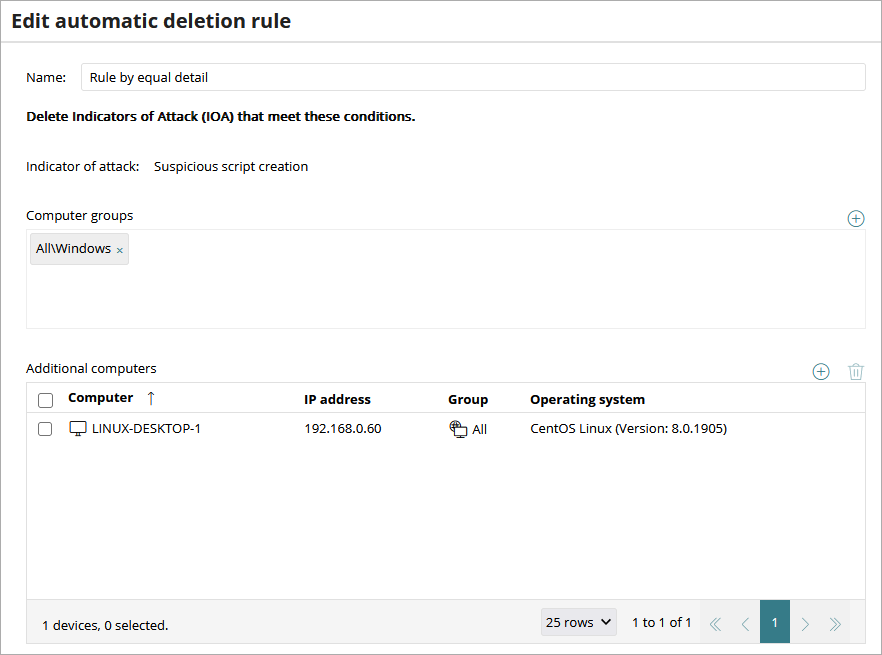
- Edit the Computer Groups and Additional Computers that the rule applies to.
- In the Details area, edit the conditions of the rule.
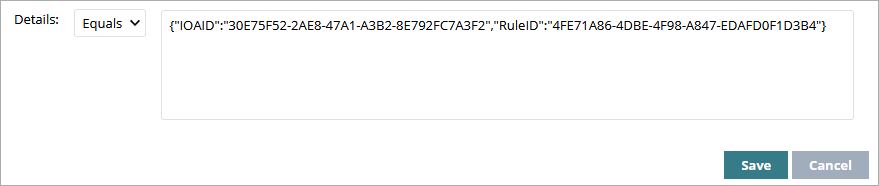
- Click Save.
Delete Automatic IOA Signal Deletion Rules
To delete an automatic IOA deletion rule, from the Endpoint Security management UI:
- Select Settings > Automatic IOA Deletion Rules.
- Select the check boxes for the deletion rules you want to delete.

- Click Delete Rule.
A confirmation dialog box opens. - Click Delete.
The automatic deletion rule is deleted and no longer excludes IOA signals that match its definition.
Manage Incidents in Endpoint Security
Create a Computer Investigation