Applies To: Endpoint Security Basic
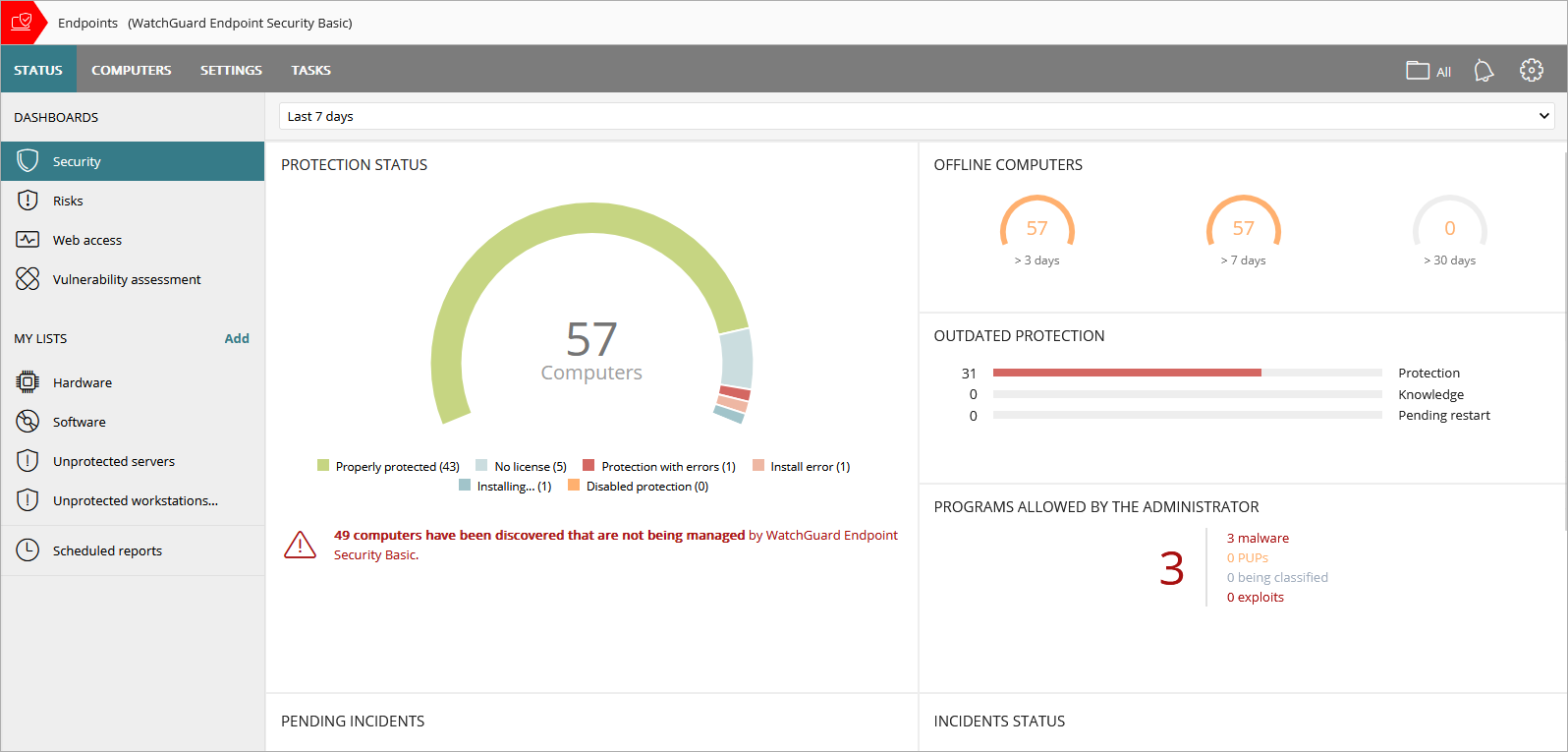
The Endpoint Security Basic Security dashboard shows an overview of the security status of the network for a specific time period. Several tiles show important information and provide links to more details.
Time Period Selector
The dashboard shows information for the time period you select from the drop-down list at the top of the Status page.

You can select the following time periods:
- Last 24 hours
- Last 7 days
- Last month
The Endpoint Security Basic Security dashboard includes these tiles:
- Protection Status
- Offline Computers
- Outdated Protection
- Detected Items Allowed by the Administrator
- Incidents with Action Required
- Incidents Status in Endpoint Security
- Exploit Activity
- Network Attack Activity
- Threats Detected by Antivirus
Click a tile to view detailed information.
Status Icons
The icons in the Advanced Protection, Antivirus, Updated Protection, and Knowledge columns indicate their status:
-
 — Installing
 -
 — Enabled
 -
 — Disabled
 -
 — Error
 -
 — No License
 -
 — Not Available
 -
 — Pending Restart
Protection Status
The Protection Status tile shows:
- Computers where Endpoint Security Basic is working properly
- Computers with errors or problems installing or running the product
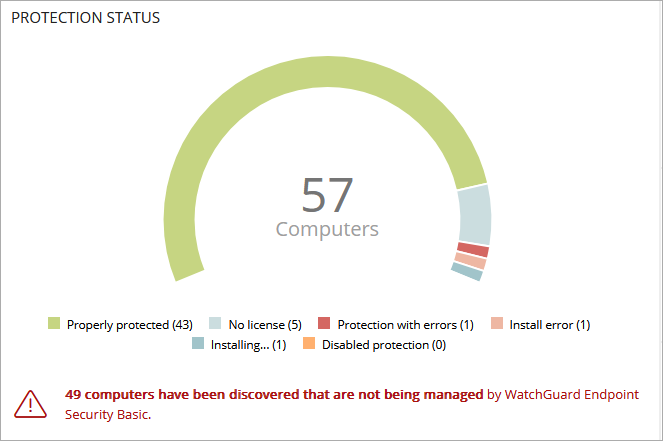
The total number of computers and devices at the center of the tile includes iOS devices. The tile includes no other information about iOS devices. iOS devices do not have advanced or antivirus protection. For more information, go to Configure iOS Device Settings.
To open the Computer Protection Status list, click the tile.
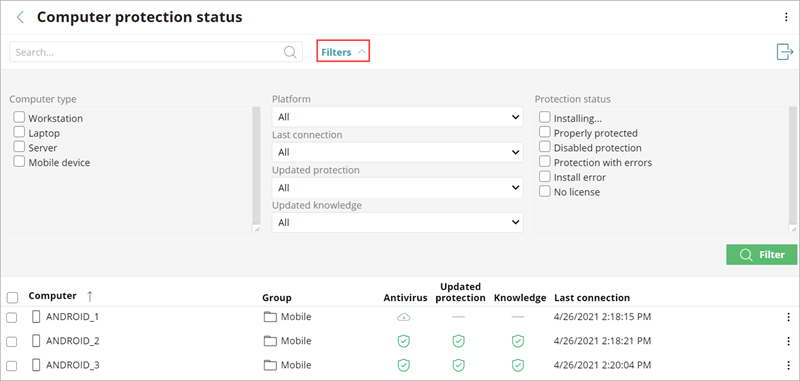
Not all columns are available for every type of device.
To filter the Computer Protection Status list:
- Click Filters.
- Select the Computer Type.
- Specify platform, connection, and protection parameters.
- Select the Protection Status.
- Click Filter.
Offline Computers
The Offline Computers tile shows the number of computers that have not connected to the cloud for a number of days.
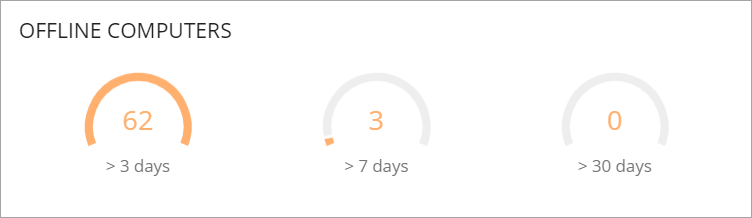
To review details of the computers that might be susceptible to security problems and require attention, click the tile.
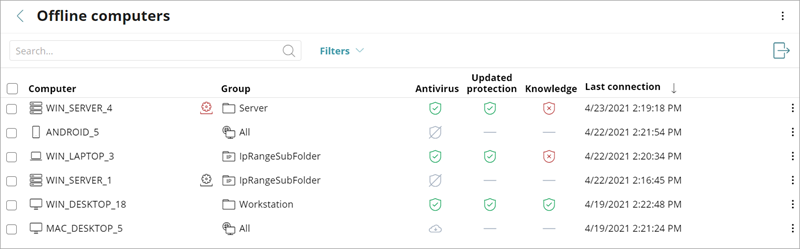
For more information on the icons used in this list, go to Icons.
Outdated Protection
The Outdated Protection tile shows the number of computers with a signature file that is more than three days older than the latest released file. It also shows the computers with an antivirus engine that is more than seven days older than the latest released engine.
- Protection — The computer has had a version of the antivirus engine older than the latest released engine for at least seven days.
- Knowledge — The computer has not updated its signature file for at least three days.
- Pending Restart — The computer requires a restart to complete the update.
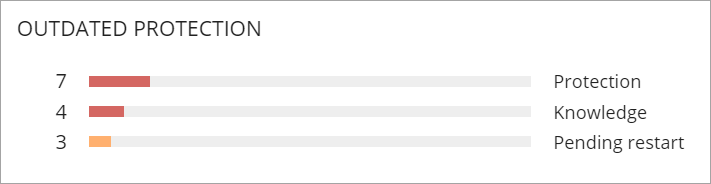
Click the progress bar in the tile to go to the list of computers associated with each status:
- Computers with out-of-date protection
- Computers with out-of-date knowledge
- Computers pending restart
Detected Items Allowed by the Administrator
The Detected Items Allowed by the Administrator tile shows the number of items the administrator allows which Endpoint Security Basic initially prevented from running. Endpoint Security Basic classified these programs as a threat (malware, PUP, or exploit) or as unknown files in the process of classification.
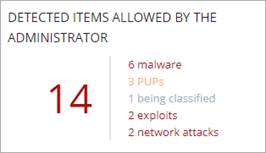
To show specific information in a list, click the tile.
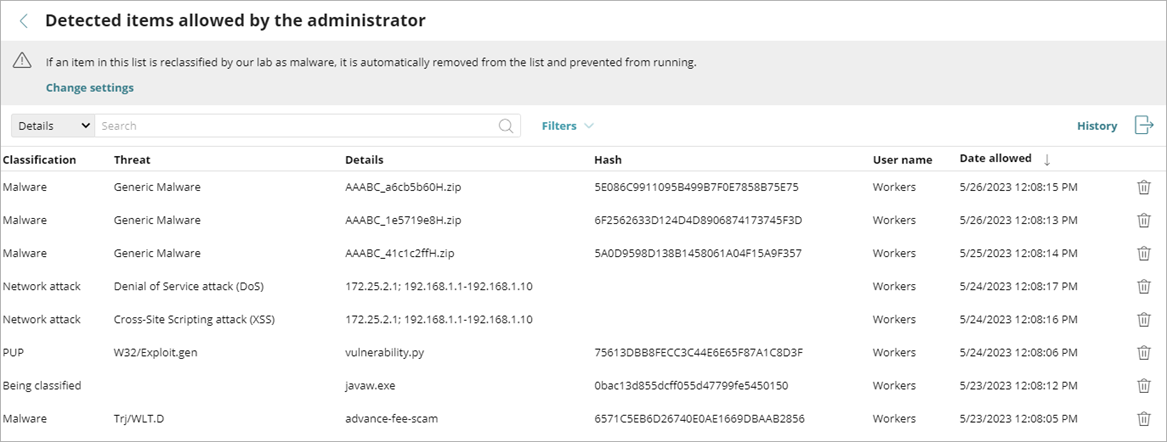
To see all events related to threats and unknown files in the process of classification that the administrator allowed to run, click History.
Incidents with Action Required
The Incidents with Action Required tile on the Security dashboard shows incidents that require remediation or investigation, grouped by risk level (Critical, High, Medium, Low).
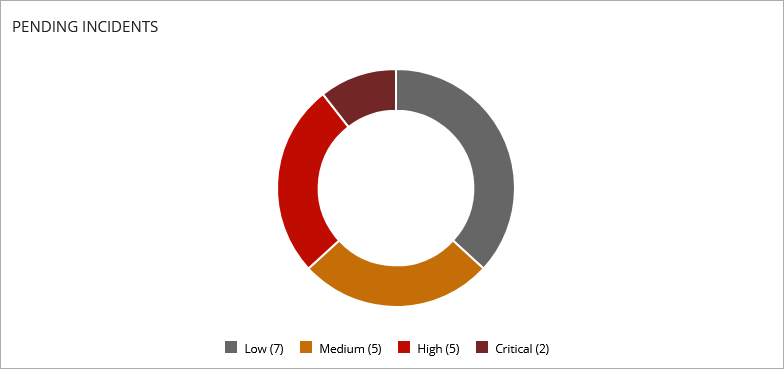
To view a list of pending incidents filtered by the risk level, click a colored area of the chart. For information on the Incidents list and risk levels, go to Manage Incidents in Endpoint Security.
Incidents Status in Endpoint Security
The Incidents Status tile on the Security dashboard shows the number of incidents that are Pending and Closed. An incident is Pending until an operator manually closes it.
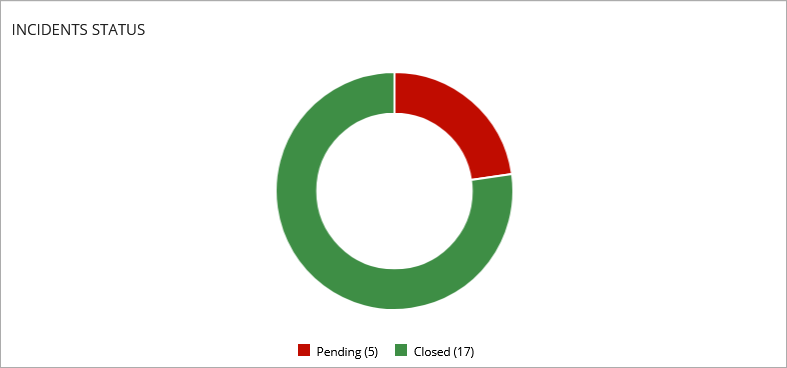
To view a list of pending incidents, click the red section of the chart. For information on the Incidents list and how to close incidents, go to Manage Incidents in Endpoint Security.
Exploit Activity
The Exploit Activity tile shows the number of vulnerability exploit attacks against Windows computers on the network, including vulnerable driver detections. Endpoint Security Basic reports an incident in the Exploit Activity tile for each computer or different exploit attack pair found on the network. If an attack repeats several times, Endpoint Security Basic reports a maximum of 10 incidents every 24 hours for each computer/exploit pair found.

To open the Exploit Activity list to show a list of the affected computers and exploit incidents, click the tile.
Network Attack Activity
The Network Attack Activity tile shows the number of attempted network attacks against Windows computers on the network. Endpoint Security Basic creates a single incident each hour for each group of attacks of the same type with the same source IP address.
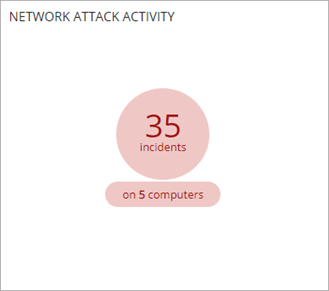
To open the Network Attack Activity list to show a list of the affected computers and network attack incidents, click the tile.
Threats Detected by Antivirus
The Threats Detected by Antivirus tile shows all intrusion attempts that Endpoint Security Basic detected in the selected time period. The data covers all infection vectors and all supported platforms. Administrators can get specific data (volume, type, form of attack) related to the malware.

To review detailed information about detected threats, click the tile.

About My Lists in Endpoint Security
Unmanaged Computers Discovered List