Applies To: Endpoint Security Elite
On the IOC Gallery page, you can add an IOC manually or you can import IOCs in STIX format. For information on how to add an IOC, go to Manage Indicators of Compromise (IOCs). For information on how to import and export IOCs, go to Import and Export IOCs.
On the Settings > IOC Gallery page, the table lists all imported and created IOCs. You can filter the table based on the type of IOC:
-
STIX (Pending approval) — IOC was imported from an external source and requires approval to update it to the format supported by Endpoint Security Elite. For more information, go to Manage Indicators of Compromise (IOCs).
-
STIX — IOC was imported from an external source and was approved for use by IOC searches in Endpoint Security Elite.
-
Created by the user — IOC was created in Endpoint Security Elite. It does not require approval to use in searches.
From each row in the table, you can click  and select one of these options:
- Search for IOCs — Opens a new task to search for IOCs on your computers. For more information, go to Create an IOC Search Task.
- Make a copy of an IOC — Creates a copy of the selected IOC that you can modify to create a new IOC.
- View the original STIX file — Opens the original STIX file for an IOC. The STIX File page opens with a graphical representation and the code of the IOC. For more information, go to View the Original STIX File.
- View IOC detections — Opens the Detected IOCs list. For more information, go to Indicators of Compromise Dashboard.
- Delete — Deletes the selected IOC.
- Export— Exports the select IOC to JSON file format.
View the Original STIX File
When you import a STIX file, you must review and approve the search statement before the IOC can be used in a search task.
For information on how to import IOCs, go to Import and Export IOCs. For information on how to approve an imported IOC, go to Manage Indicators of Compromise (IOCs).
To open the original STIX file for an imported IOC and review the code and actions, click and select View Original STIX File.
The STIX File window opens.
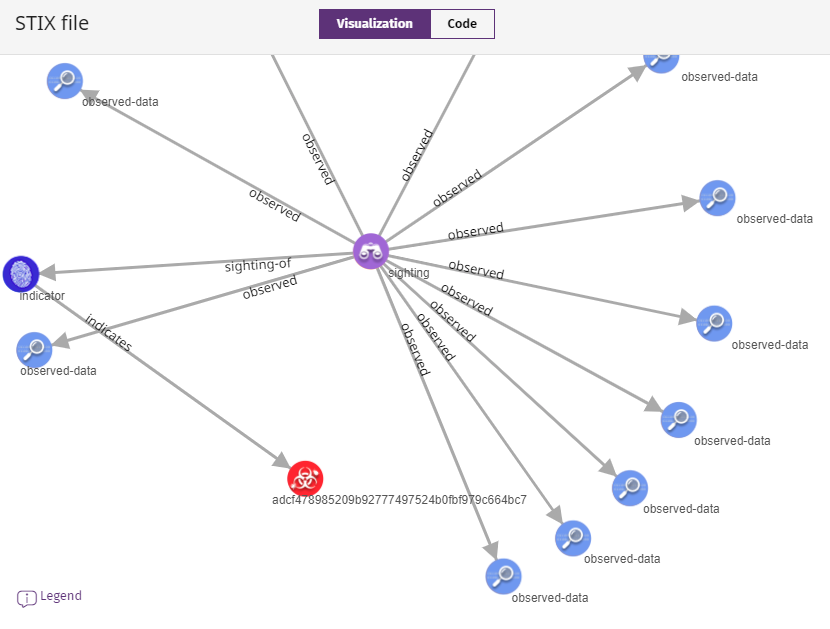
In the STIX File window, you can:
-
Click and drag items in the diagram.
-
Click Legend to view an explanation of each icon in the graph.
-
Click Visualization and Code to review the graphical representation or a code definition of the IOC. You can copy the IOC code.
Although the IOC code displays as it was imported, Endpoint Security Elite might omit sections that are not compatible with its implementation. Search results might not show as expected.
Manage Indicators of Compromise (IOCs)