Applies To: Endpoint Security Elite, Endpoint Security 360, Endpoint Security Prime, WatchGuard EDR, WatchGuard EDR Core, Endpoint Security Basic
Endpoint Security includes tools to find unprotected workstations and servers on the network and to open a remote, unattended installation session from the Endpoint Security management UI. To minimize long lists of discovered computers that contain devices not eligible for Endpoint Security, you can hide computers to exclude them from the installation.
For accounts with more than one WatchGuard product license (for example, an Endpoint Security product license and a FireCloud license), the Configure > Agent Deployment page in WatchGuard Cloud is useful to centrally configure product deployment behavior for endpoint groups and endpoints. For more information, go to Configure WatchGuard Agent Deployment in WatchGuard Cloud.
Your operator role determines what you can see and do in WatchGuard Cloud. Your role must have the Add Filters, Lists, and Scheduled Reports permission to view or configure this feature. For more information, go to Manage WatchGuard Cloud Operators and Roles.
To hide computers you do not want to include in the Endpoint Security installation:
- In WatchGuard Cloud, select Monitor > Endpoint Security.
- Select Status.
- From the left pane, in the My Lists section, click Add.
- Select Unmanaged Computers Discovered.
- Rename the list, if required.
- Click Save.
- In the Unmanaged Computers Discovered list, in the upper-right corner of the window, click Discovered .
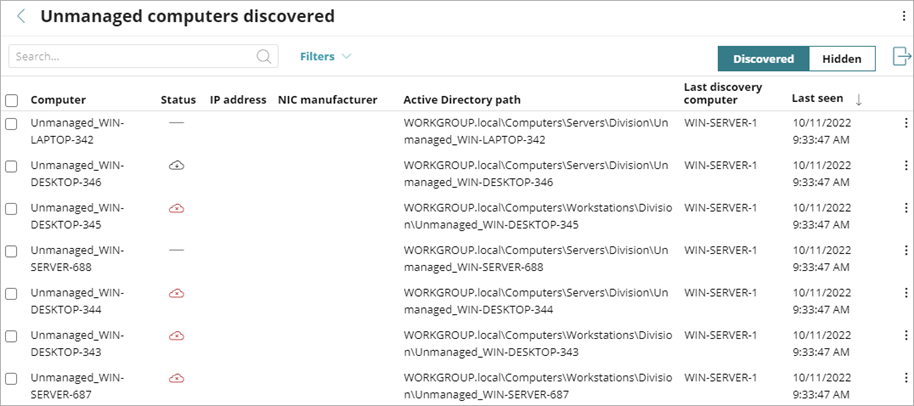
- Select the computers you want to hide.
Click a computer in the list to view the computer details. The number of selected computers shows in the upper-right corner of the table. To select all computers on the page, select the check box next to the Computer column heading. To select all computers in the entire list, click the blue Select all x rows in the list link. - Next to the computer row, click the options
 menu, and select Hide and Do Not Discover Again.
To hide multiple computers simultaneously, select the computers, click the options menu above the table, and select Hide and Do Not Discover Again.
To show hidden computers in the Unmanaged Computers Discovered list:
- In WatchGuard Cloud, select Monitor > Endpoint Security.
- Select Status.
- From the left pane, in the My Lists section, click Add.
- Select Unmanaged Computers Discovered.
- Rename the list, if required.
- Click Save.
- In the Unmanaged Computers Discovered list, in the upper-right corner of the window, click Hidden.
- Select the computers you want to show.
The number of selected computers shows in the upper-right corner of the table. To select all computers on the page, select the check box next to the Computer column heading. To select all computers in the entire list, click the blue Select all x rows in the list link . - Select Show on the List of Unmanaged Computers.
Install the Endpoint Software Remotely (Windows Computers)