Applies To: WatchGuard Cloud
To send license and inventory data from WatchGuard Cloud to your PSA tool, you must configure usage report settings. You can specify the information you want to send from WatchGuard Cloud to your PSA tool and how often you want WatchGuard Cloud to send the information.
Note: WatchGuard Cloud synchronizes license usage and device inventory data on the daily or monthly schedule configured on the Usage Report tab only if it detects a difference between WatchGuard Cloud and the PSA tool. The Sync Now option in the PSA widget does not synchronize this data.
You can include this information in usage reports to the PSA tool:
Cloud Product License Usage
WatchGuard Cloud sends license usage data for the WatchGuard Cloud products that are mapped to PSA services in the Map Services tab. The data sent differs for different license types:
- Term Licenses — User allocation data
- Subscription Licenses — License usage data
For more information about how to map services, go to Map PSA Tool Services and WatchGuard Cloud Products.
Firebox and Access Point Information
WatchGuard Cloud sends model, license type, serial number, Fireware or firmware version, license expiration, and other metadata for Firebox and access point devices for WatchGuard accounts that are mapped to PSA accounts in the Map Accounts tab.
- ConnectWise and Autotask use these configuration types:
- WatchGuard Firebox
- WatchGuard Access Point
- HaloPSA uses these asset types:
- WatchGuard Firebox
- WatchGuard Access Point
- If the configuration item is found in the PSA tool, WatchGuard Cloud sends the updated item information to the PSA tool.
- If the configuration item is not found in the PSA tool, WatchGuard Cloud creates a configuration item for the device in the PSA tool.
- For unmapped accounts where WatchGuard Cloud finds a configuration item with a matching serial number in the PSA tool, WatchGuard Cloud updates the item.
- If a Firebox or access point device is removed from WatchGuard Cloud, or the device license expires, WatchGuard Cloud does not delete the associated configuration item in the PSA tool.
- For ConnectWise Manage, if a device is reallocated to a different account in WatchGuard Cloud, WatchGuard Cloud updates the associated company in the PSA tool.
- For HaloPSA, WatchGuard Cloud maps the device to the first site listed in HaloPSA for the mapped account.
WatchGuard Cloud sends device details to the configuration item in the PSA tool with each usage report. This table shows how WatchGuard Cloud device data corresponds to configuration data in the PSA tool.
| WatchGuard Device Data | ConnectWise PSA Configuration Item | Autotask PSA Configuration Item | HaloPSA Configuration Item |
|---|---|---|---|
| Serial Number | Serial Number | Serial Number | Serial Number |
| License Expiration Date | Expiration Date | Warranty Expiration Date | WG: Warranty Expiration Date |
| Allocation Expiration Date | Allocation Expiry Date | WG: Allocation Expiration Date | WG: Allocation Expiry Date |
| Model | Model Number | WG: Device Model | Model |
| Version | OS Type | WG: Device Firmware Version | OS Version |
| Subscriber Account (for the device) | Company | Account | Customer > First Site listed in HaloPSA |
| Allocated Date | Purchase Date | Install Date | WG: Allocation Date |
| Current Date/Time (when configuration item is created) | Installation Date | Create Date | WG: Asset Creation Date |
| Manufacturer | N/A | N/A | Manufacturer |
Note: If you manually create a configuration item in the PSA tool, do not include a hyphen (-) in the serial number. For example, use FVE6010197BDA2 instead of FVE6010197-BDA2. If you include a hyphen, the device data might not synchronize.
For information about how to map accounts, go to Map PSA Tool Accounts and WatchGuard Cloud Accounts.
Your operator role determines what you can see and do in WatchGuard Cloud. You must be a tier-1 Service Provider and your role must have the Manage Integrations and Manage Tenants permissions to configure this feature. For more information, go to Manage WatchGuard Cloud Operators and Roles.
To configure PSA Tool usage report settings, from WatchGuard Cloud:
- Select Administration > Integrations.
- From the PSA widget, click Configure.
- Select the Usage Report tab.
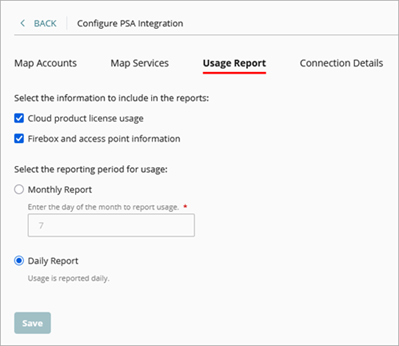
- To send WatchGuard Cloud product license usage data, select the Cloud Product License Usage check box.
- To send device data, select the Firebox and Access Point Information check box.
- Select the reporting period:
- To send data monthly, select Monthly Report and type the day of the month to report usage.
- To send data daily, select Daily Report.
- Click Save.
To enable WatchGuard Cloud to create and close tickets in your PSA tool, select Administration > PSA Ticketing. For more information, go to Configure PSA Ticketing Notification Rules.
Map PSA Tool Accounts and WatchGuard Cloud Accounts