Applies To: Cloud-managed Fireboxes

This document applies to Fireboxes you manage in WatchGuard Cloud. For information that applies to Fireboxes managed in Fireware Web UI or WatchGuard System Manager, go to:About Default Packet Handling Options.
Overview
Default packet handling settings control how a Firebox responds to potentially dangerous network traffic, such as spoofing attempts, scans, or flood attacks. These settings operate at a foundational level and take precedence over firewall policies and security services, which means the Firebox can drop traffic even when a policy would otherwise allow it. For more information about the kinds of attacks that default packet handling protects against, go to About Default Packet Handling on Cloud-Managed Fireboxes.
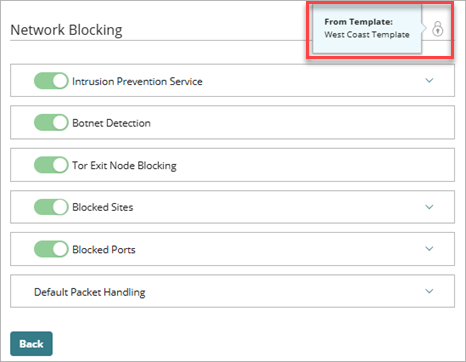
Most default packet handling settings are enabled in the default configuration, but you can adjust thresholds to meet your network requirements. You can configure these settings for individual Fireboxes and for Firebox templates. If a Firebox subscribes to a template with default packet handling options configured, a lock icon shows at the top of the Network Blocking page, and you cannot configure the settings in the Firebox configuration for that device. To view the name of the template where the settings are configured, hover over the lock icon.
For more information about Firebox templates, go to About Firebox Templates.
Your operator role determines what you can view and do in WatchGuard Cloud. Your role must have the Devices permission to view or configure this feature. For more information, go to Manage WatchGuard Cloud Operators and Roles.
Configure Default Packet Handling Settings
Most default packet handling settings are enabled by default. WatchGuard recommends that you keep these settings enabled but change the thresholds to accommodate your network requirements.
When the Block Port Scan, Block IP Scan, or Auto-Block Source IP of Unhandled External Packets check boxes are selected, the Firebox examines all inbound traffic. You cannot disable these features for specified IP addresses, specified Firebox interfaces, or different time periods.
The default packet handling options related to IPSec, IKE, ICMP, SYN, and UDP flood attacks apply to both IPv4 and IPv6 traffic. All other options apply only to IPv4 traffic.
To configure default packet handling, from WatchGuard Cloud:
- Select Configure > Devices.
- Select a cloud-managed Firebox.
Status and settings for the selected Firebox appear. - Select Device Configuration.
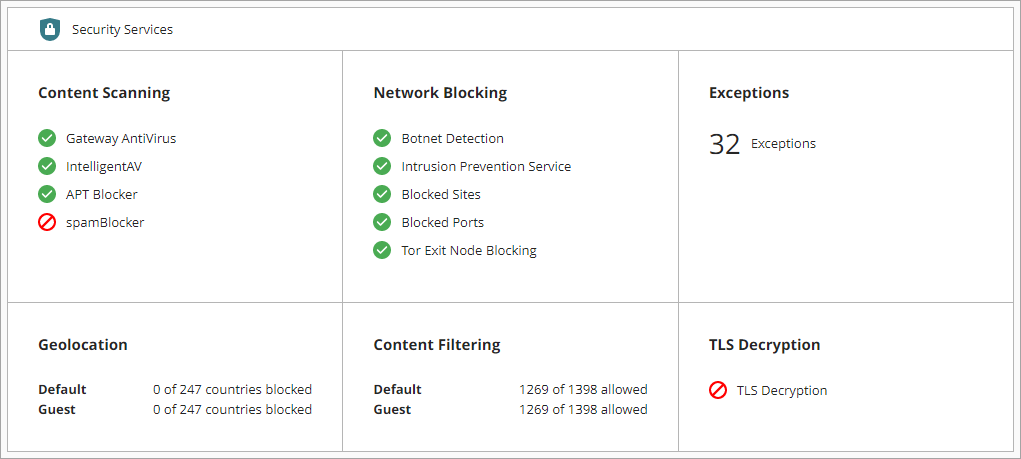
The Device Configuration page opens and shows the WatchGuard Cloud Security Services. - Click the Network Blocking widget.
The Network Blocking page opens. - Select Default Packet Handling.
The default packet handling settings open.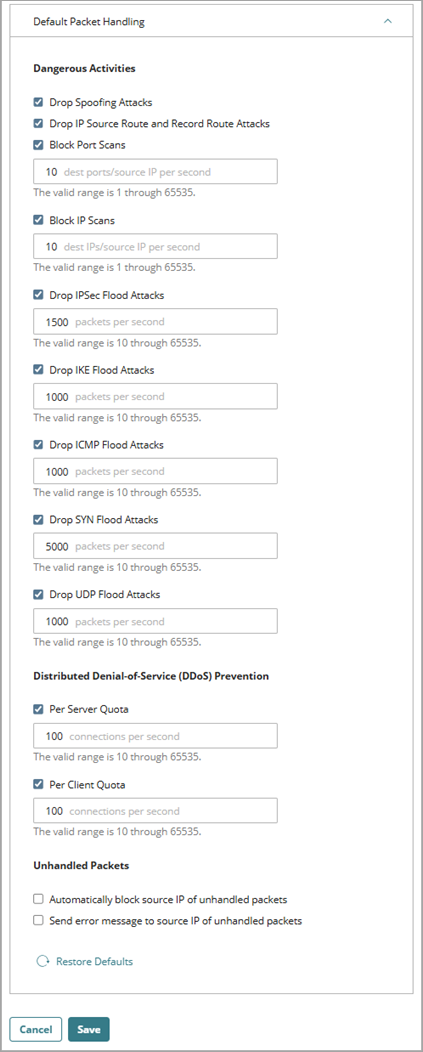
- In the Dangerous Activities section, to enable or disable these settings, select or clear the check boxes. For network scans and flood attacks, you can also change the thresholds.
- Drop Spoofing Attacks
- Drop IP Source Routes
- Block Port Scans
- Block IP Scans
- Drop IPSec Flood Attacks
- Drop IKE Flood Attacks
- Drop ICMP Flood Attacks
- Drop SYN Flood Attacks
- Drop UDP Flood Attacks
For more information about these attack types and how the Firebox responds to them, go to:
- In the Distributed Denial-of-Service (DDoS) Prevention section, to enable or disable these settings, select or clear the check boxes. When enabled, you can configure the number of connections allowed per second.
- Per Server Quota
- Per Client Quota
For more information about DDoS attacks and how the Firebox responds to them, go to About Default Packet Handling on Cloud-Managed Fireboxes.
- In the Unhandled Packets section, to enable or disable the settings, select or clear the check boxes. These settings are disabled by default.
Use caution with the Automatically Block Source IP of Unhandled External Packets setting. When this setting is enabled, the Firebox blocks all traffic from a remote host if a packet, such as a ping request, does not match a Firebox policy.
For more information about unhandled packets and how the Firebox responds to them, go to About Unhandled Packets.
- To reset all settings to their default values, click Restore Defaults.
- To save the configuration changes, click Save.
For configuration changes to take effect on a cloud-managed Firebox, you must deploy the configuration update to the Firebox. For more information, go to Manage Device Configuration Deployment for Fireboxes.
Configure Network Blocking in WatchGuard Cloud
About Default Packet Handling on Cloud-Managed Fireboxes
Add Blocked Sites and Blocked Ports on a Cloud-Managed Firebox
Monitor and Manage Blocked Sites on Fireboxes in WatchGuard Cloud