Applies To: Cloud-managed Fireboxes

This document applies to BOVPNs that you manage in WatchGuard Cloud. For information that applies to BOVPNs managed in Fireware Web UI or WatchGuard System Manager, go to Configure BOVPN over WireGuard.
Overview
To use this feature, your Firebox must run Fireware v2026.4 or higher. Fireware 2026.4 is supported on these models: Firebox M Series M4850, M5850, M6850, M695, M595, M495, M395, and M295, and Firebox T Series T185, T175, T145, T125, and T115.
You can configure a WireGuard branch office virtual private network (BOVPN) between a cloud-managed Firebox and locally-managed Fireboxes. In WatchGuard Cloud, WireGuard BOVPNs use a hub-and-spoke topology. In a mixed topology, the cloud-managed Firebox is typically the hub, and one or more locally-managed Fireboxes are spokes.
WireGuard BOVPN supports Firebox-to-Firebox tunnels only. Third-party VPN endpoints are not supported. FireboxV endpoints are not supported.
Unlike a WireGuard BOVPN between cloud-managed Fireboxes in the same account, WatchGuard Cloud does not exchange public keys automatically with a locally-managed Firebox. You copy the cloud-managed Firebox public key from the VPN Gateways page, and you type the locally-managed Firebox public key in the WatchGuard Cloud configuration. You must also configure the same WireGuard settings on the locally-managed Firebox.
To configure WireGuard settings on a locally-managed Firebox, go to Configure BOVPN over WireGuard in Fireware Help.
To configure a WireGuard BOVPN between cloud-managed Fireboxes in the same WatchGuard Cloud account, go to Configure a WireGuard BOVPN between Cloud-Managed Fireboxes.
For more information about WireGuard, topology rules, virtual IP address, routing and other WireGuard BOVPN concepts, go to About WireGuard BOVPN in WatchGuard Cloud.
Before You Begin
Before you add a WireGuard BOVPN with a mixed topology:
- Make sure that each Firebox runs Fireware v2026.4 or higher.
- Make sure that the ISP for each endpoint allows UDP traffic on the configured WireGuard listening port.
- Make sure that the cloud-managed Firebox does not have undeployed configuration changes.
- Plan unique virtual IP addresses for the hub and each spoke. For SD-WAN and Firebox-generated traffic, use a /32 host IP address for each endpoint.
- Identify the external networks and private networks to include in the tunnel.
WireGuard does not perform network address translation (NAT). If the private networks behind the endpoints use the same IP address range, you cannot route traffic through the tunnel between those networks.
- On the locally-managed Firebox, enable WireGuard and copy the local public key.
Add a WireGuard BOVPN to a Locally-Managed Firebox
You can add a WireGuard BOVPN on the BOVPN page for a specific Firebox, or you can add it on the VPNs page, which is a shared configuration page. For more information, go to Manage BOVPNs for Cloud-Managed Fireboxes.
Before you add a WireGuard BOVPN, make sure that none of the cloud-managed Fireboxes in the tunnel have undeployed changes. You cannot save BOVPN changes if a cloud-managed Firebox in the tunnel has other undeployed configuration changes.
To add a WireGuard BOVPN to a locally-managed Firebox, from WatchGuard Cloud:
- To open the BOVPN page, use one of these methods:
- To manage BOVPNs for all Fireboxes in the currently selected account, select Configure > VPNs.
- To manage BOVPNs for a specific Firebox, on the Device Configuration page, click the Branch Office VPN widget.
The BOVPN page shows currently configured BOVPNs.
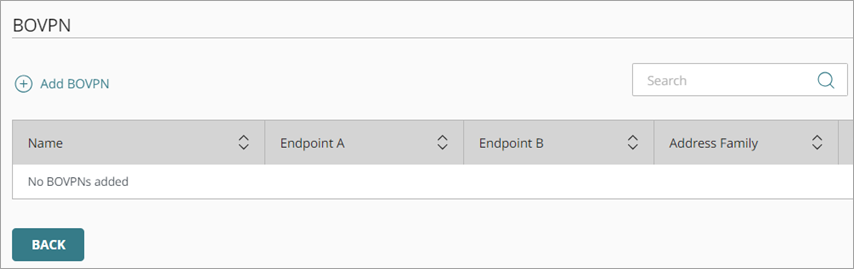
- Click Add BOVPN.
The Add BOVPN page opens.
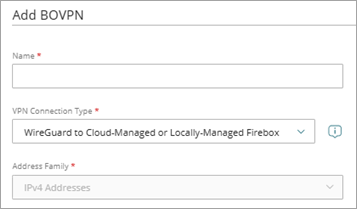
- In the Name text box, type a name for this BOVPN.
- From the VPN Connection Type drop-down list, select WireGuard to Cloud-Managed or Locally-Managed Firebox.
The Define VPN Endpoints section shows lists for the hub and the spokes. For a mixed tunnel, select a cloud-managed Firebox as the hub and one or more locally-managed spokes.
For WireGuard, Address Family is set to IPv4 and cannot be changed. - In the Define VPN Endpoints section, select the hub and spokes:
- In the Hub section, select the cloud-managed hub Firebox.
- In the Spokes section, expand the Locally-Managed Firebox section, and in the Name text box, type a name to identify the locally-managed Firebox. To add another spoke, click Add Endpoint.
If a WireGuard public key is not yet available in WatchGuard Cloud for the cloud-managed Firebox, you can still select the device. WatchGuard Cloud does not complete peer configuration for that endpoint until the public key is available.
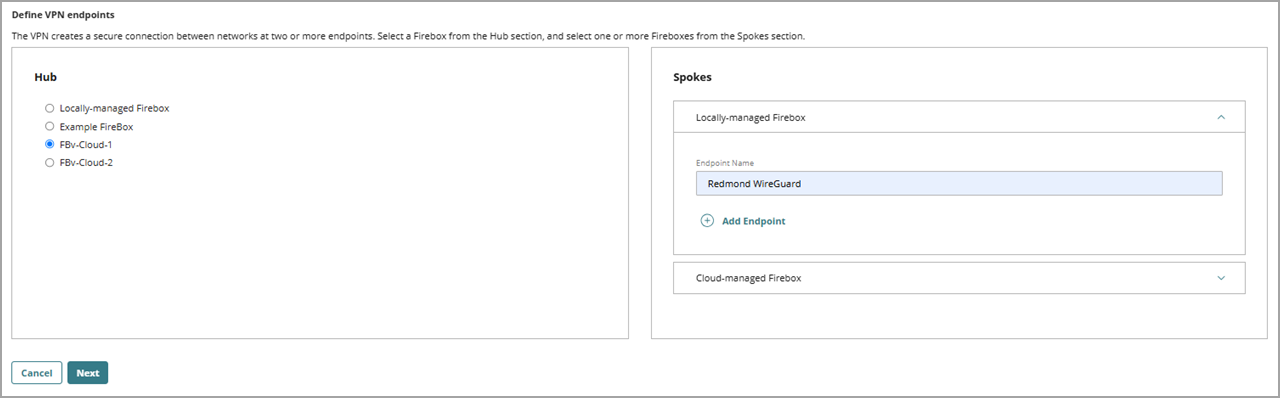
- Click Next.
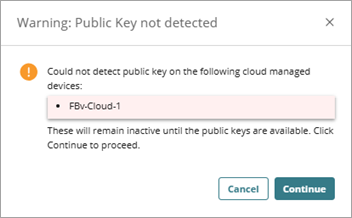
If WatchGuard Cloud does not detect a public key on one or more of the cloud-managed Fireboxes, a dialog box opens. Review the listed Fireboxes, then click Continue. The VPN Gateways page opens.
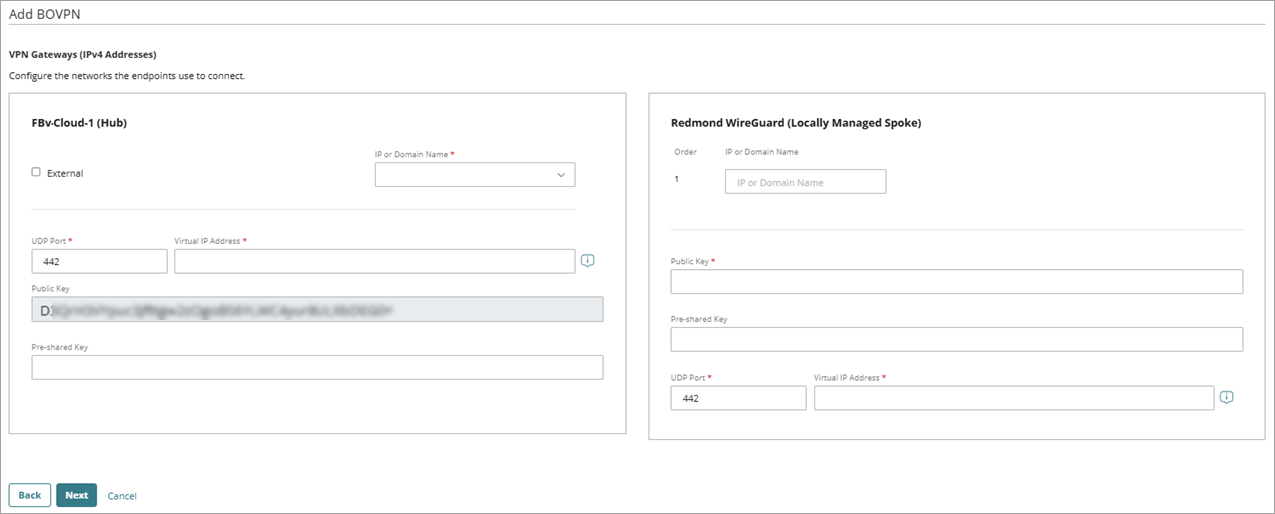
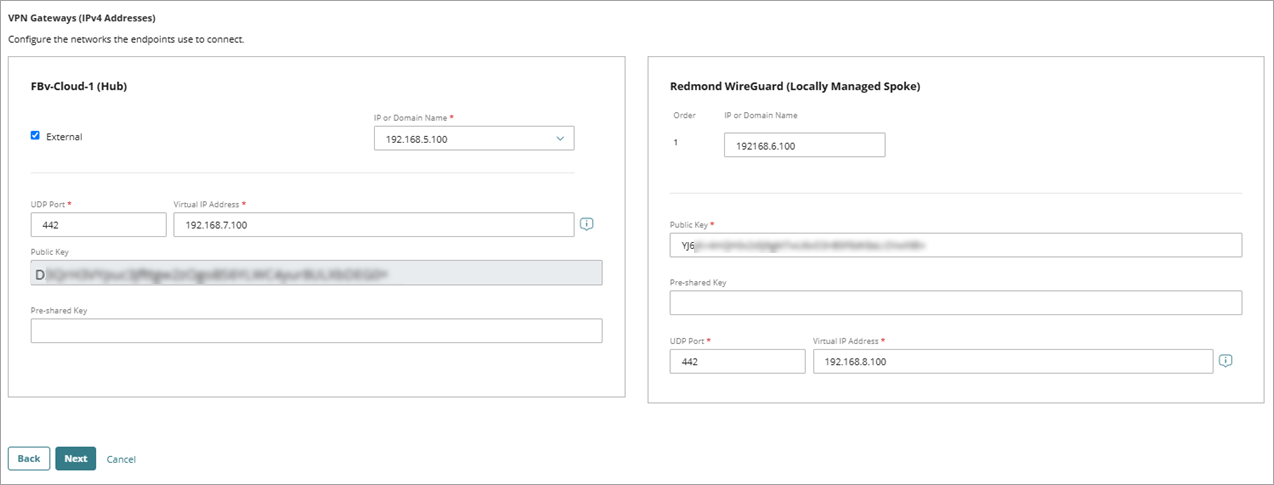
- For the hub, select at least one external network that the endpoint uses to connect.
- For each network on the hub, from the IP or Domain Name drop-down list, select the IP address or domain name for the Firebox external network, or select Any (Dynamic) if the endpoint does not use a fixed IP address or domain name — for example, when it uses DHCP, PPPoE, or multiple WAN interfaces.
- For the hub, in the UDP Port text box, type the UDP listening port for WireGuard, or keep the default value.
If a Firebox is already a spoke in another WireGuard BOVPN, WatchGuard Cloud can prepopulate the UDP port. If you change the UDP port for a spoke that is used in more than one WireGuard BOVPN, the change applies to all WireGuard BOVPNs that include that Firebox.
- For the hub, in the Virtual IP Address text box, type a unique virtual IP address.
If a Firebox is already a spoke in another WireGuard BOVPN, WatchGuard Cloud can prepopulate the virtual IP address for that spoke. If you change the virtual IP address for a spoke that is used in more than one WireGuard BOVPN, the change applies to all WireGuard BOVPNs that include that Firebox.
- If the public key is available, copy it so you can paste it when you configure the peer on the locally-managed Firebox.
- (Optional) In the Pre-Shared Key text box, type a WireGuard preshared key. Use the same preshared key on both Fireboxes.
The preshared key must be a random 32-byte value. When encoded in Base64, the key must contain exactly 44 ASCII characters.
- For each locally-managed spoke:
- In the IP or Domain Name text box, type the IP address or domain name of the locally-managed Firebox.
- In the Public Key text box, type the WireGuard public key from the locally-managed Firebox.
- (Optional) In the Pre-Shared Key text box, type a preshared key. Use the same preshared key on the locally-managed Firebox.
- In the UDP Port text box, type the UDP listening port for WireGuard on the locally-managed Firebox, or keep the default value. The default port is 442.
- In the Virtual IP Address text box, type a unique virtual IP address for the spoke.
Virtual IP addresses are required in some cases:
- Before you can add this BOVPN to an SD-WAN action, you must specify virtual IP addresses with a /32 netmask.
- If you configure a zero-route BOVPN, you must enter virtual IP addresses so that return traffic uses the VPN tunnel. If you add a zero route BOVPN network resource, and the remote VPN endpoint cannot route traffic from the cloud-managed Firebox to WatchGuard Cloud, you lose the ability to manage or monitor the Firebox.
- For Firebox-generated traffic, virtual IP addresses are required so the response traffic uses the VPN tunnel. Examples of Firebox-generated traffic include DNS and DHCP traffic, Dimension, syslog, SNMP, NTP, authentication (Active Directory, LDAP, and RADIUS), and other connections established by the Firebox to resources through the tunnel.
- Click Next.
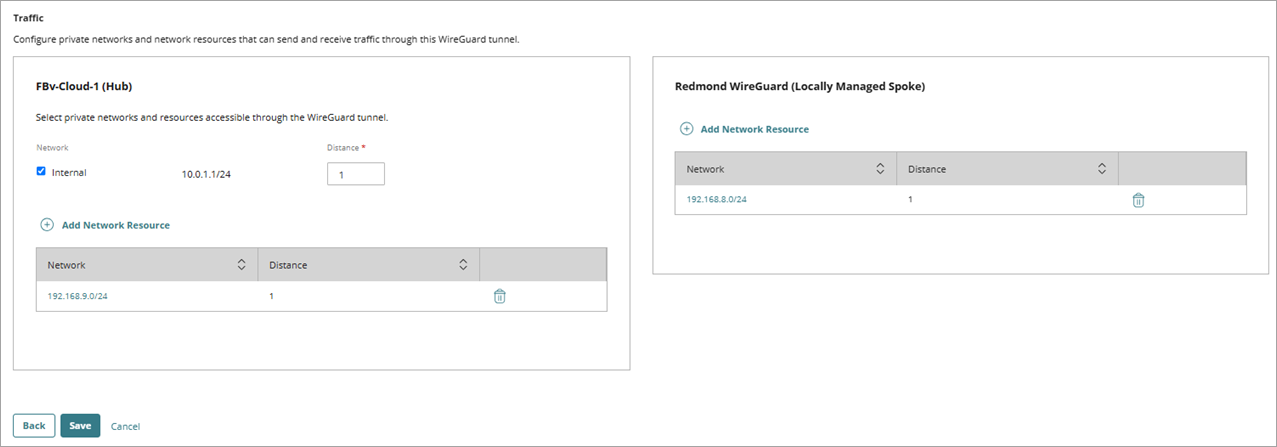
The Traffic settings page opens. - For the cloud-managed hub, select internal or guest networks that can send and receive traffic through this tunnel.
- To specify a network resource other than internal or guest networks, or to add network resources for a locally-managed spoke:
- Click Add Network Resource.
The Add Network Resource dialog box opens. - In the Add Network Resource text box, type the network IP address and netmask.Tip!
- In the Distance text box, type a value from 1 through 254. Routes with lower distance values have higher priority.
- Click Add.
The network resource is added to the Traffic settings for the endpoint.
- Click Add Network Resource.
- Click Save.
WatchGuard Cloud automatically creates a deployment for the cloud-managed Firebox. The deployment shows in the Deployment History for that device.
Configure the Locally-Managed Firebox
After you save the WatchGuard Cloud configuration, configure WireGuard settings on the locally-managed Firebox.
To configure the locally-managed Firebox:
- Enable WireGuard and configure the local WireGuard interface. Use the same UDP listening port and a unique virtual (interface) IP address that matches the spoke virtual IP address in WatchGuard Cloud.
- Add a peer that points to the cloud-managed hub Firebox.
- In the peer public key text box, type or paste the cloud-managed Firebox public key that you copied from the VPN Gateways page.
- (Optional) Type the same preshared key that you configured for this spoke in WatchGuard Cloud.
- Add allowed resources for the private networks behind the hub that must communicate with this spoke.
- Save the configuration to the Firebox.
For detailed steps to configure WireGuard on a locally-managed Firebox, go to Configure BOVPN over WireGuard in Fireware Help.
Edit or Delete a WireGuard BOVPN
Before you edit or delete a WireGuard BOVPN, make sure that none of the cloud-managed Fireboxes in the tunnel have undeployed changes. You cannot save BOVPN changes if a cloud-managed Firebox in the tunnel has other undeployed configuration changes.
You can edit or delete a WireGuard BOVPN on the BOVPN page. You cannot change the VPN Connection Type after you save the BOVPN. If you change the public key, UDP port, virtual IP address, or network resources, update the matching settings on the locally-managed Firebox.
To edit or delete a WireGuard BOVPN, from WatchGuard Cloud:
- Open the BOVPN page.
- To edit a BOVPN, click the BOVPN name, make your changes, then click Save.
- To delete a BOVPN, click the icon next to the BOVPN and select Delete.
For more information, go to Manage BOVPNs for Cloud-Managed Fireboxes.
Configure a WireGuard BOVPN between Cloud-Managed Fireboxes
Manage BOVPNs for Cloud-Managed Fireboxes
Manage Device Configuration Deployment
Configure BOVPN over WireGuard
Configure a BOVPN to a Locally-Managed Firebox or Third-Party VPN Endpoint