Applies To: Cloud-managed Fireboxes

This document applies to Fireboxes you manage in WatchGuard Cloud. For information that applies to Fireboxes managed in Fireware Web UI or WatchGuard System Manager, go to:
Overview
You can configure a cloud-managed branch office VPN (BOVPN) tunnel to use certificate-based authentication instead of a pre-shared key. With certificate-based authentication, each VPN gateway uses a certificate to verify the identity of the remote endpoint when in IKE negotiation. Cloud-managed BOVPN tunnels support certificate-based authentication for IKEv2 tunnels only, including both route-based (virtual interface) and policy-based configurations.
Certificate Requirements
Certificates used for BOVPN tunnels must:
- Include the private key for the local Firebox certificate.
- Be a valid certificate (not expired or revoked).
- Include identity information in the Subject or Subject Alternative Name (SAN).
- Use a supported key type and key length.
Limitations
These limitations apply:
- Certificate-based authentication is supported only for IKEv2 BOVPN tunnels.
- You must upload and manage certificates in WatchGuard Cloud. External certificate lifecycle automation is not supported.
- The tunnel does not establish if the certificate identity is not the same as the configured gateway ID.
Before You Begin
Before you configure certificate-based authentication, make sure that:
- Each Firebox has a certificate with a private key installed.
- The certificate is signed by a trusted certificate authority (CA).
- Each Firebox trusts the CA that issued the peer certificate.
- If the CA uses intermediate certificates, upload the full certificate chain to WatchGuard Cloud.
For information about certificates in WatchGuard Cloud, go to Manage Certificates in WatchGuard Cloud.
Configure Certificate-Based Authentication
To configure certificate-based authentication for a BOVPN tunnel:
- In WatchGuard Cloud, select Configure > Devices.
- Select your cloud-managed Firebox.
- Select Device Configuration.
- Click the Branch Office VPN widget.
- Add or edit a tunnel.
- In the VPN Gateways section, select Use IPSec Firebox Certificate.
- Select a certificate and configure the local gateway ID settings. The identity information in the certificate must be the same as the gateway ID settings.
- FQDN — The value must be the same as the FQDN in the certificate SAN.
- IP Address — The value must be the same as the IP address in the SAN.
- Distinguished Name (x500 name) — The value must be the same as the subject distinguished name in the certificate.
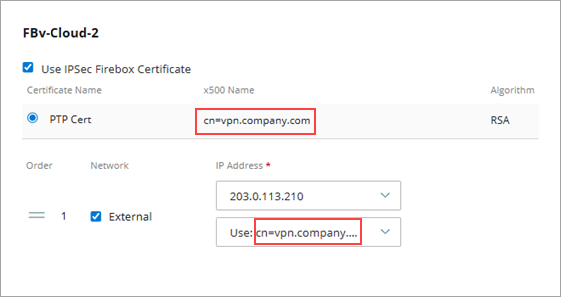
Note: If the gateway ID is not the same as the certificate identity, IKE negotiation fails.
- Configure other BOVPN settings as appropriate. For more information, go to Manage BOVPNs for Cloud-Managed Fireboxes.
Configure the Remote Endpoint
On the remote endpoint:
- Configure certificate-based authentication.
- Select a certificate signed by a trusted CA.
- Configure gateway ID values that are the same as the certificate identity.
- Make sure the device trusts the CA that issued the Firebox certificate.
For more information about how to configure the remote endpoint, go to Configure Remote VPN Endpoint Settings on a Locally-Managed Firebox or Third-Party VPN Endpoint.