Applies To: FireCloud Internet Access, FireCloud Total Access
When users connect to FireCloud, all traffic is routed through the nearest WatchGuard point of presence (PoP) by default. With the tunnel bypass feature, you can specify IP addresses and networks whose traffic does not go through the FireCloud tunnel and instead goes directly to the Internet. For example, you might configure a tunnel bypass for streaming services to avoid latency, or for trusted internal addresses and destinations your organization requires a direct connection for.
FireCloud tunnel bypasses only apply to traffic that goes to the Internet. Connections to private resources must route traffic through the FireCloud tunnel and connect to the necessary FireCloud Gateway.
FireCloud security services such as Intrusion Prevention Service, content filtering, and content scanning do not apply to traffic that bypasses the FireCloud tunnel.
FireCloud does not support the tunnel bypass feature for iOS.
When you configure a tunnel bypass, you can set it to be global so that it applies to all access rules automatically, or you can assign it to specific access rules.
To configure a tunnel bypass, you can:
Add a Tunnel Bypass
To add a FireCloud tunnel bypass, from WatchGuard Cloud:
- Select Configure > FireCloud.
- Click the Tunnel Bypass tile.
The Tunnel Bypass page opens.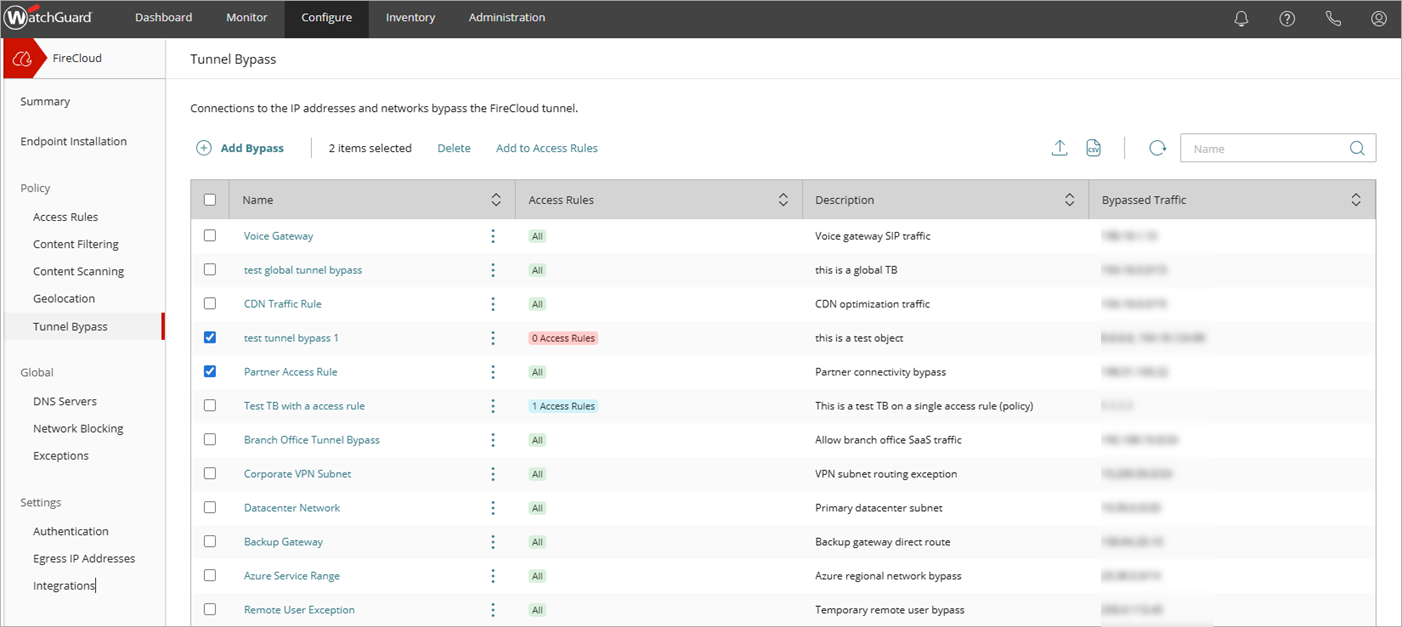
- Click Add Bypass.
The Add Tunnel Bypass page opens.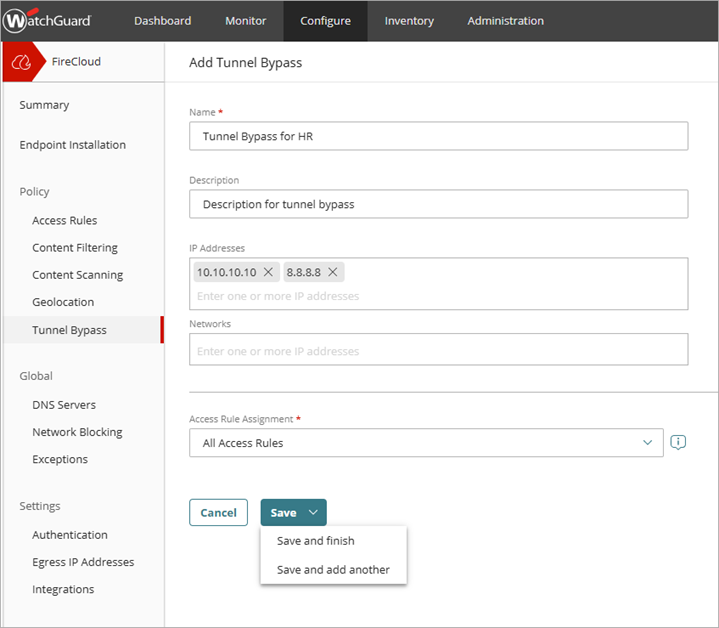
- In the Name text box, type a name to identify the tunnel bypass.
- In the Description text box, type a description.
- In the IP Addresses text box, type one or more IPv4 addresses. Traffic to these IP addresses will bypass the FireCloud tunnel.
- In the Networks text box, type the network details.
- To specify the access rules that apply to this tunnel bypass, from the Access Rule Assignment drop-down list, select one of these options:
- All Access Rules — Applies to all access rules. This includes new rules that you add later.
- Selected Access Rules — Applies only to the access rules you select in the Access Rules list.
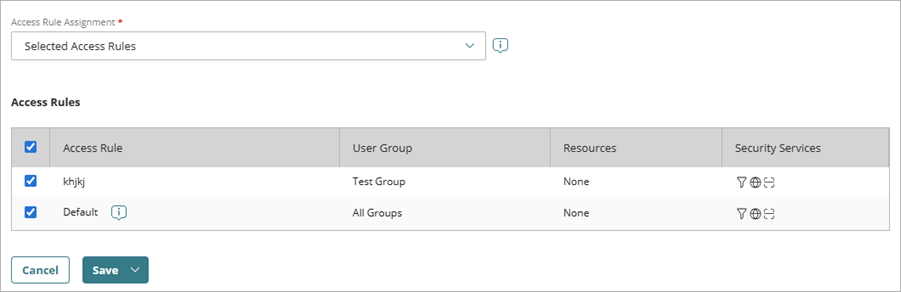
- Unassigned — Does not apply to any access rules.
- Click Save. If you want to add more tunnel bypasses, you can select Save and Add Another Tunnel Bypass.
If necessary, from the Tunnel Bypass page you can select multiple bypasses and add them to access rules. You might do this if you configured your tunnel bypasses to use selected access rules, and need to add multiple existing bypasses to one or more new access rules.
Import Tunnel Bypasses
The import feature enables you to add tunnel bypasses from a .CSV file. You might do this to save time if you want to configure a lot tunnel bypasses at once.
To import tunnel bypasses from a .CSV, from WatchGuard Cloud:
- Select Configure > FireCloud.
- Select the Tunnel Bypass tile.
The Tunnel Bypass page opens. - Click
 .
.
The Import Tunnel Exceptions page opens.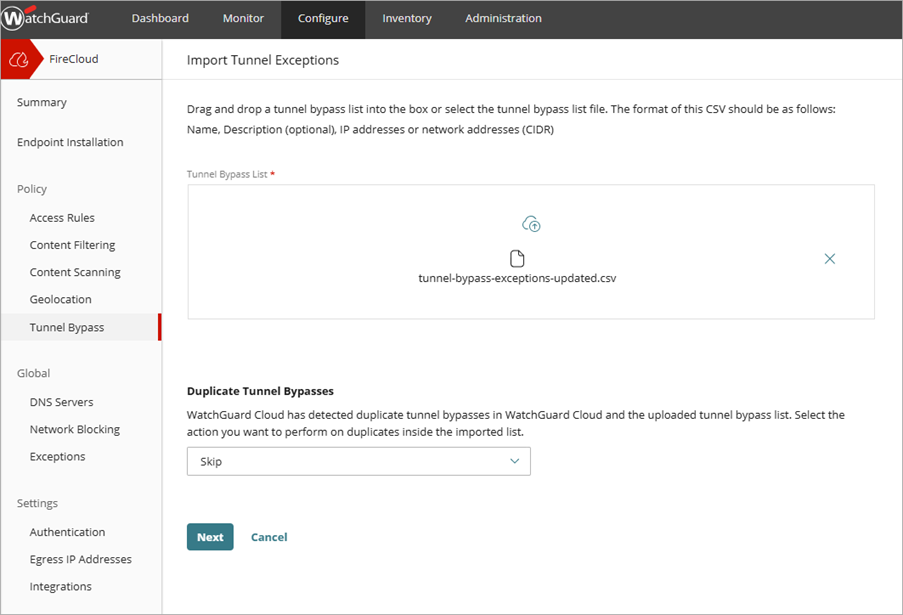
- Select or drag the .CSV file that contains your tunnel bypass list. The CSV file should include this information:
- Name
- (Optional) Description
- IP Addresses
- Network Addresses (CIDR)
- If FireCloud detects duplicate tunnel bypasses in the uploaded .CSV file, then FireCloud prompts you to select what to do:
- Skip - Select this option to keep the existing tunnel bypass in FireCloud and skip the tunnel bypass in the .CSV file.
- Replace - Select this option to replace the existing bypasses in FireCloud with the bypasses in the .CSV file.
- Click Next.
The list of tunnel bypasses detected in the CSV list opens.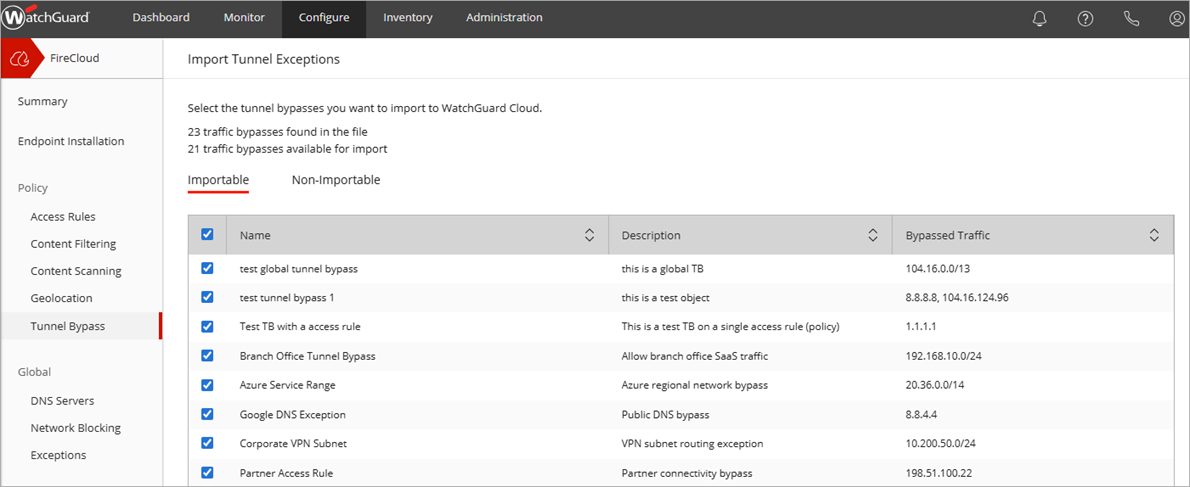
- From the Importable tab, select the tunnel bypasses you want to import.
- (Optional) To view the details of tunnel bypasses in the .CSV file that are not valid for import, select the Non-Importable tab.
- Click Next.
The option to assign access rules opens.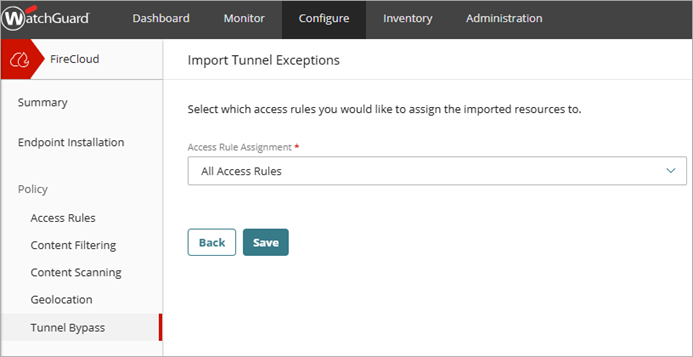
- To specify the access rules that apply to the imported tunnel bypasses, from the Access Rule Assignment drop-down list, select one of these options
- All Access Rules — Applies to all access rules. This includes new rules that you add later.
- Selected Access Rules — Applies only to the access rules you select in the Access Rules list.
- Unassigned — Does not apply to any access rules.
- Click Save.
The tunnel bypasses successfully imports to WatchGuard Cloud.
Export Tunnel Bypasses
To export a .CSV file with the details of all your configured tunnel bypasses, from WatchGuard Cloud:
- Select Configure > FireCloud.
- Select the Tunnel Bypass tile.
The Tunnel Bypass page opens. - Click
 .
.
Your browser downloads a CSV file.