Applies To: WatchGuard CloudDR
WatchGuard CloudDR provides these report functions for individual organizations:
To open the Reports page for an organization, click Settings, then select Reports.
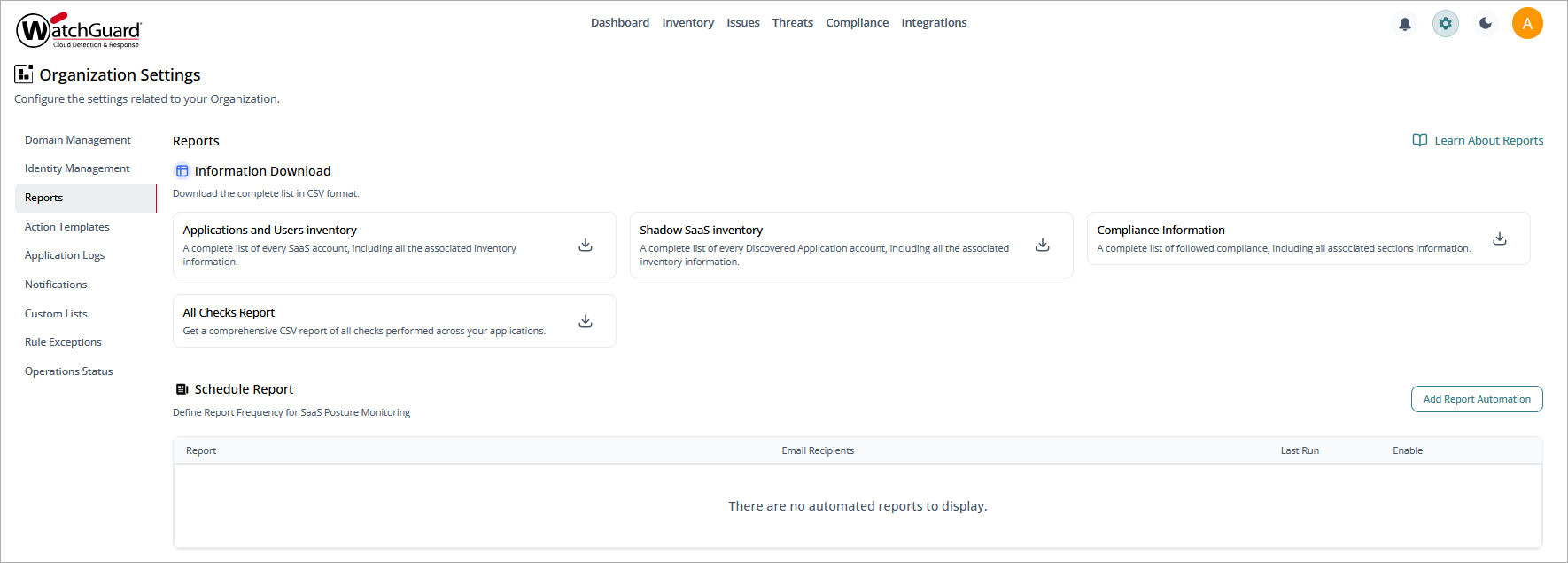
Information Download
The reports in the Information Download section offers visibility into the cloud applications and users in the ecosystem and helps with tracking, analysis, and compliance efforts.
Applications and Users Inventory
This report provides a list of all identified cloud applications along with details about their associated users. You can download this report in .CSV format.
Use this information to understand which users utilize specific cloud applications, to review user access, and to monitor software usage across the organization.
Shadow SaaS Inventory
This report focuses on shadow IT — applications used without the knowledge or approval of IT administrators. The ability to identify discovered application usage is critical for the reduction of security risks, because these applications might bypass corporate security policies or lack proper safeguards.
This report has a separate entry for each user. You can download this report in .CSV format.
Compliance Information
This report provides a complete list of the compliance frameworks you follow and the results of compliance checks. You can download this report in .CSV format.
All Checks Report
This report provides details about all the security checks run on your integrated applications. You can download this report in .CSV format.
Schedule Report in CloudDR
If you want users to receive reports by email at regular intervals for cloud posture monitoring, you can schedule these reports:
- Users and Applications Inventory
- Discovered Applications Inventory
- Single Compliance Information
- Security Overview
- Discovered Application
- Compliance Overview
To schedule reports, click Add Report Automation. Select the report template, report frequency, and recipients, then click Add Automated Report Notification.
Scheduled reports show in the list. To view the report history, click the report name or click  , then select Show More. You can preview the report or download it from the report history.
To enable or disable a report in the Report List, click the toggle.
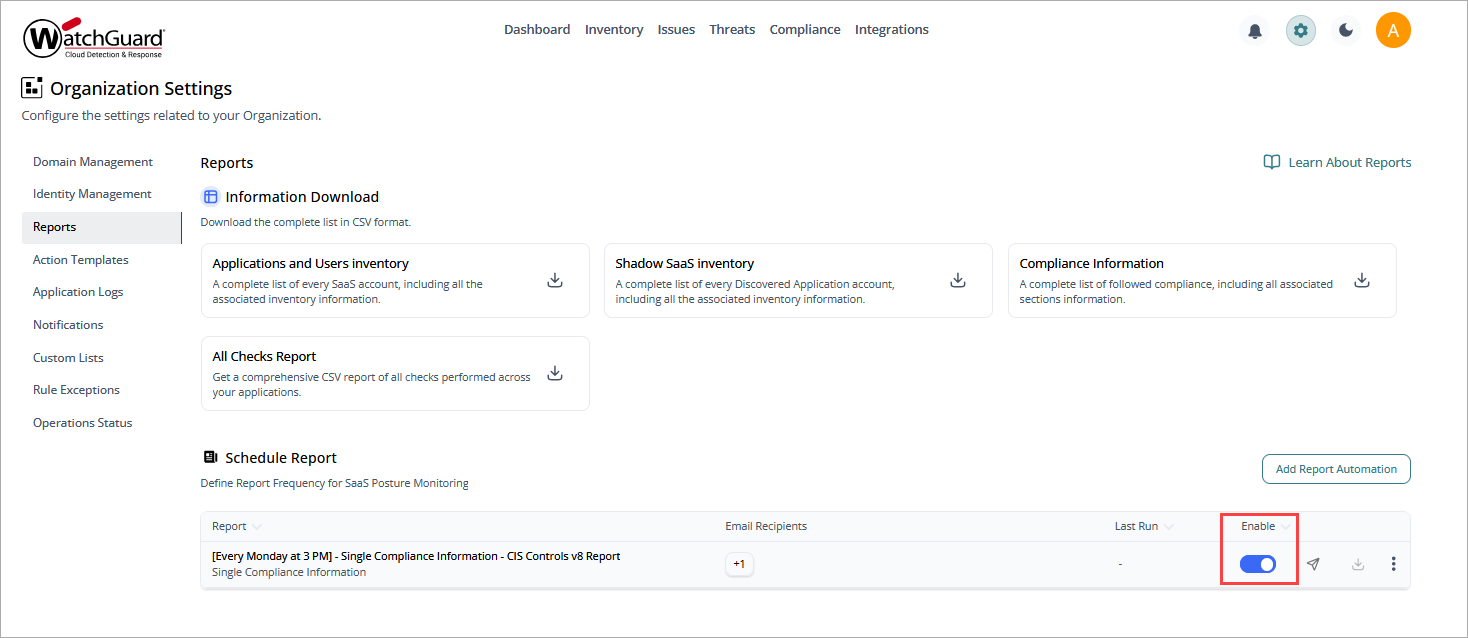
To manually send the report to all recipients, click  .
.
To download the .CSV file, click  .
.
To edit the scheduled report configuration, click , then click Edit.
To delete the report, click , then click Delete.