Applies To: WatchGuard Total MDR, WatchGuard Open MDR
To enable WatchGuard to monitor your AWS CloudTrail environment, complete the steps in this topic to set up an AWS CloudTrail connector and add the integration in the Managed Services portal. You must have a WatchGuard Total MDR or WatchGuard Open MDR license.
To connect WatchGuard MDR to your AWS CloudTrail environment, complete these steps:
- Run AWS CloudFormation Automation
- Get AWS CloudTrail Values for MDR Integration
- Add the Integration in the Managed Services Portal
Run AWS CloudFormation Automation
CloudFormation automation uses AWS CloudFormation templates to automatically provision, configure, and manage AWS resources in a repeatable and consistent manner.
To run AWS CloudFormation automation:
- Download the CloudFormation Template (external link).
- Go to the AWS Management Console at https://aws.amazon.com/ and log in with a root user for the account you want to monitor.
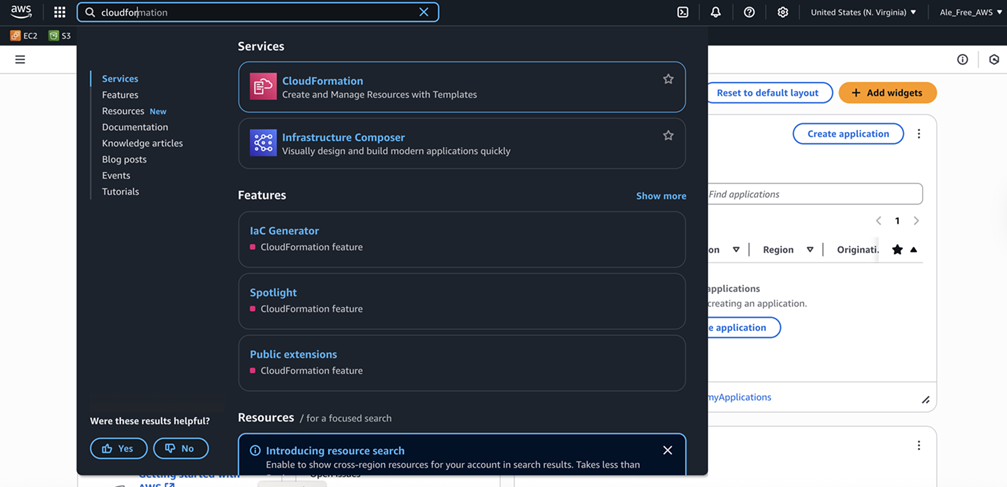
- In the search box, type and select CloudFormation.
The CloudFormation page opens.
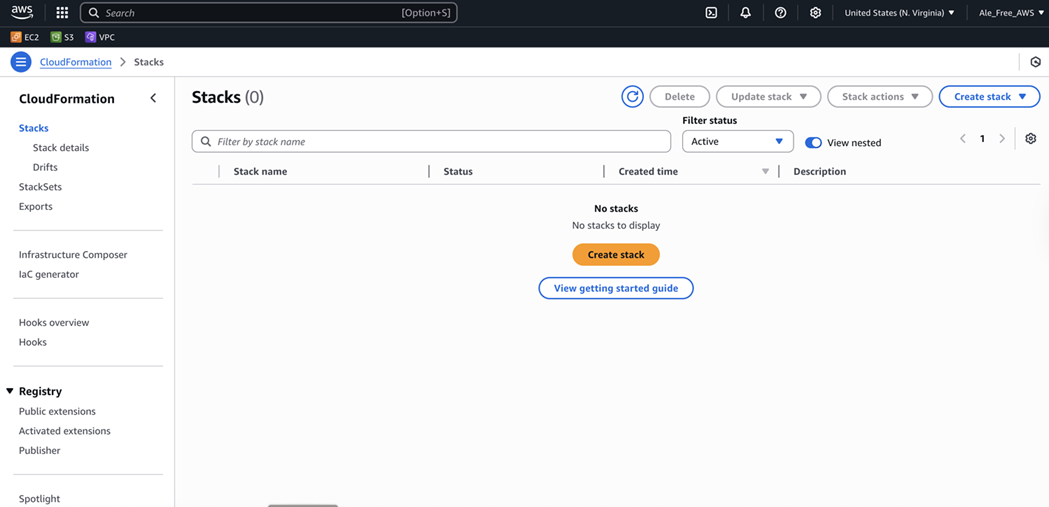
- From the Create Stack drop-down list, select With New Resources (Standard).
The Create Stack page opens.
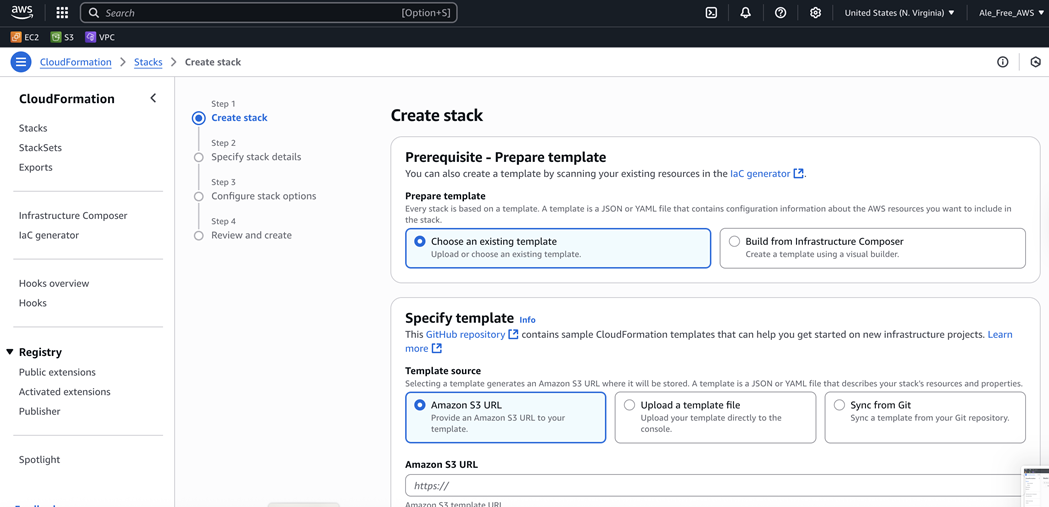
- In the Prerequisite - Prepare Template section, select Template Is Ready.
- In the Specify Template section, select Upload a Template File.
- Click Choose File.
- Select the cloudtrail-config.YML file you downloaded in Step 1.
- Click Next.
The Specify Stack Details page opens.
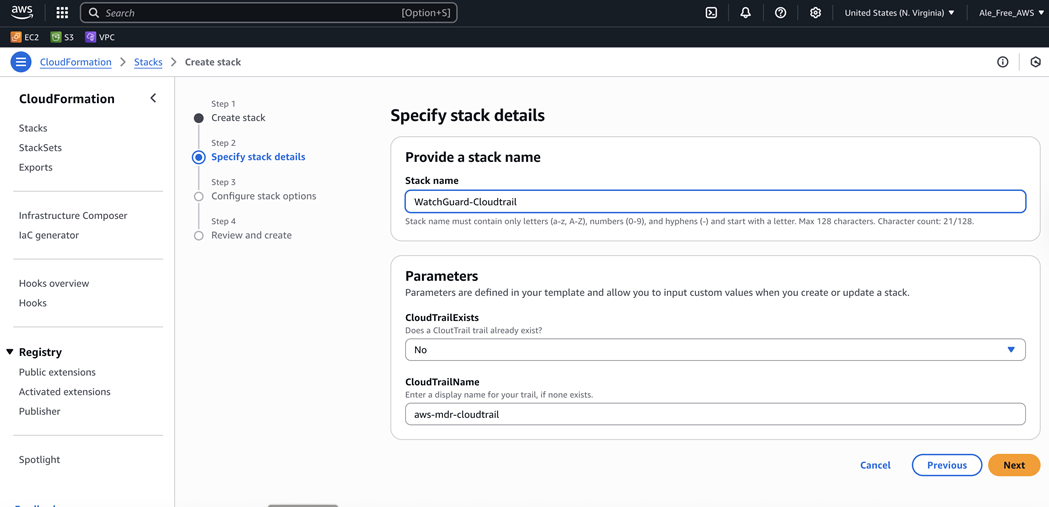
- In the Stack Name text box, type a stack name.
- To use an existing CloudTrail, from the CloudTrailExists drop-down list, select Yes. In the trail name text box, type the name of the trail.
- To create a new CloudTrail, from the CloudTrailExists drop-down list, select No. In the trail name text box, type a name for the trail.
- Click Next.
The Configure Stack Options page opens.
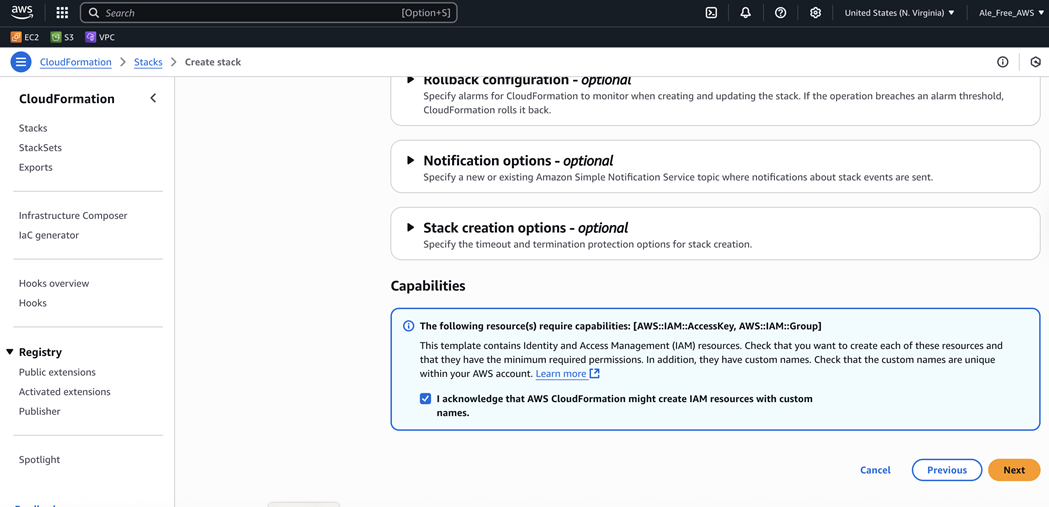
- Leave the default values for all options, then click Next.
The Review page opens.
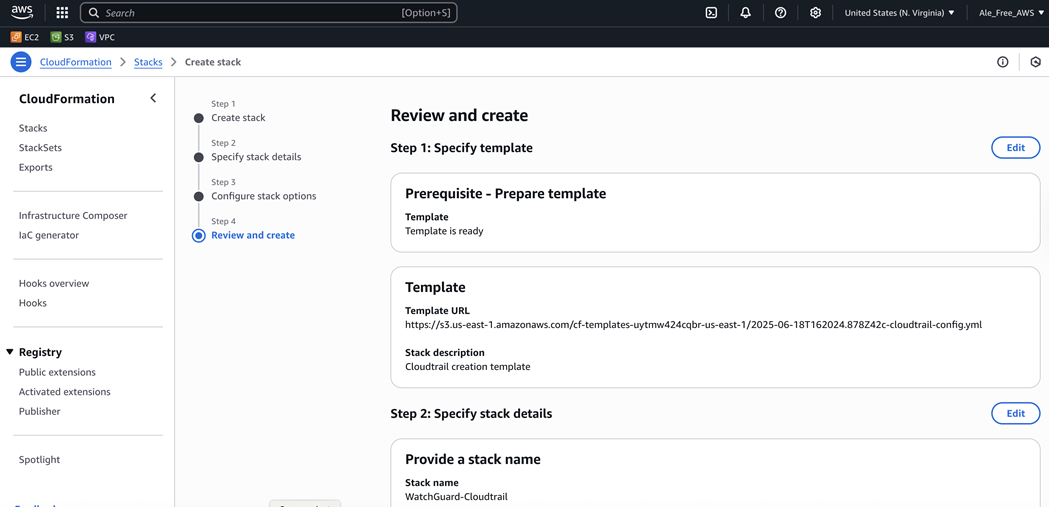
- Scroll to the Capabilities section.
- Select the I acknowledge that AWS CloudFormation might create IAM resources with custom names check box.
- Click Create Stack.
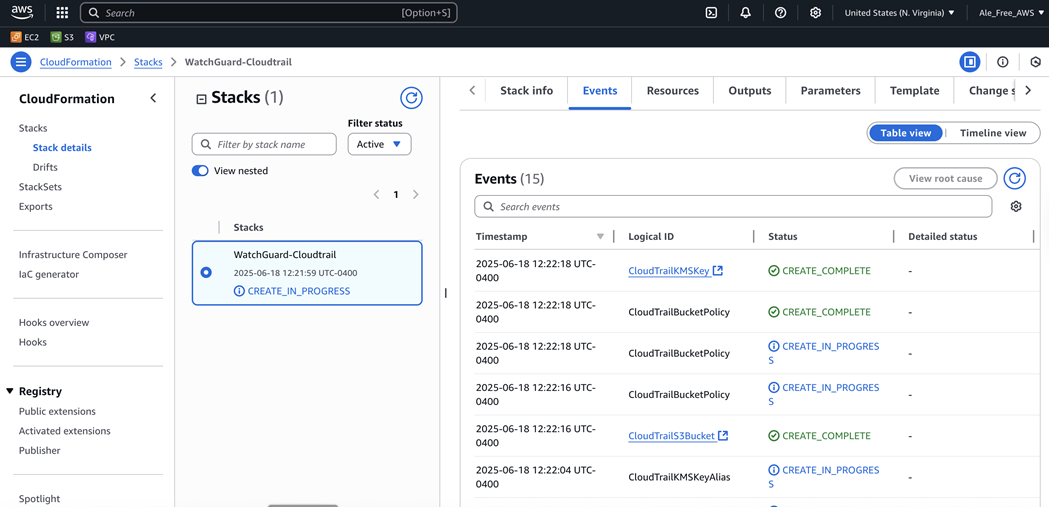
When the automation completes, a status message appears.
Get AWS CloudTrail Values for MDR Integration
To connect WatchGuard MDR to your AWS CloudTrail environment, you must get some values from AWS to add to the Managed Services portal.
To find the required AWS values from AWS CloudTrail:
- In the CloudFormation console, select the new stack you created in the Run AWS CloudFormation Automation section.
- Select the Outputs tab.
The output keys show.
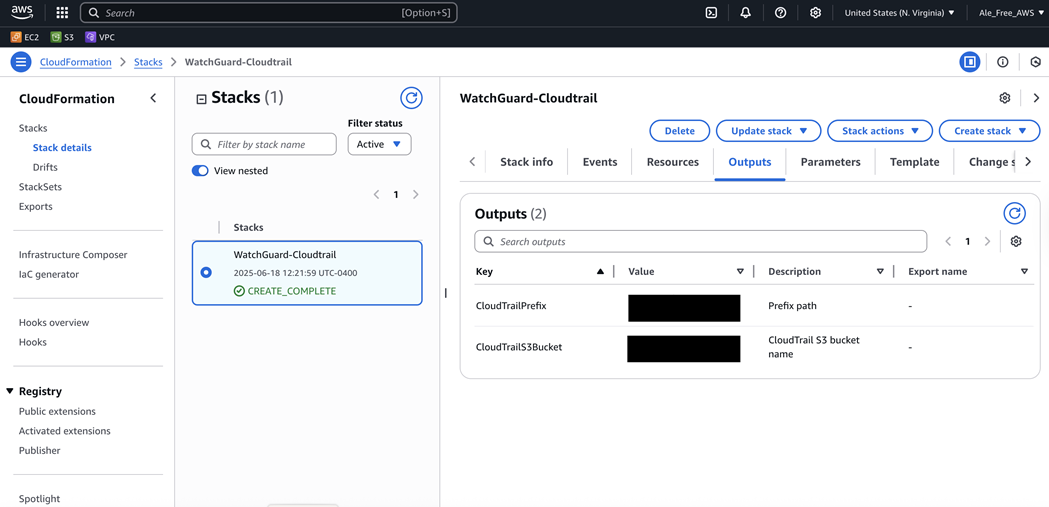
- From the Outputs tab, copy the complete CloudTrailPrefix value and save it to add to the Managed Services portal later.
The path uses this format: AWSLogs/<AWS account ID>/CloudTrail/<AWS region>. For example: AWSLogs/111122223333/CloudTrail/us-east-1. The region folder is required. If you omit it, the connector test can fail with a bad request (HTTP 400) error.
- From the Outputs tab, copy the CloudTrailS3Bucket value and save it to add to the Managed Services portal later.
- From the navigation menu, select AWS Secrets Manager > Secrets.
The Secrets page opens.
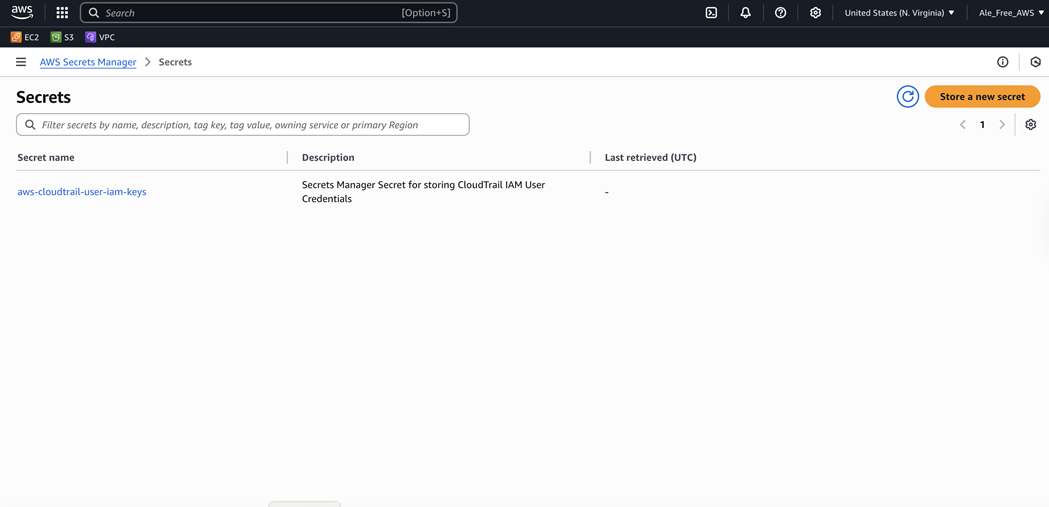
- Select aws-cloudtrail-user-iam-keys.
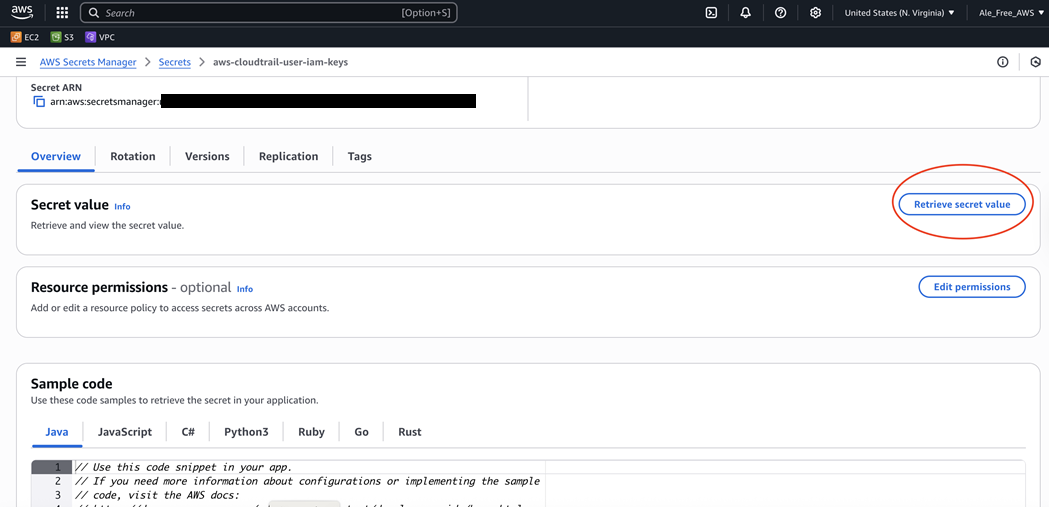
- Click Retrieve Secret Value.
- Copy these values and save them to add to the Managed Services portal later:
- AWS Account ID
- Access Key ID
- Secret Access Key
Add the Integration in the Managed Services Portal
To add the AWS integration in the Managed Services portal, use the values you copied previously from AWS CloudTrail.
To add the AWS integration, from the Managed Services portal:
- In WatchGuard Cloud, select Monitor > Managed Services.
The Managed Services portal opens in a new browser tab. - If you are a Service Provider, select your Subscriber account from the drop-down list.
- In the upper-right corner of the Managed Services portal, click
 .
. - From the drop-down list, select Onboarding.
- From the navigation menu, select Integrations.
The Integrations page opens.
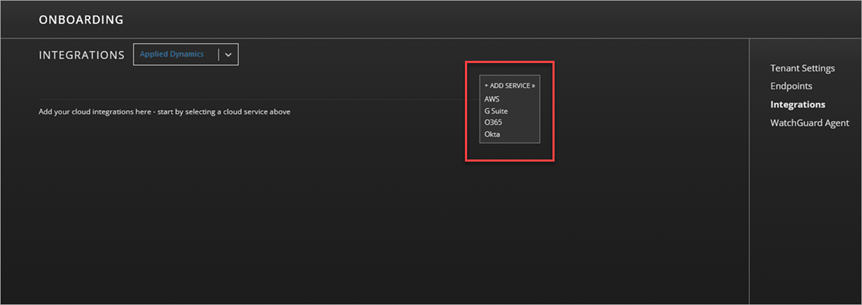
- Select Add Service > AWS.
The AWS page opens.

- Click Add Integration.
The Add AWS Integration dialog box opens.
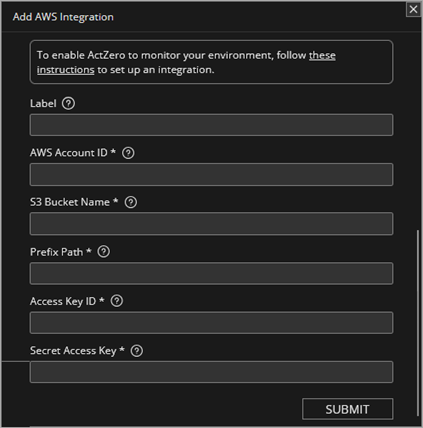
- In the Label text box, type a name for the integration.
- In the corresponding text boxes, type the values you copied from your AWS account:
- AWS Account ID
- S3 Bucket Name — CloudTrailS3Bucket from CloudFormation Outputs
- Prefix Path — complete CloudTrailPrefix value from CloudFormation Outputs, including the AWS region folder
- Access Key ID
- Secret Access Key
- Click Submit.
If the connector test fails with a message such as Bad request, please check configuration - status_code : 400, verify that the Prefix Path value includes the full path from CloudTrailPrefix, including the AWS region folder at the end of the path.
As a security best practice, we recommend that you regularly rotate the IAM credentials. For best practices and steps, go to How to Rotate Access Keys for IAM Users in the AWS documentation (external link).