Applies To: FireCloud Total Access
With FireCloud Total Access, you can configure resources to give remote FireCloud users access to networks and local resources on the network, such as a printer or an SMB share, without the use of a VPN. To do this, you install a FireCloud Gateway on your network, and then configure FireCloud resources for the hosts and networks that you want to give remote users access to.
You can configure these FireCloud resource types:
Private Resources
In FireCloud, private resources are the local resources on your company network that you want to allow remote users to connect to. You might configure a private resource for RDP, web access to a device or server, or a SQL server.
If the domain resources that users must access require Kerberos authentication, for example, when NTLM is disabled on your Active Directory domain, you must also add a Kerberos authentication resource on the FireCloud Gateway
Network Resources
In FireCloud, a network resource defines an entire internal network or subnet that FireCloud users can reach through the FireCloud Gateway.
Kerberos Authentication Resources
In FireCloud, a Kerberos authentication resource tells FireCloud which Active Directory domain to forward and which internal DNS servers to use so that clients can complete Kerberos authentication through the FireCloud tunnel. Add this resource when users require access to domain resources that require Kerberos authentication.
You can add only one Kerberos Authentication resource per account.
Use a network resource when users must connect to multiple hosts on the same network and a per-host private resource is not practical. Use a Private Resource when you must specify an FQDN, internal IP address, and traffic details for a single host or service.
You must set up a FireCloud Gateway before you can add resources. For more information, go to About FireCloud Gateways.
FireCloud Private Resource Connection Overview
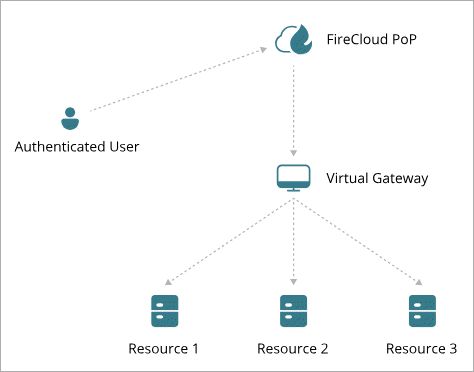
This section explains the connection flow when a FireCloud user connects to a private resource on your network or a network that you have configured as a network resource.
- User connects to FireCloud and authenticates.
- Connection Manager establishes a WireGuard tunnel to the nearest WatchGuard point of presence (PoP).
- FireCloud runs scanning services, such as Intrusion Prevention Service.
- FireCloud passes the connection out to the Internet.
- When a user must pass traffic or connect to a private resource or network resource network:
- FireCloud routes the connection from the PoP through a WireGuard tunnel that connects the PoP and the FireCloud Gateway on your network.
- FireCloud routes the connection from the FireCloud Gateway to the appropriate host or network on your network.
Configure Private Resources
In FireCloud, private resources are the local resources on your company network that you want to allow remote users to connect to. You might configure a private resource for RDP, web access to a device or server, or a SQL server.
Before you can configure private resources, you must configure and deploy a FireCloud Gateway. For detailed steps to do this, go to About FireCloud Virtual Gateways.
To add a private resource in FireCloud:
- Log in to WatchGuard Cloud.
- From the navigation menu, select Configure > FireCloud. If you have a Service Provider account, you must select an account from Account Manager.
- Select Resources.
The Resources page opens. - Click Add Resource.
The Add Resource page opens. - From the Gateway drop-down list, select the Gateway for this resource.
- From the Type drop-down list, select Private Resource.
- In the Details section:
- In the Name text box, type a name for the resource.
- In the FQDN text box, specify an FQDN that FireCloud can use to connect to this resource. FireCloud uses this FQDN to resolve connections to private resources while users are connected to FireCloud. This is typically a private FQDN, such as example.com, and does not have to be resolvable.
You cannot use FQDNs that have uppercase letters.
Do not use local FQDNs if your end-users have Mac computers. For more information, refer to the Apple documentation.
- In the IP Address text box, enter the internal IP address of the resource.
- To specify the ports and protocols used to connect to this private resource, in the Traffic section:
- From the Protocol drop-down list, select a protocol type.
- In the Port text box, enter the port or port range.
You can select from preset protocols and ports, or specify protocols with custom ports and port ranges. To specify a port range, include a dash between two ports. For example: 1000-1200.
- To add another protocol and port combination, click Add Protocol.
- Click Save.
- To allow users to connect to the new private resource, add the private resource to your existing access rules, or add new access rules for this private resource. Access rules specify which resources users have access to. For more information, go to FireCloud Access Rules.
When you configure access rules, we recommend that you only add each group to a single access rule. If a group belongs to multiple access rules, FireCloud only applies the access rule with the highest priority. This can prevent access to private resources if an access rule with private resources has a lower priority than another access rule for the same groups.
Configure Network Resources
A Network Resource defines internal networks that remote FireCloud users can reach through the FireCloud Gateway. Add a Network Resource when users must connect to hosts across a subnet, such as multiple servers on the same network segment.
Your Virtual Gateway must be version 1.5.0 or higher to support network resources.
To add a Network Resource in FireCloud:
- Log in to WatchGuard Cloud.
- From the navigation menu, select Configure > FireCloud. If you have a Service Provider account, you must select an account from Account Manager.
- Select Resources.
The Resources page opens. - Click Add Resource.
The Add Resource page opens. - From the Gateway drop-down list, select the Gateway for this resource.
- From the Type drop-down list, select Network Resource.
- In the Details section:
- In the Name text box, type a name for the resource.
- In the Networks text box, enter the internal network in CIDR format, such as 10.0.2.0/24.
- (Optional) In the Internal DNS Servers section, type the private IP address of your primary internal DNS server in the Primary DNS Server text box and, if needed, your secondary internal DNS server in the Secondary DNS Server text box.
Add internal DNS servers if you want to resolve host names for resources. If your resources resolve to IP addresses, internal DNS servers are not required.
- Click Save.
- To allow users to connect to hosts on this network, add the Network Resource to your existing access rules, or add new access rules for this resource. Access rules specify which resources users have access to. For more information, go to FireCloud Access Rules.
When you configure access rules, we recommend that you only add each group to a single access rule. If a group belongs to multiple access rules, FireCloud only applies the access rule with the highest priority. This can prevent access to private resources and Network Resource networks if an access rule with those resources has a lower priority than another access rule for the same groups.
Configure Kerberos Authentication Resource
A Kerberos Authentication resource tells FireCloud which Active Directory domain to forward and which internal DNS servers to use for DNS SRV queries. Add this resource when users require access to domain resources that require Kerberos authentication.
You can add only one Kerberos Authentication resource per account. Use private IP addresses for DNS server destinations. FireCloud does not support a public IP address as a DNS server destination.
When you add a Kerberos Authentication resource, you must also add your domain controller as a private resource on the same Gateway with the ports required for Kerberos authentication.
The Kerberos Authentication resource forwards DNS SRV queries to your internal DNS servers, but clients must still reach the Key Distribution Center through private resources on the Gateway. When clients resolve Active Directory SRV records, the DNS response can include additional server host names that clients must reach for Kerberos authentication. Add each host name as a private resource on the same Gateway. The FQDN for each private resource must match the host name in the DNS response. In many deployments, the domain controller is also the internal DNS server and Key Distribution Center, but your DNS and Key Distribution Center roles can be on different hosts. Add a private resource for each host that your environment requires.
To add a Kerberos Authentication resource in FireCloud:
- Log in to WatchGuard Cloud.
- From the navigation menu, select Configure > FireCloud. If you have a Service Provider account, you must select an account from Account Manager.
- Select Resources.
The Resources page opens. - Click Add Resource.
The Add Resource page opens. - From the Gateway drop-down list, select the Gateway that connects to your Active Directory network.
- From the Resource Type drop-down list, select Kerberos Authentication.
- In the Name text box, type a name for this resource.
- In the Domain text box, type your Active Directory domain name, such as example.com.
FireCloud treats the domain to forward as a wildcard. For example, if you enter example.com, FireCloud treats that as *.example.com.
- In the DNS Server 1 text box, type the private IP address of your primary internal DNS server, such as 10.0.1.10.
- (Optional) In the DNS Server 2 text box, type the private IP address of your secondary internal DNS server, such as 10.0.1.11.
- Click Save.
- To add your domain controller as a private resource on the same Gateway, click Add Resource.
The Add Resource page opens.- From the Gateway drop-down list, select the same Gateway where you added the Kerberos Authentication resource.
- From the Resource Type drop-down list, select Private Resource.
- In the Name text box, type a name for the domain controller resource, such as Domain controller.
- In the FQDN text box, type the FQDN of your domain The FQDN must match the host name that clients use to reach the Key Distribution Center. If you have more than one domain controller that provides DNS services, add each as a private resource on the same Gateway.
- In the IP Address text box, type the private IP address of your domain controller, such as 10.0.1.20.
- In the Traffic section, specify the protocols and ports required for Kerberos authentication. To add another protocol and port combination, click Add Protocol.
We recommend that you include these ports:- DNS — TCP and UDP port 53
- Kerberos — TCP and UDP port 88
- LDAP — TCP ports 389 and 636
- SMB — TCP port 445
- RPC — TCP port 135
- RPC Dynamic Range — TCP ports 49152-65535
- Kerberos Password Change — TCP port 464
- Global Catalog — TCP port 3268
- Click Save.
If DNS SRV queries return host names for servers other than your domain controller, add a Private Resource for each host name on the same Gateway.
- After you add your Kerberos Authentication resource and the required private resources, add these resources to your access rules so that users can connect to domain resources with Kerberos authentication. For more information, go to FireCloud Access Rules.