Applies To: WatchGuard CloudDR
When a rule identifies an issue, you can resolve the issue from CloudDR. Depending on the issue, you might be able to immediately take action or you can forward instructions to the user to resolve the issue on the endpoint.
The Deep Shadow and Email Shadow App Discovery rules are designed to identify shadow applications connected to your environment. By design, they do not collect or monitor activity data from those applications. As a result, when an application is discovered, it remains in the discovered applications inventory even if its usage stops or the associated account is removed from the external application. Any findings or issues related to the shadow application could also continue to show in the issues list.
To resolve an issue, from the issues details page:
- Select Issues > Rules.
- Select a rule you want to review.
- On the Issues page, select an issue that you want to investigate and fix.
- Review the Associated Risks and Issue Evidence.
- In the Recommended Actions section, select an action to resolve the issue.
The actions available differ for each issue category and the affected application. For example, possible actions could include: Assign to Fix Task, Auto Fix, Fix the Configuration, Quick Inquire, Ask App Owner, and Approve App. For information on the steps required, click Show Guide for an action. - If a fix is not required, click Accept Risk to create an exception for the rule. For more information, go to Accept the Risk Associated with a Rule in WatchGuard CloudDR.
- If the action includes an email message to the user or owner, select the integrated application you want to use for the action.
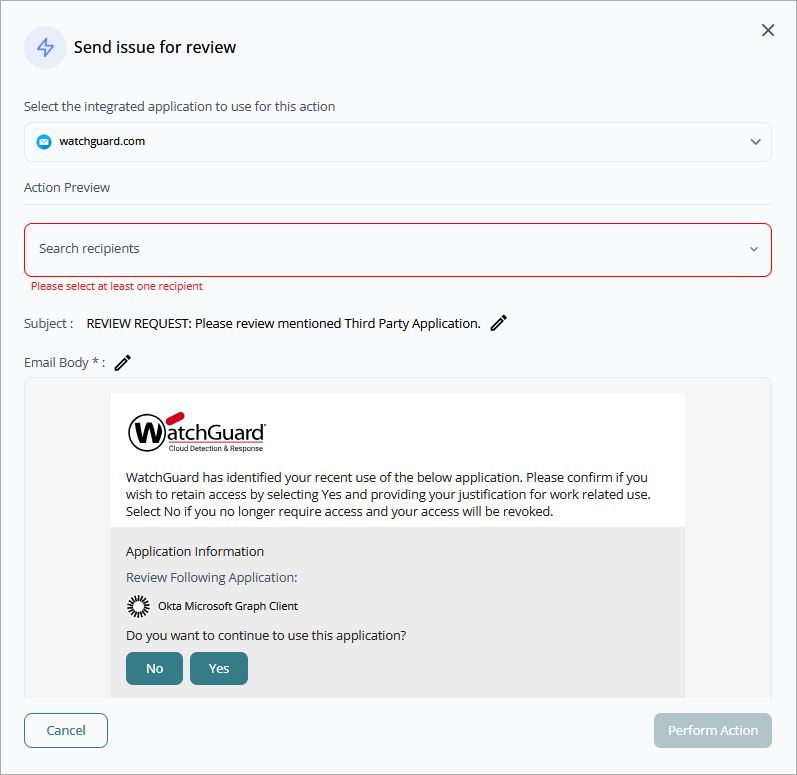
- Edit the email recipients and message body, if required.
- Click Perform Action.