Applies To: WatchGuard Cloud
Operators are users who can log in to WatchGuard Cloud to view and manage account information, configure services, and see reports.
As a Service Provider, you can create and manage operators for your managed accounts (sometimes called tenant accounts). When you create operators for your managed accounts, you can choose to let them create and manage their own operators.
For managed Subscriber accounts, you do not need to add operators if you intend to configure and manage the Subscriber account and services. However, if a managed Subscriber account wants to access their account for specific tasks, you can add an operator with appropriate permissions. Managed Service Provider accounts must have at least one operator with Owner permissions.
Only operators with the built-in Owner or Administrator role have permissions to manage operators and roles. Custom roles based on the Owner role cannot manage operators. For more information, go to Manage WatchGuard Cloud Operators and Roles.
To add an operator to a managed account:
- From Account Manager, select the managed Subscriber or Service Provider account that you want to add an operator to.
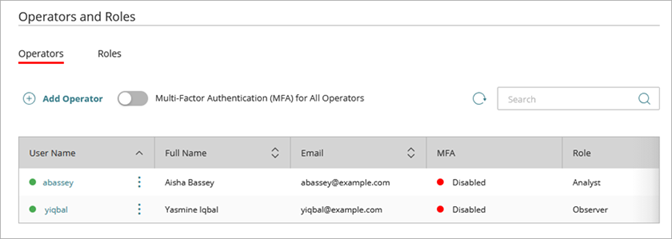
- Select Administration > Operators and Roles.
- On the Operators page, click Add Operator.
- In the User Name text box, type a user name.
- In the Email text box, type the user's email address.
The email address you enter must be unique.
- (Optional) Specify a Phone number.
- In the First Name and Last Name text boxes, type the user's first and last name.
- From the WatchGuard Cloud Role drop-down list, select an operator role to determine permissions. For information on custom operator roles, go to Manage Custom Operator Roles.
- In the Account Access section, select the account groups you want to give the operator access to. For more information, go to Manage Account Groups.
Operators are limited to the accounts in their assigned account group. - To require the operator to authenticate with the AuthPoint app, enable the Multi-Factor Authentication toggle. For more information, go to Enable MFA for WatchGuard Cloud Operators.
The Confirm Email Address dialog box opens. - Click Confirm Email.
- Click Save.
The user receives an email message with a link to set a password for WatchGuard Cloud. If you enable MFA for the operator, WatchGuard sends an additional email message to the user to activate the MFA token.
After you add an operator, if they do not log in and set the password within 1 hour, the invitation expires. To give the operator access to WatchGuard Cloud, the operator must send a request to reset their password from the WatchGuard login page.