Applies To: WatchGuard Cloud
Before you can use domain users and groups in a cloud-managed Firebox configuration or other WatchGuard Cloud service, you must add them to the WatchGuard Cloud Directory authentication domain. The user names you add to a domain must match a user configured in your authentication domain database. User names are case-sensitive.
The WatchGuard Cloud Directory is the only authentication domain that you can add local users and groups to.
When you add users to the WatchGuard Cloud Directory in Directories and Domain Services, the users are automatically added to AuthPoint as well.
To manage users for an authentication domain, from WatchGuard Cloud:
- If you are a Service Provider, select the name of the managed subscriber account.
- Select Configure > Directories and Domain Services.
The Authentication Domains page opens.
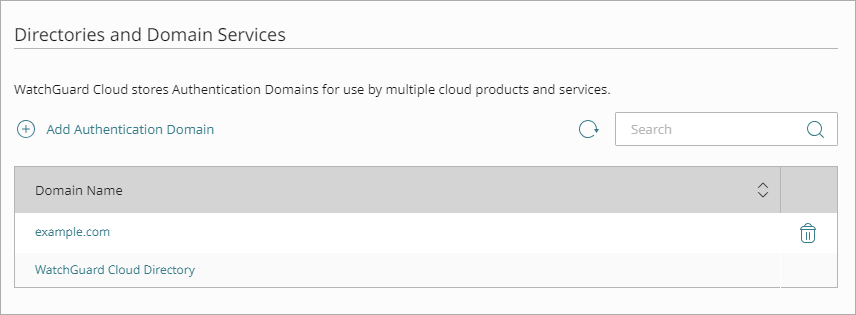
- Click the WatchGuard Cloud Directory domain name to edit.
The Update Authentication Domain page opens.
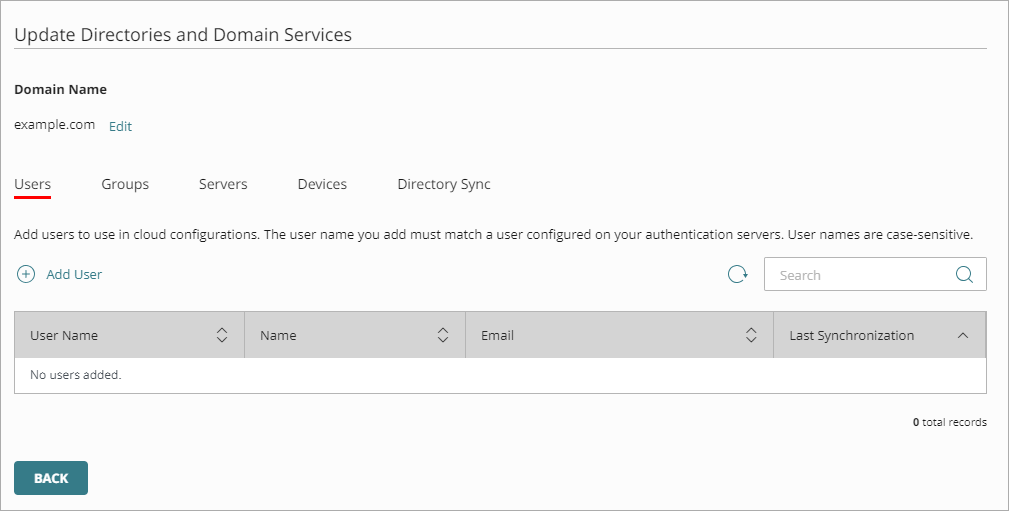
- In the Users tab, click Add User.
The Add User page appears.
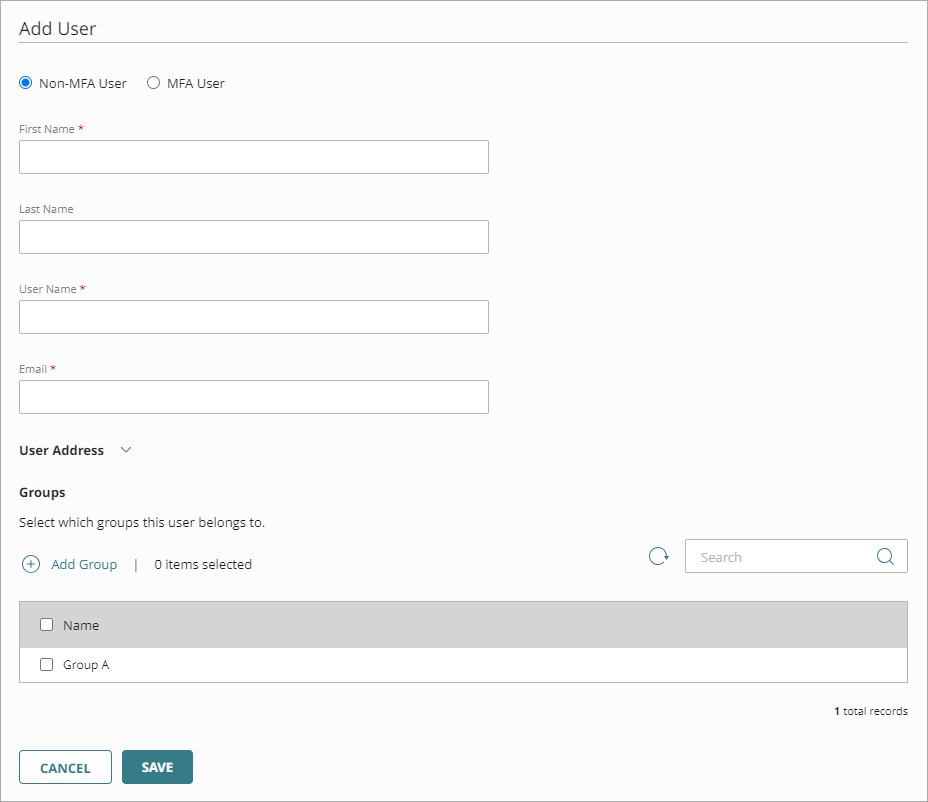
You must specify a First Name and User Name. All other information is optional.
- For AuthPoint users, select whether this is an MFA user or a non-MFA user. MFA users are user accounts that will use AuthPoint to authenticate. Non-MFA users are users that will only ever authenticate with a password, such as a service account user. Non-MFA users do not consume an AuthPoint user license and cannot authenticate to resources that require MFA.
If you do not want AuthPoint to create a mobile token for this user account or send an email to the user to activate their mobile token, clear the Automatically assign a mobile token to the user and Automatically send the activation email for the user check boxes.
- Enter the user information. You must specify a First Name, User Name, and Email. All other information is optional.
- In the First Name text box, type the first name of the user.
- In the Last Name text box, type the last name of the user.
- In the User Name text box, type the user name.
- In the Email text box, type the email address of the user.
- If the authentication domain has groups, select the groups this user is a member of. AuthPoint users must belong to at least one group. To add a new group, click Add Group.
- Click Save.
To add multiple users and groups to the WatchGuard Cloud Directory from a .CSV file:
- If you are a Service Provider, select the name of the managed subscriber account.
- Select Configure > Directories and Domain Services.
The Authentication Domains page opens.
- Select the WatchGuard Cloud Directory.
The Update Authentication Domain page opens. - In the Users tab, click the CSV icon.
- In the Import CSV section, drag and drop the CSV file with your users and groups. Or, click Select a file to import and select your .CSV file. If necessary, you can download an example CSV file to use as a template.
The import supports up to 500 items per file. If you have more than 500 users, you must use multiple files each with up to 500 items.
Your .CSV file should have these column headers and information:
group_name
To create a new WachGuard Cloud-hosted group, enter a group name.
group_description (optional)
Enter a description for the new group.
user_name
Enter a user name for the user.
first_name
Enter the first name of the user.
last_name (optional)
Enter the last name of the user.
email
Enter the email address of the user.
groups
Enter the names of each group the user belongs to. Separate each group name with the | character.
is_mfa_user
This value determines whether this is an MFA user or a non-MFA user. MFA users are user accounts that will use AuthPoint to authenticate. Non-MFA users are users that will only ever authenticate with a password, such as a service account user. Non-MFA users do not consume an AuthPoint user license.
For MFA user accounts, enter TRUE.
For non-MFA user accounts, enter FALSE.
is_mobile_token
For MFA users, this value determines whether AuthPoint creates a mobile token for the user.
To create a mobile token for the user, enter TRUE .
If you do not want AuthPoint to create a mobile token for the user, enter FALSE.
is_activation_email
For MFA users that are assigned a mobile token, this value determines whether AuthPoint sends the user an email message to activate their mobile token.
To send the token activation email to the user, enter TRUE.
If you do not want AuthPoint to send the token activation email to the user, enter FALSE.
address (optional)
Enter the street address for the user.
city (optional)
Enter the city for the user.
state (optional)
Enter the state or province for the user.
zipcode (optional)
Enter the zip code for the user.
country (optional)
Enter the country for the user.
mobile (optional)
Enter the mobile phone number for the user.
additional_info (optional)
Enter any notes or other information about the user.
- Click Save.
After the upload is complete, WatchGuard Cloud creates a user account for each entry in your uploaded .CSV file. If a user group specified in your .CSV does not exist in the WatchGuard Cloud Directory, WatchGuard Cloud creates a new group with the specified name.