Applies To: WatchGuard Cloud
The geofence condition enables you to specify a list of countries, and then configure authentication policies that only apply when users authenticate from those countries. You might do this if you want to enforce different MFA requirements for different locations, or if you want to block authentication from specific countries.
Use Case
To enforce stricter MFA requirements when users log in from Canada, you create a geofence for Canada and add it to a new zero trust authentication policy that requires push and password authentication.
When you add a geofence to an authentication policy, the policy only applies to user authentications that come from a country specified in the geofence condition. Users who only have a policy to allow access that includes a geofence cannot get access to the resource when they authenticate outside of the specified countries (because they do not have a policy that applies, not because authentication is denied).
To support authentication to AuthPoint resources with the geofence condition, you must install these versions of the AuthPoint agents:
- AuthPoint agent for Windows v2.7.1 or higher
- AuthPoint agent for RD Web v1.4.2 or higher
- AuthPoint agent for ADFS v1.2.0 or higher
RDWeb and ADFS have additional requirements to support authentications with location data. For more information, see the Geofence for RD Web and Geofence for ADFS sections.
These resources do not support geofence:
- AuthPoint agent for macOS
- RADIUS
For RADIUS authentication, policies that include a geofence condition do not apply because AuthPoint cannot determine the IP address of the end user or the origin IP address.
Location Data for Geofence Policy Objects
When a user authenticates, location data identifies the area that the user is authenticating from. When you configure a geofence condition, you can choose to allow location data with low accuracy. User locations identified from low accuracy data have a larger radius. For example, high accuracy location data might be accurate to within 10 meters of the actual location of the user, but low accuracy location data might only be accurate to within a kilometer of the actual location.
For browser-based authentication, when a user authenticates the browser prompts them to share their location. If the user accepts, the browser sends the geographical coordinates of the user location to AuthPoint. AuthPoint associates the coordinates with a country and uses this information to determine which policies apply to the authentication. This is high accuracy location data.
If the user does not accept the prompt to share their location, their location will be based on the IP address. AuthPoint considers location data based on IP address to be low accuracy.
These resources use browser-based location data:
- IdP portal
- SAML
- RD Web
- ADFS
AuthPoint supports location data based on the IP address for these types of authentication only:
- RDP connections
- Firebox resources
- Windows virtual machines (VMs)
The AuthPoint agent for Windows uses the Windows API to get the location of the user. If the agent is installed on a Windows VM, the location data is always based on the IP address (low accuracy).
In some cases, geolocation condition might affect authentications from private IP address ranges. This is because IP-based geolocation only works for public IP addresses. For example, if you configure a zero trust policy that only allows authentications from countries in your geolocation condition and a user authenticates from a private IP address, the user cannot authenticate if there are no other policies that apply to the authentication.
Configure a Geofence Condition
To configure a geofence condition:
- Log in to WatchGuard Cloud.
- Select Configure > Zero Trust.
- Select Conditions.
- Click Add Condition.
The Add Condition page appears.
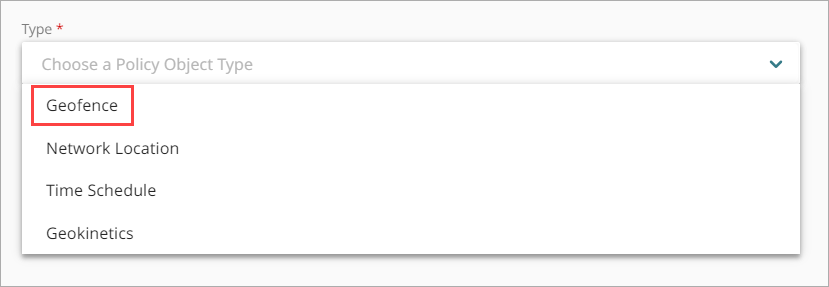
- From the Type drop-down list, select Geofence.
Additional fields appear. - In the Name text box, type a name to identify this geofence condition. This helps you identify the geofence when you add it to authentication policies.
- From the Countries list, select one or more countries to add to this geofence. You can type text to narrow the available options.
- If you want this geofence to apply to user authentications with low accuracy location data, select the Allow location data with low accuracy check box. This option increases the margin for error that AuthPoint uses to validate location data. For example, if you configure a geofence that only applies to user authentications from Canada, but you allow location data with low accuracy, AuthPoint might accept an authentication from a user just beyond the border in the United States.
Location data with low accuracy is required for RDP connections, Firebox resources, Windows virtual machines (VMs), and authentications with location data based on IP address.
Location data with low accuracy is required for FireCloud. If you configure AuthPoint as an identity provider for FireCloud, you must select this option.
- Click Save
- Add this geofence to the zero trust policies that you want it to apply to.
We recommend that you create a second policy for the same groups and resources without the geofence condtion, to apply to users when they are outside the countries in the geofence. Make sure the policy with the geofence has a higher priority than the policy without the geofence. For more information, see About Zero Trust Policy Precedence.
Geofence for ADFS
The AuthPoint agent for ADFS only supports geofence conditions if you use the custom WG ADFS theme. You cannot use the default ADFS theme.

$('document').ready(function () {
document.cookie = 'WatchGuardGeolocation=;Max-Age=0';
if (navigator.geolocation) {
var options = { enableHighAccuracy : true };
navigator.geolocation.watchPosition(function(position) {
var geolocation = { latitude: position.coords.latitude, longitude: position.coords.longitude, accuracy: position.coords.accuracy };
var geolocationJson = JSON.stringify(geolocation);
var geolocationEncoded = encodeURIComponent(geolocationJson);
document.cookie = 'WatchGuardGeolocation=' + geolocationEncoded + ';secure;';
}, function(error) { }, options);
}
}
Geofence for RD Web
To support the geofence condition for RD Web, you must edit the webscripts-domain.js file on your RD Web Access server and configure the client to save the user location as a cookie on the RD Web server. This enables RD Web to send the user’s coordinates to AuthPoint when the user authenticates.
This is also required to support geokinetics for RD Web. If you have already completed these steps to support the geokinetics condition , you do not need to do them again for geofence.
- Log in to your RD Web Access server.
- Open Windows File Explorer and navigate to C:\Windows\Web\RDWeb\Pages.
- Open the webscripts-domain.js file in a text editor.
- At the end of the onLoginPageLoad function, add this script to get the coordinates from the browser and save them to cookies:
document.cookie = 'WatchGuardGeolocation=;max-age=0';
if (navigator.geolocation) {
var options = { enableHighAccuracy : true };
navigator.geolocation.watchPosition(function(position) {
var geolocation = { latitude: position.coords.latitude, longitude: position.coords.longitude, accuracy: position.coords.accuracy };
var geolocationJson = JSON.stringify(geolocation);
var geolocationEncoded = encodeURIComponent(geolocationJson);
document.cookie = 'WatchGuardGeolocation=' + geolocationEncoded + ';secure;samesite=none;path=/';
}, function(error) { }, options);
}