Applies To: ThreatSync
This feature is only available to participants in the ThreatSync Beta program.
The Users page provides a list of incidents grouped by user, and enables Incident Responders to review and perform response actions for the incidents associated with a user.
Your operator role determines what you can view and do in WatchGuard Cloud. Your role must have the ThreatSync Core permission to view or configure this feature. For more information, go to Manage WatchGuard Cloud Operators and Roles.
To open the Users page in ThreatSync:
- Select Monitor > Threats > Users.
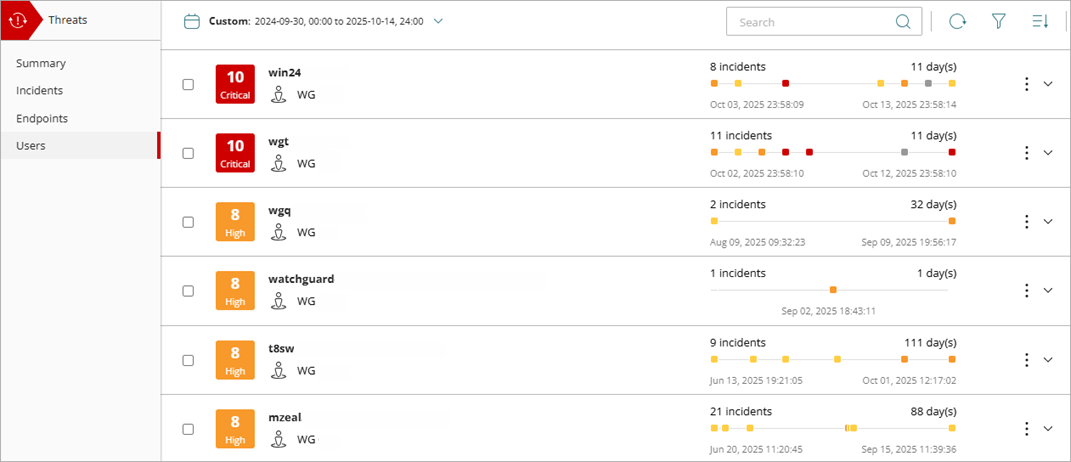
The Users page opens.
- To perform an action on a user and its related incidents from the list, click the
 icon to open the options menu, and select an available action from the drop-down list.

- To view the incidents associated with a user, select a user from the list and click the
 icon.
icon.
The list of incidents for the selected user opens.

- To view more details for an incident, click the incident to open the Incident Details page. For more information, go to Review Incident Details in ThreatSync.
You can also perform actions on incidents from the Incident Details page. For more information, go to Perform Actions in ThreatSync.
Review User Details in ThreatSync
By default, the Users page lists users according to their risk level in descending order. You can manually sort the list alphabetically, by date, or by risk level. You can filter the list by incident type, action performed, user risk score, or incident risk score.
Each user in the list includes the user risk score and level, user name, a timeline of incidents related to the user, an options menu with available actions, and an expandable list of incidents associated with the user.
The timeline only appears when incidents were detected in the specified time frame. If no incidents were detected in the specified range, the timeline does not appear.

User Risk Scores and Levels in ThreatSync
Incident Responders can use user risk scores to investigate whether a user poses a threat to the network. Risk scores appear as a numerical value in a square icon next to the user in the users list.

ThreatSync determines the risk score for a user based on the risk scores for open incidents associated with that user. The score is the same as the value of the highest detected open incident risk score. For example, if a user has two open incidents, one with an incident risk score of 8 and the another with a risk score of 5, the user risk score is 8.
ThreatSync uses only new and read incidents to determine user risk scores, not closed incidents. When a new incident occurs or an incident is closed, ThreatSync recalculates the user risk score. After the detection of a new incident, recalculated user risk scores can take several seconds to appear in the ThreatSync UI.
ThreatSync determines the risk level for a user based on its risk score. ThreatSync categorizes user risk scores into these risk levels:
| Risk Level | Risk Score | Description |
|---|---|---|
| Critical | 9,10 | Users with critical risk scores require immediate attention and investigation. |
| High | 7, 8 | We strongly recommend you investigate users with high risk scores. |
| Medium | 4, 5, 6 | We recommend you investigate users with medium risk scores. |
| Low | 1, 2, 3 | We recommend you investigate users with low risk scores if you have the time and resources available. |
User Incident Timeline in ThreatSync
The user timeline shows the sequence of detected incidents for a specified time period.

Color-coded squares on the timeline indicate days in the selected time range when incidents were detected. The color of the square corresponds to the risk level of the highest-risk incident from that day.
- Red — Critical
- Orange — High
- Yellow — Medium
- Gray — Low
To view details of the incidents that occurred on a specific day, hover over a square in the timeline.

The details for the selected day can include:
- Incident number and types — The number and types of incidents detected
- First Seen — The date and time an incident was first detected
- Last Seen — The date and time an incident was last detected
- Account — The account name associated with the incident