Configure Third-Party Connections to the ThreatSync Blocked Items List
Applies To: ThreatSync Open
This feature is only available with a ThreatSync Open license. For more information, go to About ThreatSync Open Licenses.
You can configure ThreatSync to allow third-party firewalls to connect to your ThreatSync Blocked Items list and use it as an integrated threat feed. To use the ThreatSync Blocked Items list as a threat feed on your third-party firewall, you must complete these steps:
- Allow Third-Party Connections to the ThreatSync Blocked Items List
- Connect your Third-Party Firewall to the List
Allow Third-Party Connections to the ThreatSync Blocked Items List
To allow third-party firewalls to connect to the ThreatSync Blocked Items list:
- Log in to your WatchGuard Cloud account. For Service Provider accounts, from Account Manager, select My Account.
- Select Configure > ThreatSync > Blocked Items.
The Items Blocked by ThreatSync page opens. - Select the Configure Third-Party Connections tab.
The Configure Third-Party Connections tab only appears when you have a valid ThreatSync Open license.
- Enable the Allow third-party connections to the ThreatSync Blocked Items list toggle.
The Create Password for Third-Party Connections dialog box opens.
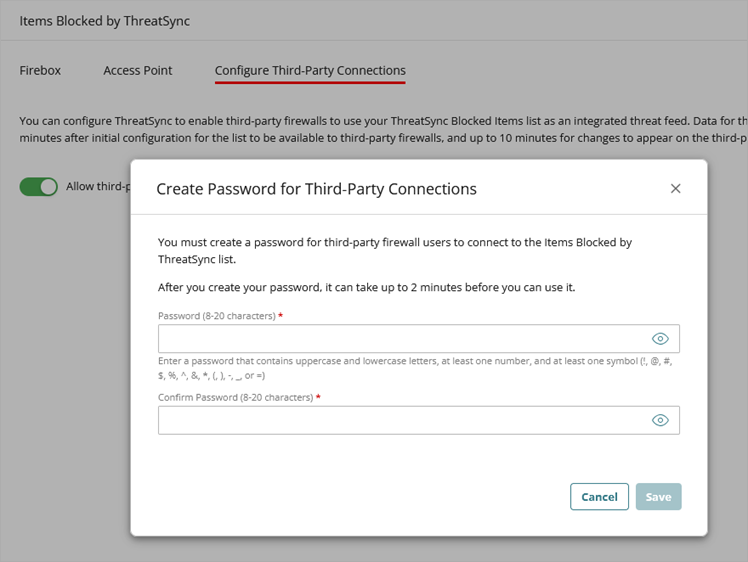
- In the Password text box, enter the password you want to use for third-party firewalls to connect to the ThreatSync Blocked Items list.
- In the Confirm Password text box, type the password you entered in the Password text box.
- Click Save.
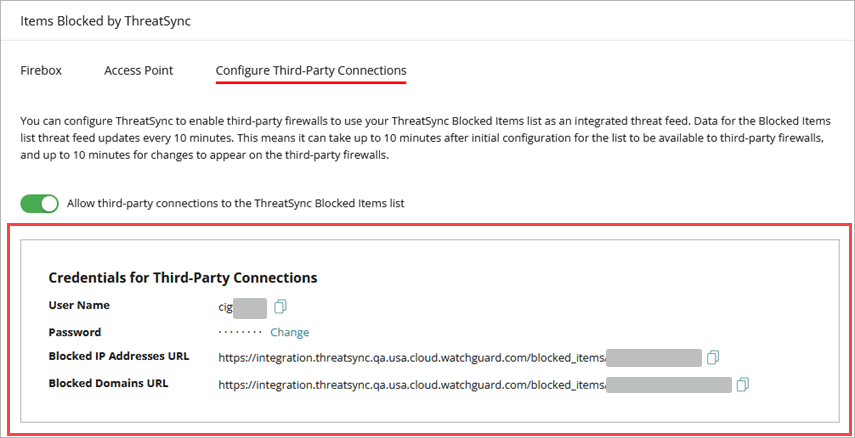
The Credentials for Third-Party Connections box appears.
Connect your Third-Party Firewall to the List
Log in to your third-party firewall management UI and use the credentials you generated to connect your firewall to the Items Blocked by ThreatSync list.
For information on how to connect the Fortinet FortiGate firewall to the ThreatSync Blocked Items list, go to ThreatSync Blocked Items List with Fortinet FortiGate Firewall Integration Guide.
Data for the Blocked Items list is fetched every 10 minutes. It can take up to 10 minutes for the initial list to populate after configuration, and up to 10 minutes for changes to the list to appear on the third-party firewall.