Applies To: Cloud-managed Fireboxes

This document applies to Fireboxes you manage in WatchGuard Cloud. For information that applies to Fireboxes managed in Fireware Web UI or WatchGuard System Manager, go to: Define Firebox Global Settings.
Overview
On the Settings > Networking page, you can configure Internet Control Message Protocol (ICMP) error handling and Transmission Control Protocol (TCP) settings for a cloud-managed Firebox.
ICMP error handling settings determine which ICMP messages the Firebox sends when connection errors occur. TCP settings control connection verification, idle timeouts, maximum segment size (MSS) adjustment, and the path maximum transmission unit (MTU) discovery method.
You can configure these settings in an individual Firebox configuration or in a Firebox template. If a Firebox subscribes to a template with ICMP and TCP settings configured, a lock icon shows next to those settings in the Firebox configuration, and you cannot change them for that device. To view the name of the template where the settings are configured, point to the lock icon. For more information about Firebox templates, go to About Firebox Templates.
ICMP Error Handling Settings
ICMP error handling settings control errors in connections. You can use them to probe a network to discover general characteristics about the network or to inform hosts about error conditions.
The Firebox sends an ICMP error message whenever an event occurs that matches one of the parameters you select. These messages can help you troubleshoot network issues, but they can also reduce security because they expose information about your network. If you deny ICMP messages, it can help prevent network probes and increase security, but denied messages can cause connection timeouts and application issues.
You can configure these ICMP error handling settings on a cloud-managed Firebox. By default, all ICMP error handling settings are enabled.
Fragmentation Needed (PMTU)
Select this check box to allow ICMP Fragmentation Needed messages. The Firebox uses these messages to find the MTU path.
Time Exceeded
Select this check box to allow ICMP Time Exceeded messages. A router usually sends these messages when a route loop occurs.
Network Unreachable
Select this check box to allow ICMP Network Unreachable messages. A router usually sends these messages when a network link is broken.
Host Unreachable
Select this check box to allow ICMP Host Unreachable messages. Your network usually sends these messages when it cannot reach a host or service.
Port Unreachable
Select this check box to allow ICMP Port Unreachable messages. A host or firewall usually sends these messages when a network service is not available or if the traffic is rejected.
Protocol Unreachable
Select this check box to allow ICMP Protocol Unreachable messages. A host usually sends these messages when it does not support the protocol in a received packet.
TCP Settings
TCP settings control how the Firebox manages TCP connections. The Firebox uses these settings to validate connections, close idle sessions, negotiate segment size, and discover the path MTU. To help maintain network stability and performance, configure these settings to align with your network topology and connection types.
You can configure these TCP settings on a cloud-managed Firebox:
Enable TCP SYN Packet and Connection State Verification
Select this check box to enable the Firebox to verify that the first packet sent through a connection is a SYN packet, without RST, ACK, or FIN flags.
If you clear this check box, the Firebox allows a connection even if the first packet sent through the connection includes RST, ACK, or FIN flags.
If you experience stability issues with some connections (for example, connections over a VPN tunnel), you can clear this check box.
TCP Connection Idle Timeout
This value is the amount of time that a TCP connection can be idle before the Firebox closes it. The default value is 3600 seconds (1 hour). Valid values are from 0 through 2,592,000 seconds.
TCP Maximum Segment Size Control
You can specify a TCP segment size for a connection that must have more TCP/IP layer 3 overhead (for example, PPPoE, ESP, or AH). If this size is not correctly configured, users cannot get access to some websites.
The TCP MSS control options are:
- Auto Adjustment — The Firebox examines all MSS negotiations and adjusts the MSS value automatically.
- No Adjustment — The Firebox does not change the MSS value.
- Limit to — The Firebox restricts the MSS value to the segment size you specify. Valid values are from 40 through 1,460 bytes.
Path MTU Discovery Method
Path maximum transmission unit (PMTU) discovery determines the maximum transmission unit (MTU) size that is appropriate for a network path between two devices. If a packet is larger than the MTU for the path, the packet becomes fragmented while in transmission, which can cause performance issues.
The Firebox can use ICMP error messages and TCP probing to discover the path MTU. The Path MTU Discovery Method options are:
- Use Only ICMP Error Messages — The Firebox adjusts the MTU based on ICMP error messages. It does not use TCP probing.
- Use TCP Probing Only When ICMP Network Issues Are Detected — This is the default setting for a cloud-managed Firebox. The Firebox uses ICMP error messages first and uses TCP probing for a connection only when ICMP feedback is missing or blocked.
- Use ICMP Error Messages and TCP Probing — The Firebox uses TCP probing for path MTU discovery on all connections. It also processes ICMP error messages when it receives them. The Firebox can automatically change the size of data packets as necessary. You might select this option in these cases:
- You have a slow PPPoE connection and require smaller packets to optimize performance.
- You want to make sure that client devices on your network can get access to the Internet through a zero-route branch office VPN (BOVPN) tunnel on this Firebox, even if the PMTU discovery process cannot complete. For example, if a remote router drops a packet but does not send an ICMP Destination Unreachable or ICMP Fragmentation Needed response to the Firebox, an ICMP black hole occurs and the PMTU process cannot complete. When TCP probing is enabled for all connections, an ICMP black hole does not affect traffic through the zero-route BOVPN.
Your operator role determines what you can see and do in WatchGuard Cloud. Your role must have the Devices permission to view or configure this feature. For more information, go to Manage WatchGuard Cloud Operators and Roles.
Configure Networking Settings
To configure ICMP and TCP settings for a cloud-managed Firebox, from WatchGuard Cloud:
- Select Configure > Devices.
- Select a cloud-managed Firebox.
- Select Device Configuration.
- Click the Settings widget.
The Settings page opens.
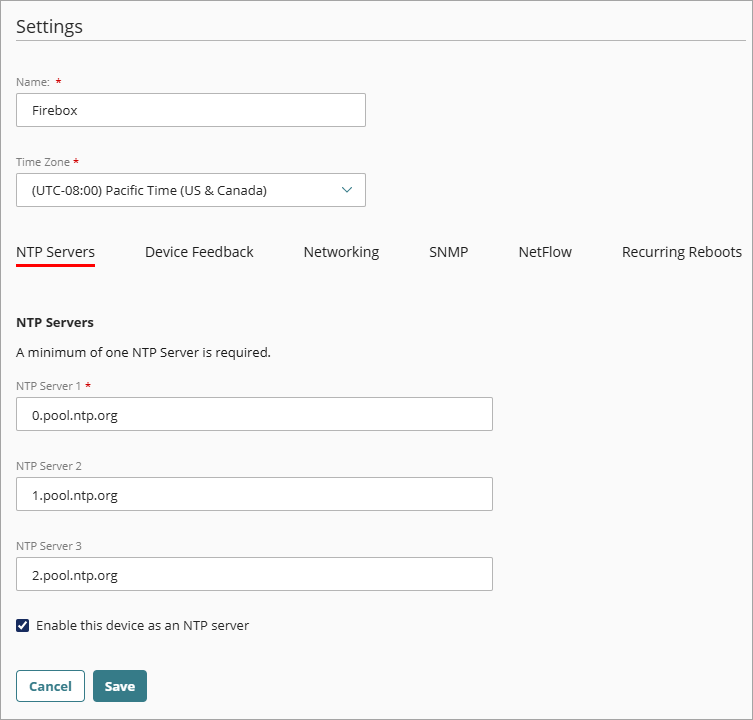
- Select the Networking tab.
The Networking settings page opens.
- In the ICMP Error Handling section, select the check boxes for the ICMP error messages you want the Firebox to send. To select or clear all options, click Select All or Clear All.
- In the TCP Settings section, configure the TCP settings for your network:
- To verify TCP SYN packets and connection state, select the Enable TCP SYN Packet and Connection State Verification check box.
- In the TCP Connection Idle Timeout text box, type the idle timeout in seconds.
- For TCP Maximum Segment Size Control, select Auto Adjustment, No Adjustment, or Limit to. If you select Limit to, in the Segment Size text box, type the MSS in bytes.
- Select a Path MTU Discovery Method.
- To save the configuration updates, click Save.
Configure System Settings for a Cloud-Managed Firebox