Applies To: Cloud-managed Fireboxes

This document applies to Fireboxes you manage in WatchGuard Cloud. For information that applies to Fireboxes managed in Fireware Web UI or WatchGuard System Manager, go to: Enable NTP and Configure NTP Servers.
Overview
Network Time Protocol (NTP) synchronizes computer clock times across a network. Your Firebox can use NTP to automatically get the correct time from NTP servers on the Internet to set the system clock. Because the Firebox uses the time from its system clock for each log message it generates, it is important that the time on your device is set correctly. Your device can use a maximum of three NTP servers. You can use the three default NTP servers, or you can remove these and specify different NTP servers, but you must have at least one NTP server.
You can optionally enable your Firebox as an NTP server. When you enable the Firebox as an NTP server, client devices on your private networks can contact the Firebox to synchronize the time. When you enable the Firebox as an NTP server, the NTP Server policy is automatically created, if an NTP policy does not already exist. This policy allows NTP traffic from client devices on internal networks to the Firebox.
For client devices to use your Firebox as an NTP server, you must configure them to get the time from the Firebox. On Windows and macOS, you configure this in the date and time settings. In the date and time settings, configure the client devices to get the date and time from the IP address of an internal network on your Firebox, or from a domain name that resolves to the IP address of the internal network.
Your operator role determines what you can see and do in WatchGuard Cloud. Your role must have the Devices permission to view or configure this feature. For more information, go to Manage WatchGuard Cloud Operators and Roles.
Configure NTP Server Settings
To configure the NTP Server settings for a cloud-managed Firebox:
- In WatchGuard Cloud, select Configure > Devices.
- Select a cloud-managed Firebox.
- Click Device Configuration.
- Click the Device Settings widget.
The Device Settings page opens.
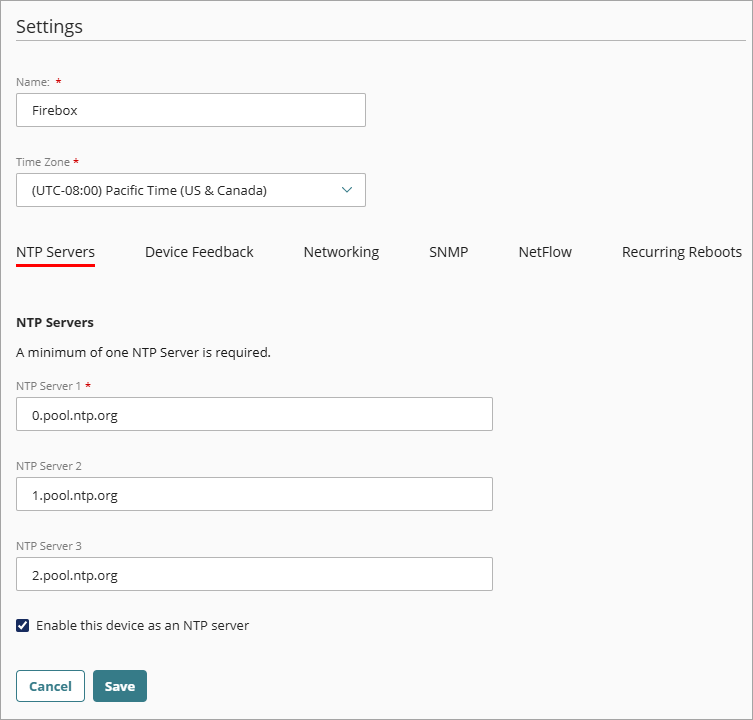
- Select the NTP Servers tab.
The NTP Servers settings page opens. - If you want to change NTP servers, remove one or more of the default servers and enter the addresses of the NTP servers you want to use.
- If you want to use this Firebox as an NTP server for your private network, select the Enable This Device as an NTP Server check box.
WatchGuard Cloud automatically creates the NTP Server policy, if an NTP policy does not already exist.If you want client devices on your private network to use the Firebox as an NTP server, you must also configure the client devices to get the time from the Firebox.
- To save configuration updates to the cloud, click Save.